[Example 2] Flow in a 360 degree circle channel
Create Computational Grid
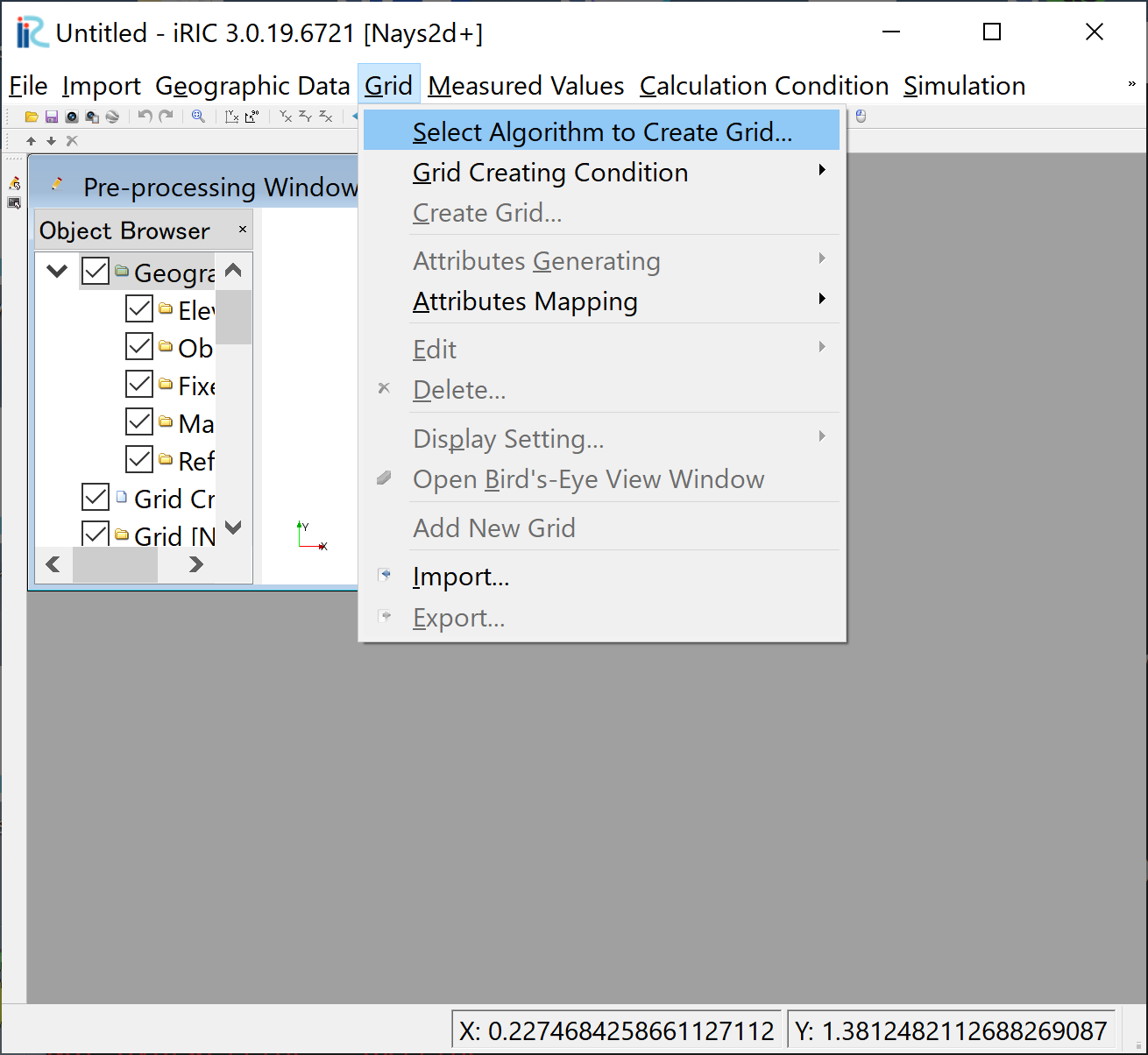
Figure 33 : Select Algorithm
From the main menu, select [Grid], [Select Algorithm to Create Grid] ( Figure 33 ) Then the [Select Grid Creating Algorithm] window, Figure 34 appears. Select [2d arc generator] and click [OK]
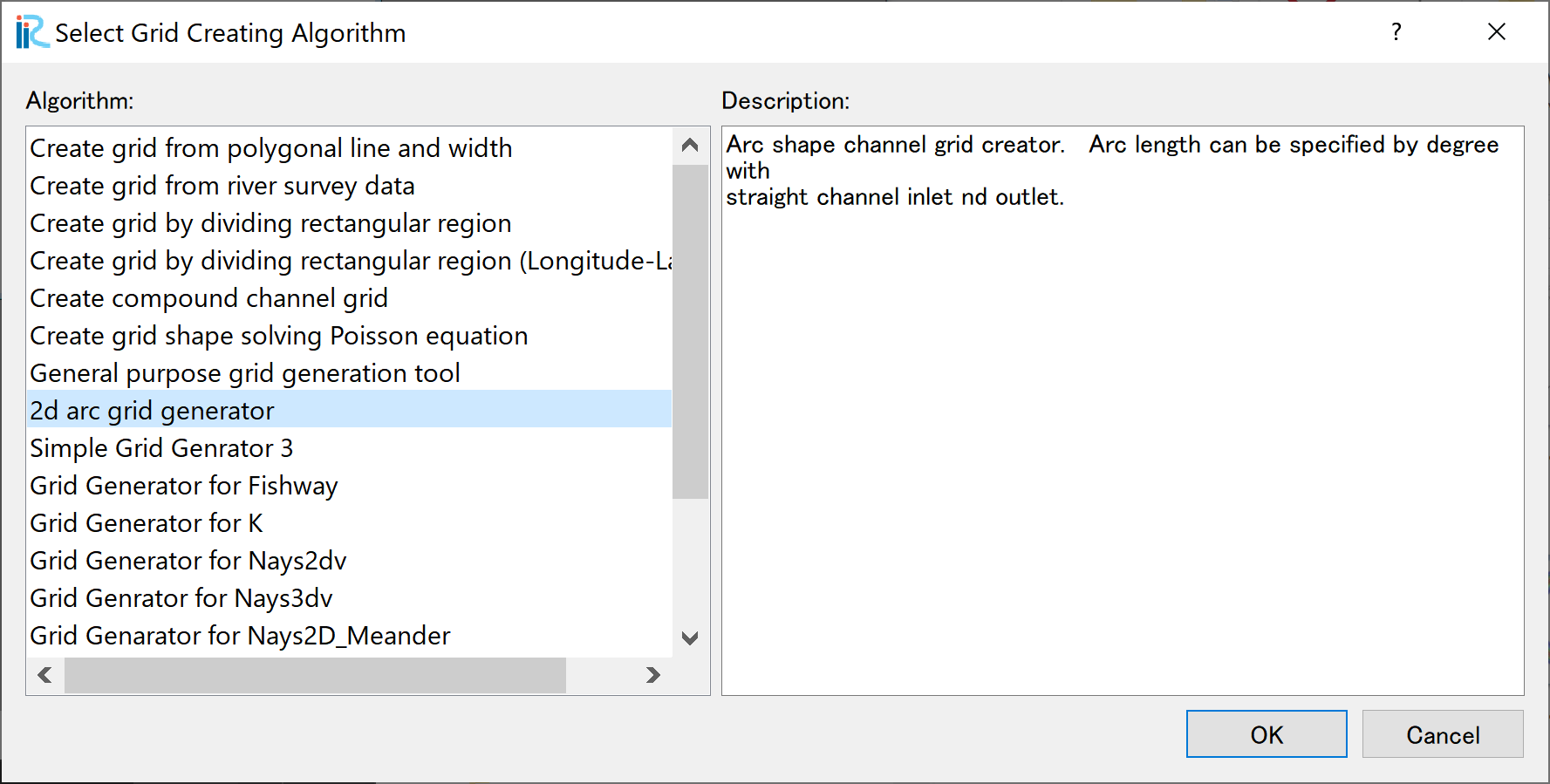
Figure 34 :Select Grid Creating Algorithm
Set values as shown in Figure 35 , and click [OK]. Click [Yes] when you asked “Do you want to map data?” as Figure 36 . Then the computational grid appears.
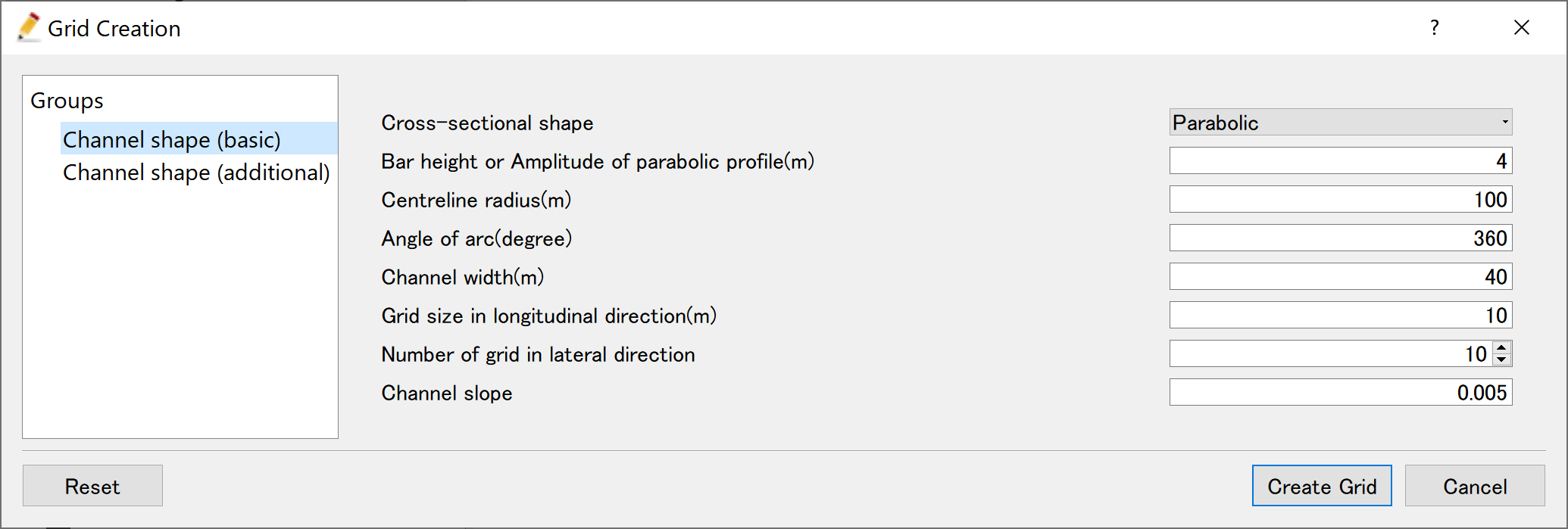
Figure 35 : Grid Creation: Channel Shape (Basic)
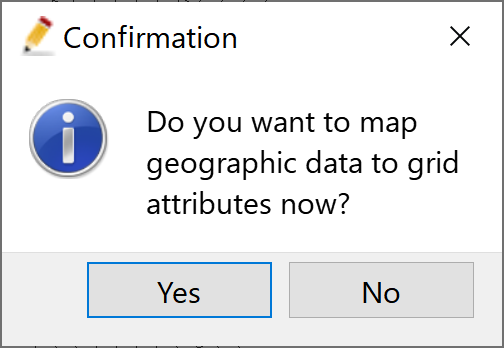
Figure 36 : Mapping
Bed configuration can be confirmed by putting checking marks at, [Grid], [Node attributes] and [Elevation (m)]. ( Figure 37 )
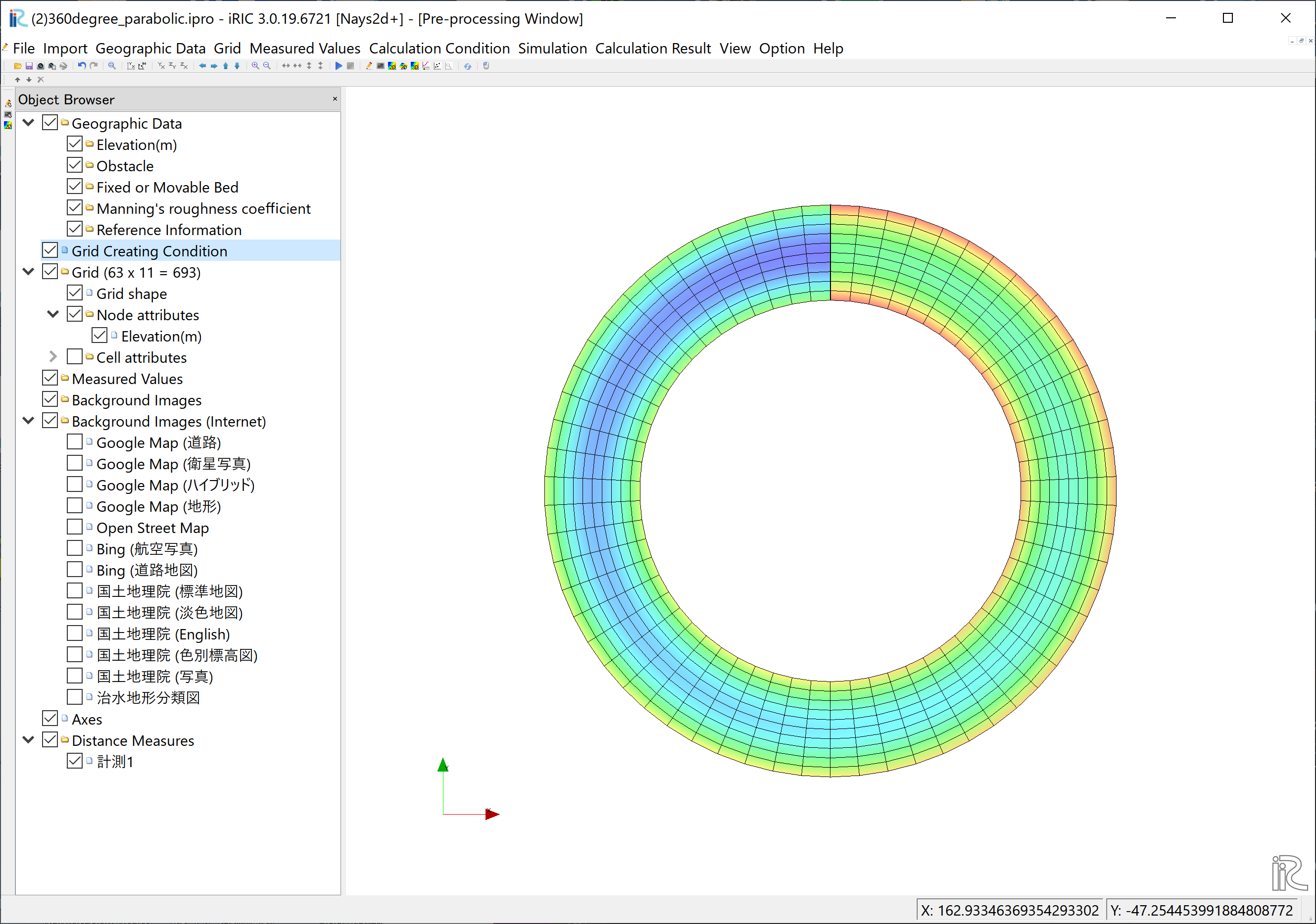
Figure 37 : Grid Creation Completed
Computational Condition
From the menu bar, select [Calculation Condition], [Settins] and [Calculation Condition] window, Figure 38 appears.
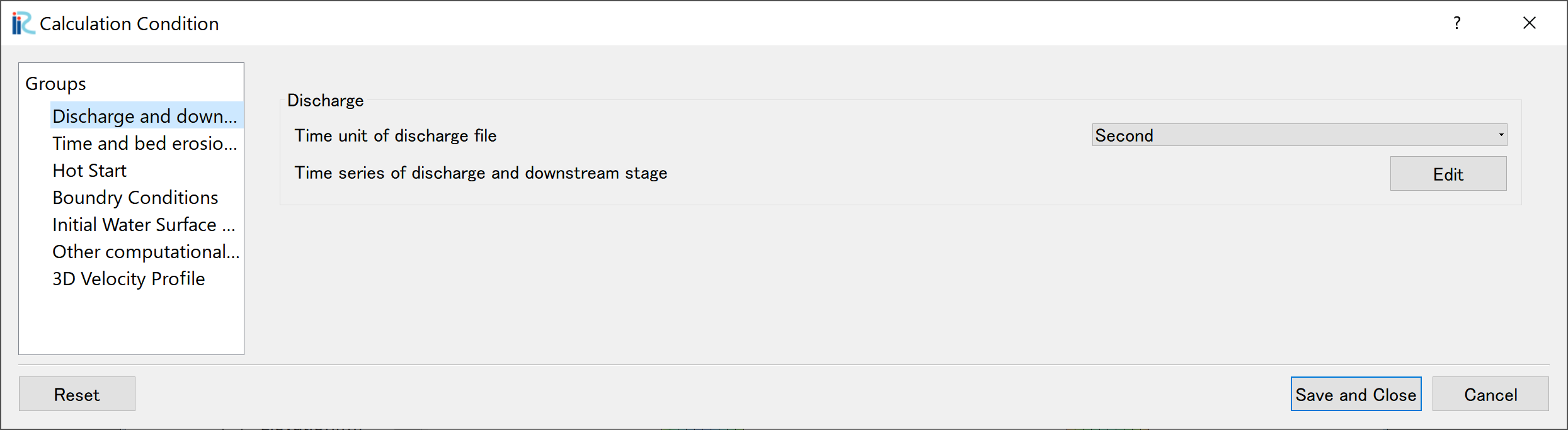
Figure 38 : Calculation Condition: Groups
In Figure 38 , select [Discharge and downstream water surface elevation] and click [Edit].
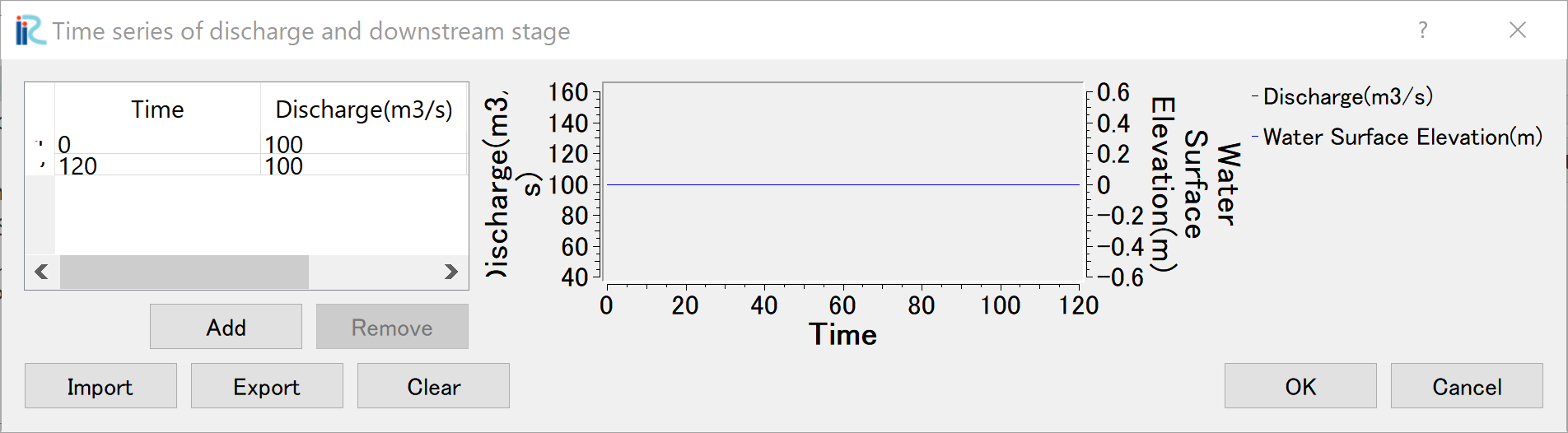
Figure 39 : Input discharge hydro graph
Input dischege hydrograph as shown in Figure 39 and click [OK].
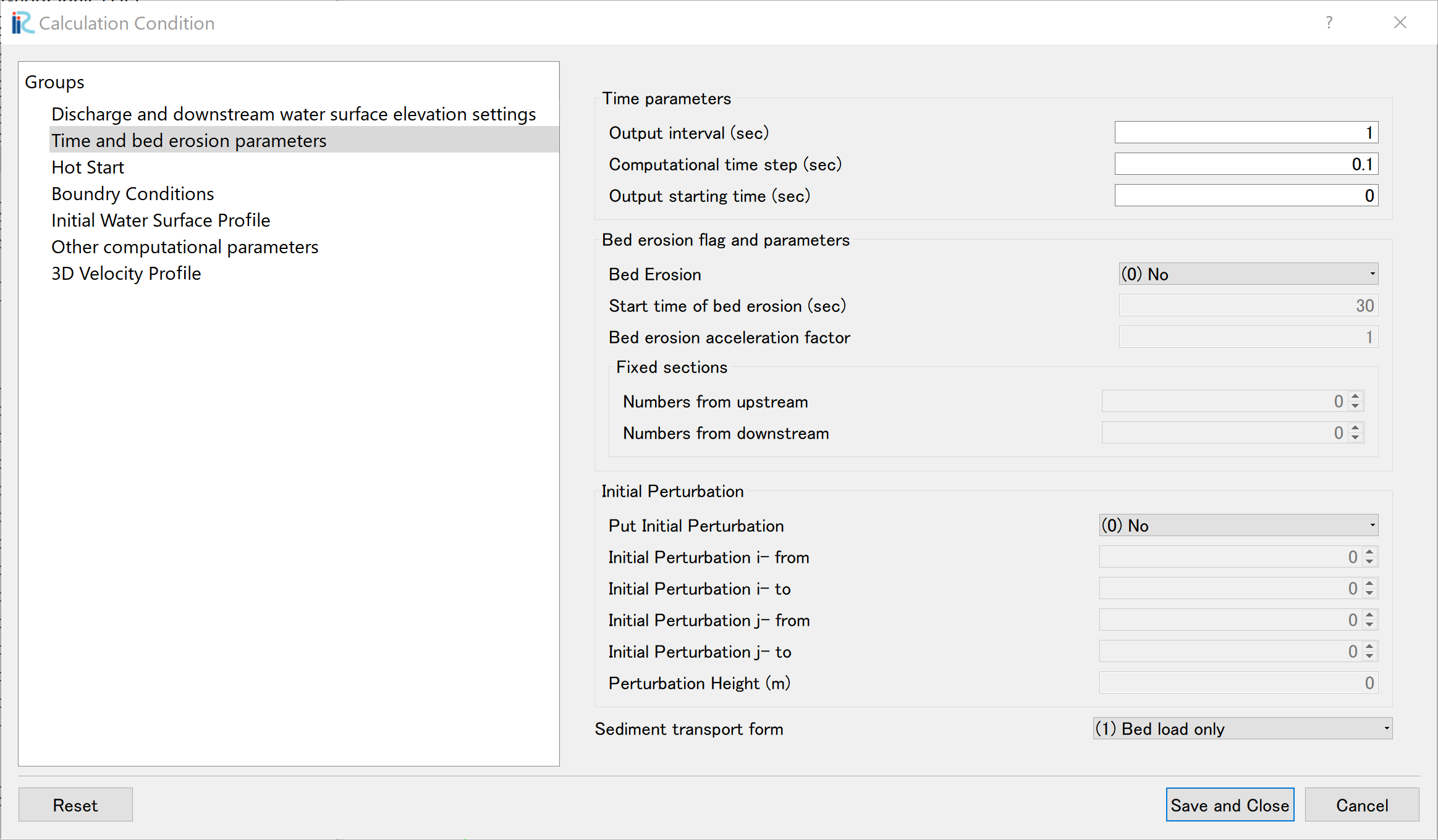
Figure 40 : Time and bed erosion parameters
Select [Time and bed erosion parameters] and set values as Figure 40 .
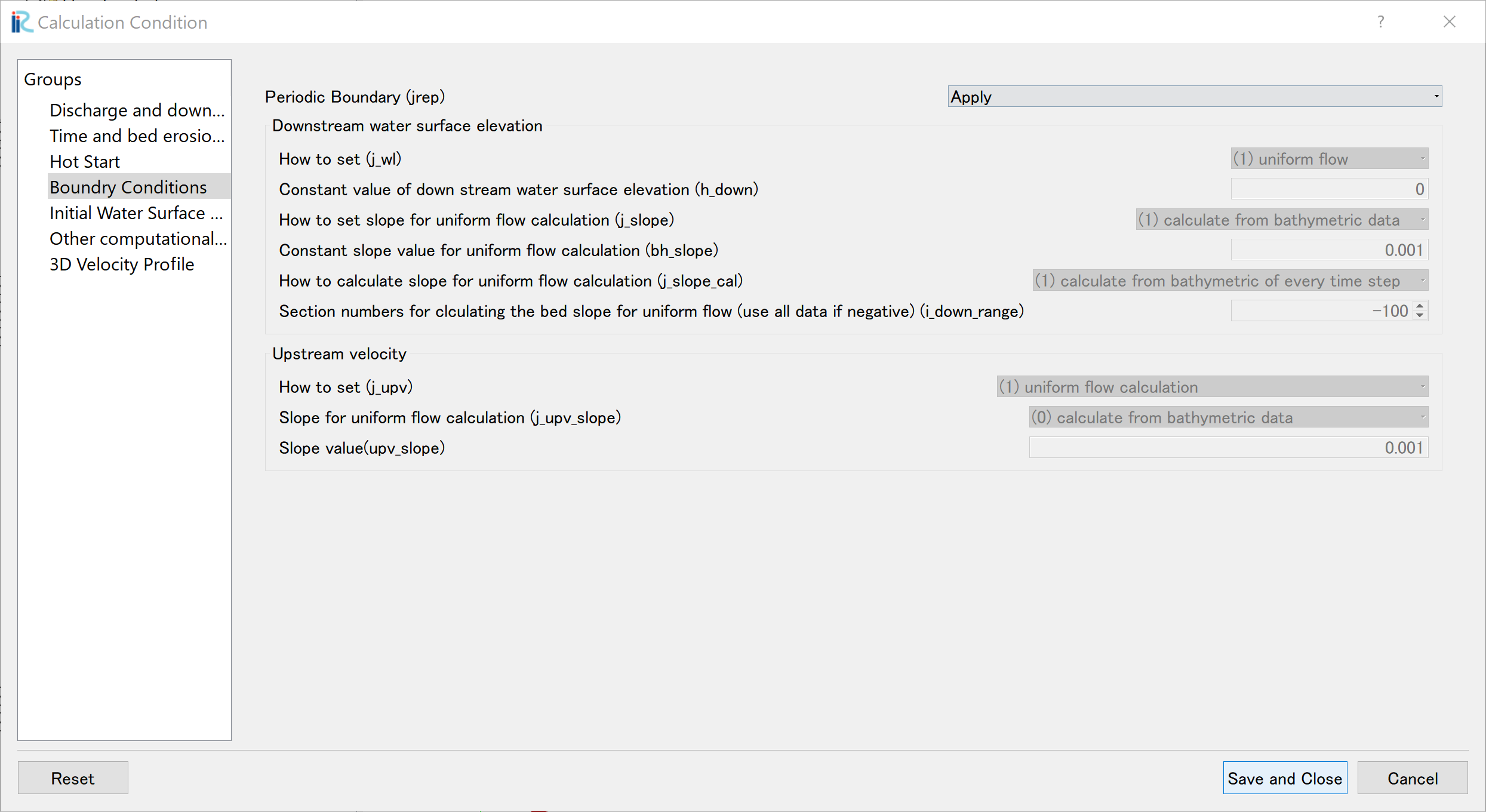
Figure 41 : Boundary Condition
Set [Boundary Condition] as Figure 41
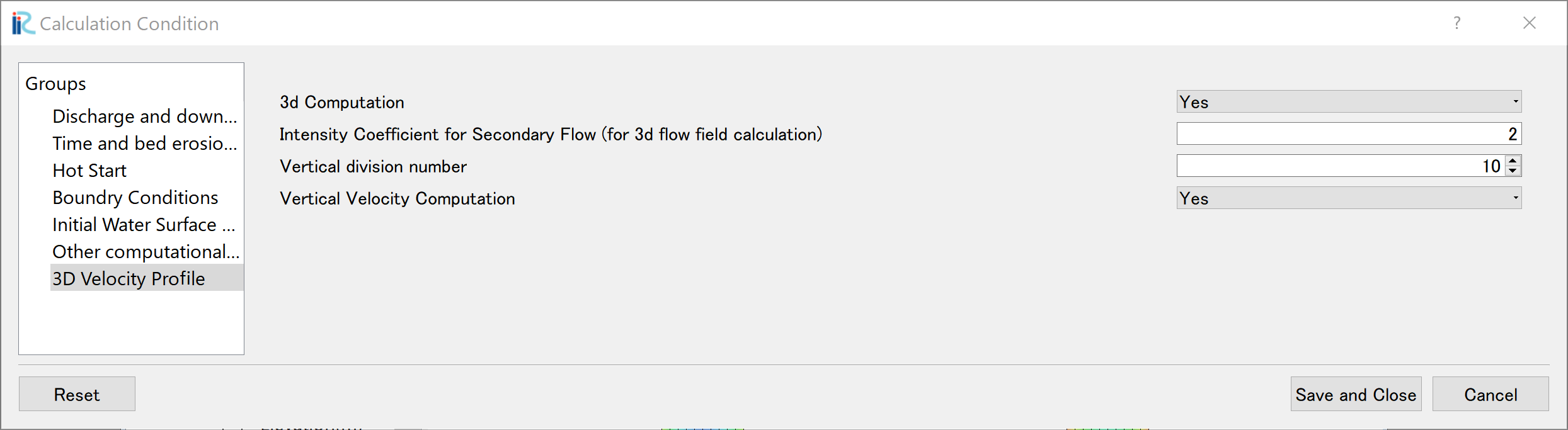
Figure 42 : 3D Velocity Profile
Set [3D Velocity Profile] as Figure 42, and click [Save and Close]
Launch Computation
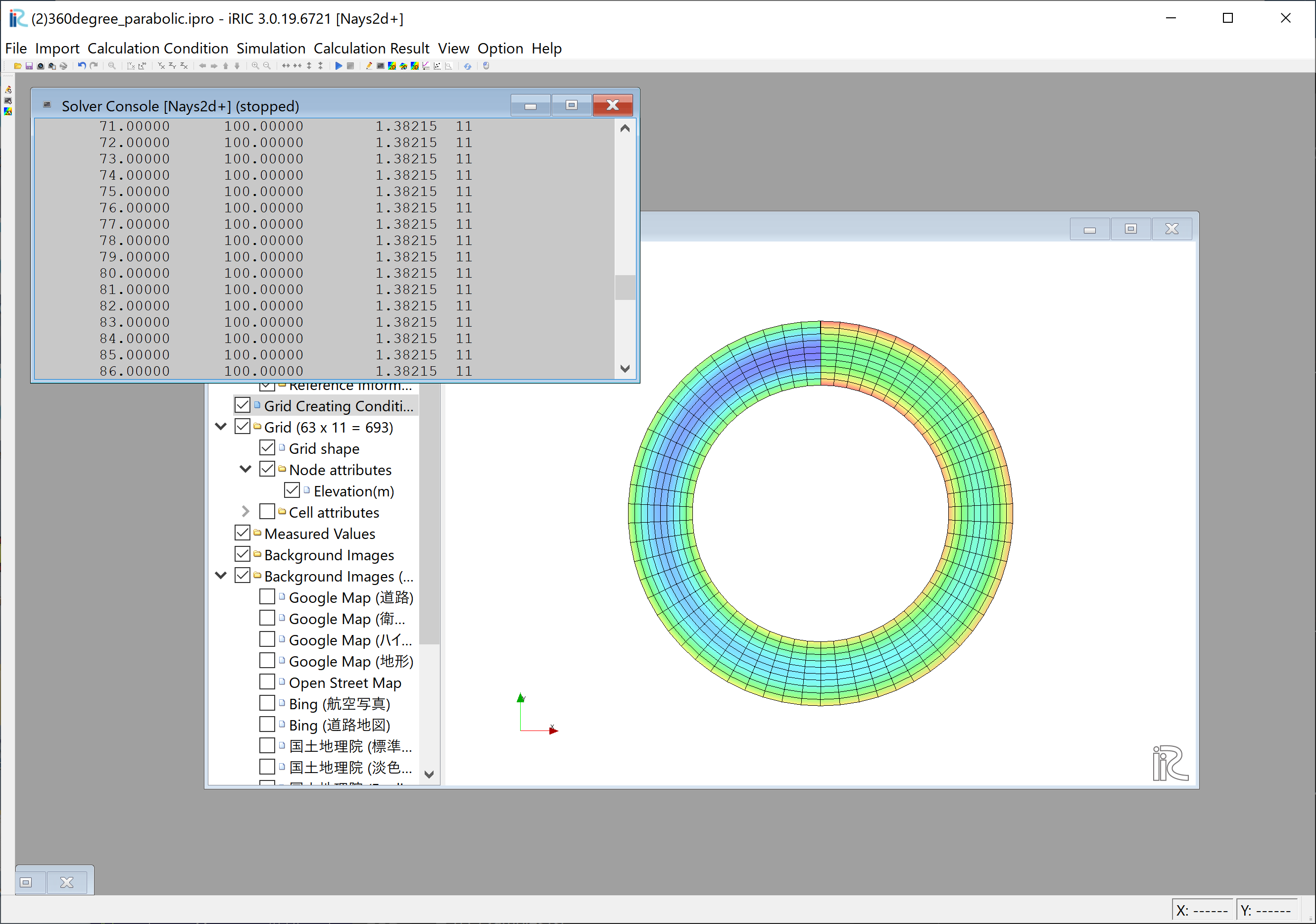
Figure 43 :Launch Computational
By selectng [Simulation] and [Run], a window as Figure 43 appears, and the simulations starts.
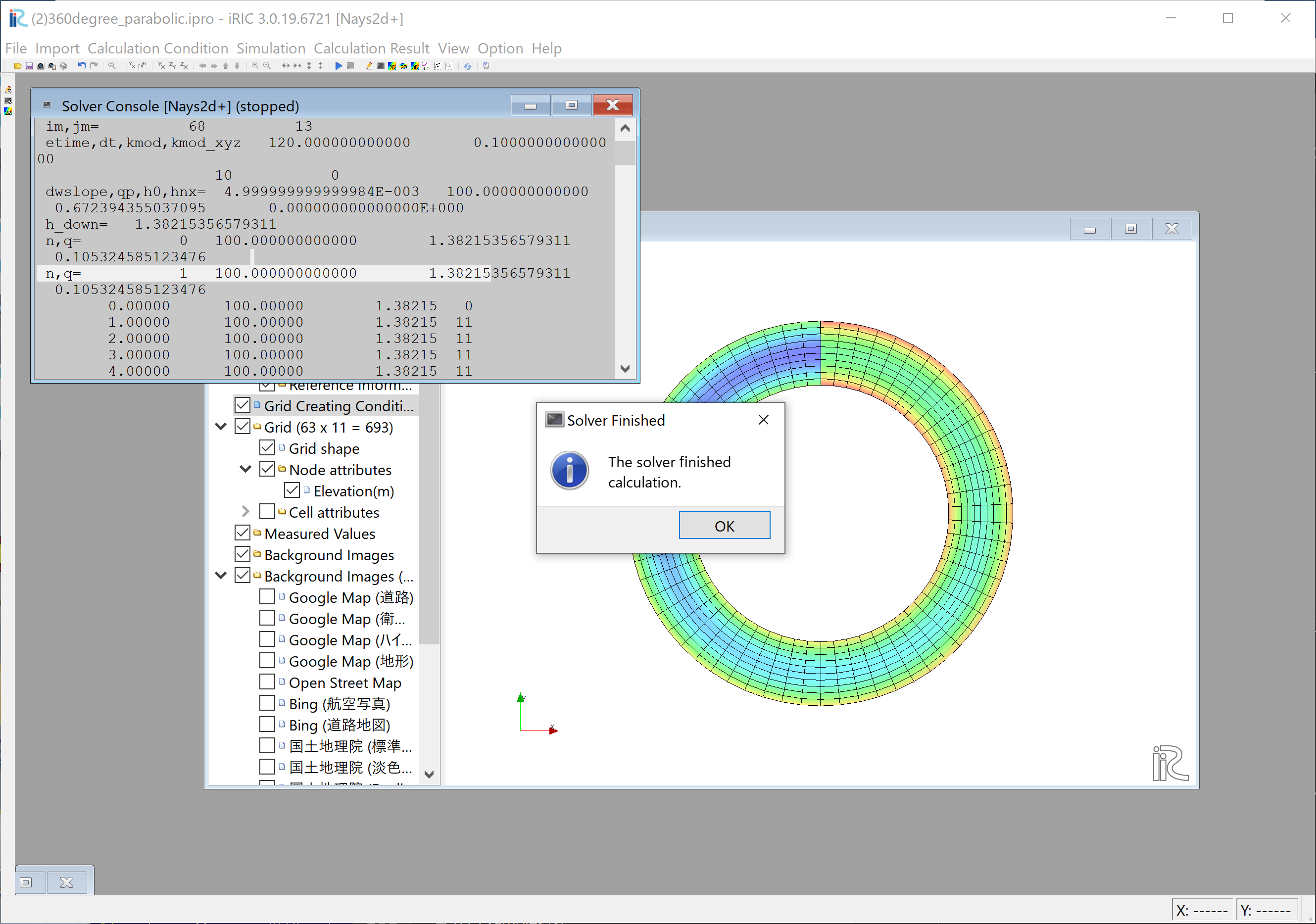
Figure 44 :Simulation Fished
When the simulation finish, Figure 44 appears. Then click [OK].
Display Computational Results
After the companion finished, form the main menu, by selecting [Calculation Results] and [Open new 2D Post-Processing Window], a new Window appears as Figure 45 .
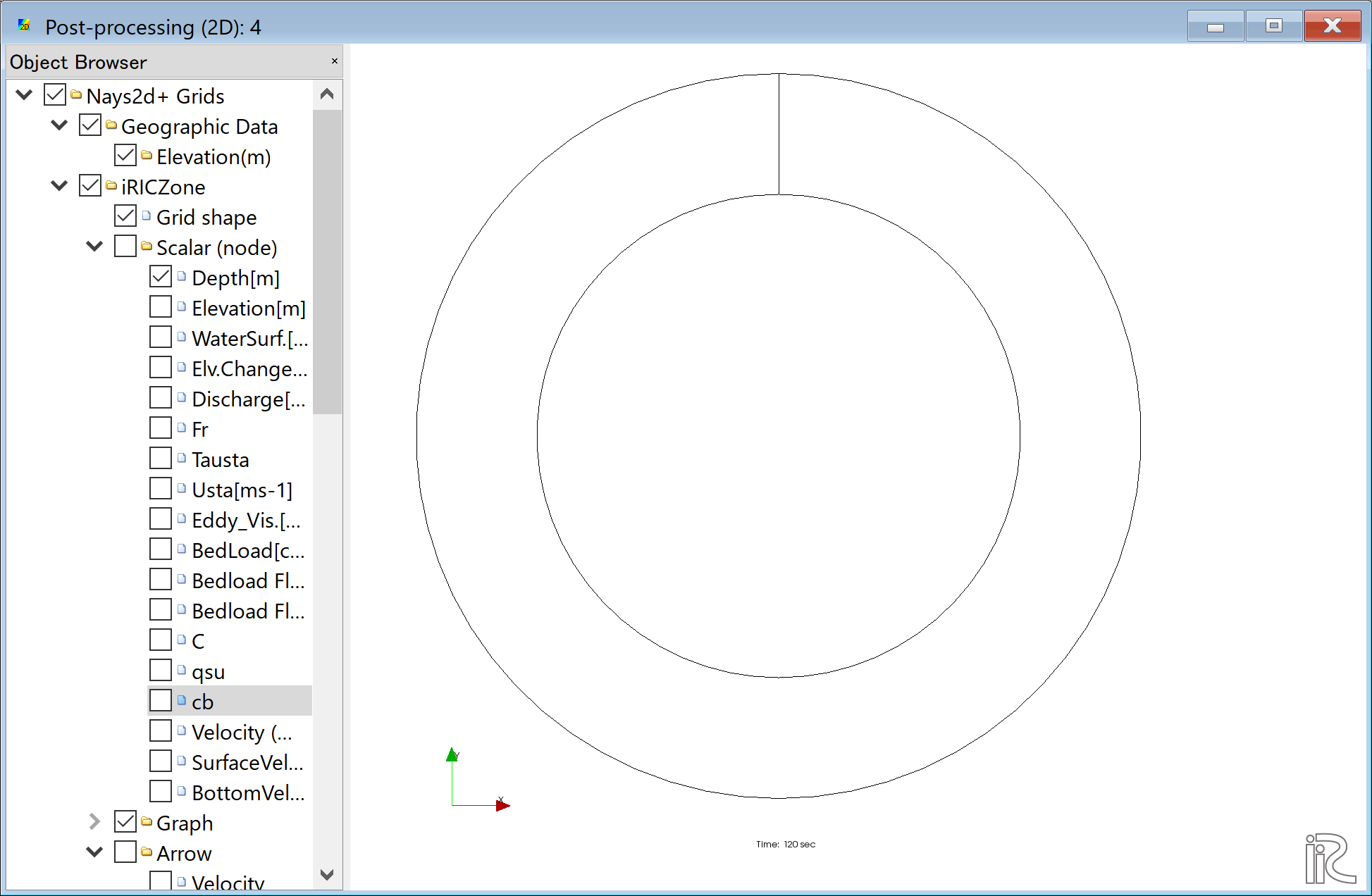
Figure 45 :2D Post-Processing Window
Depth
In the object browser, put the check marks in “Scalar (node)” and “Depth[m]”, right-click and select “Properties”. The “Scalar Setting” window Figure 46 appears.
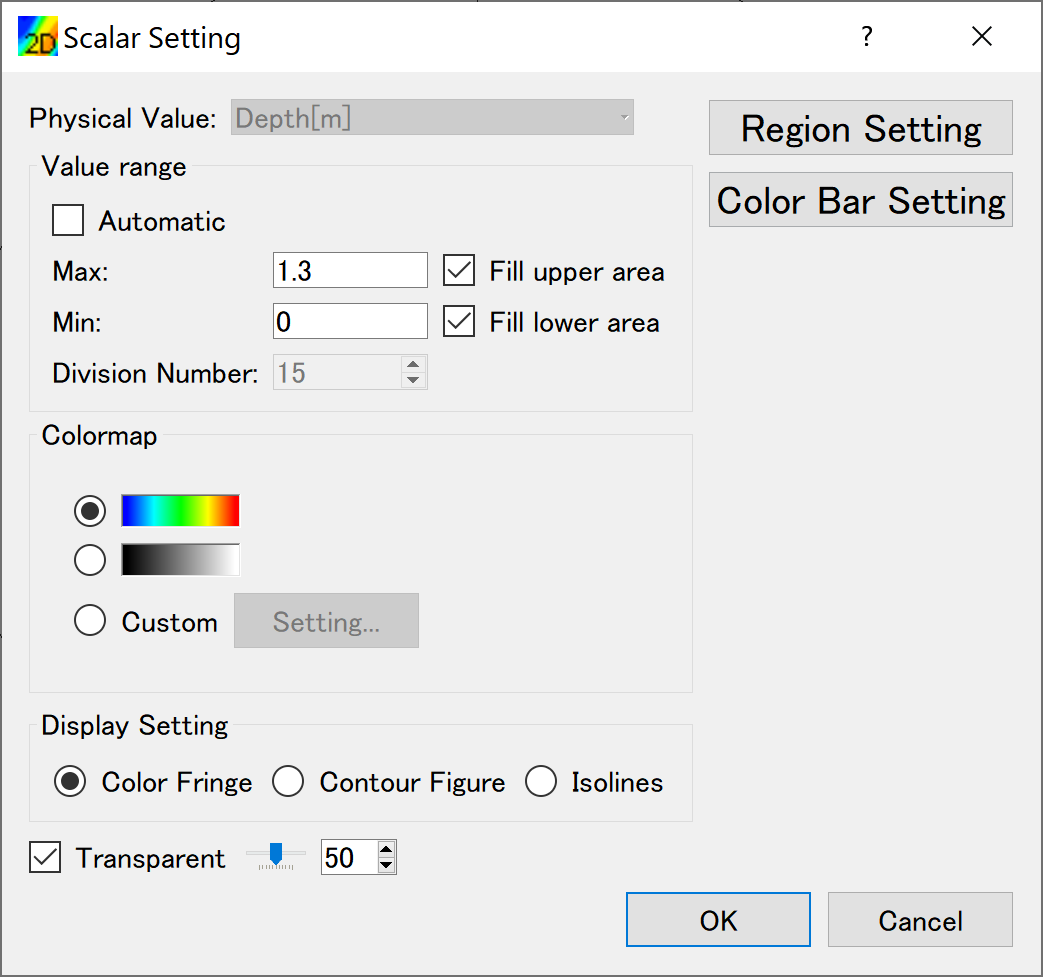
Figure 46 :Scalar Setting
Set the values as shown in Figure 46, and click [OK], then Figure 47 appears.
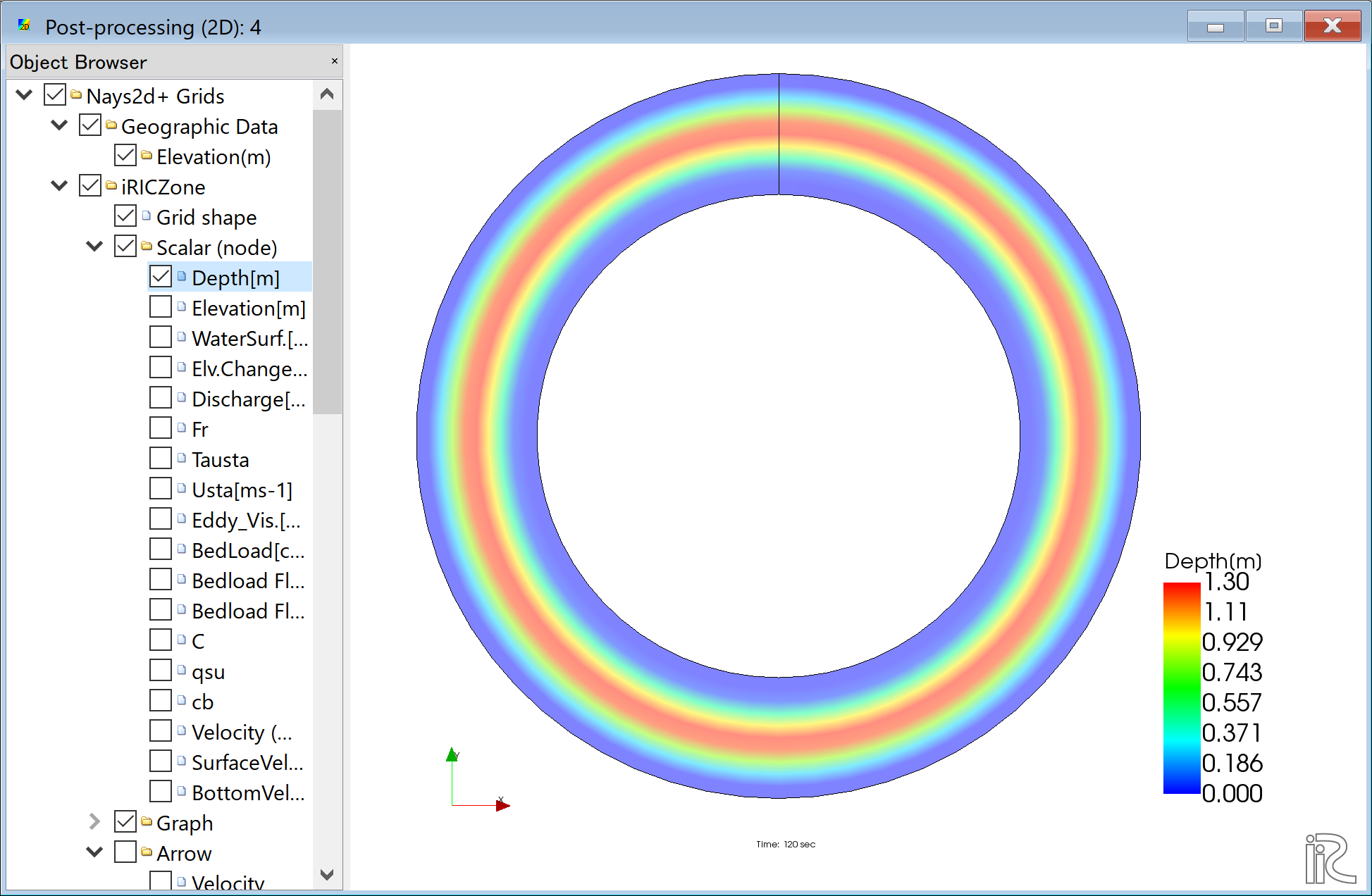
Figure 47 : Depth Plot
Velocity vectors
In the object browser, put the check marks in “Arrow” and “Velocity”, right-click and select “Properties”. The “Arrow Setting” window Figure 48 appears. Set the values as Figure 48, and click [OK].
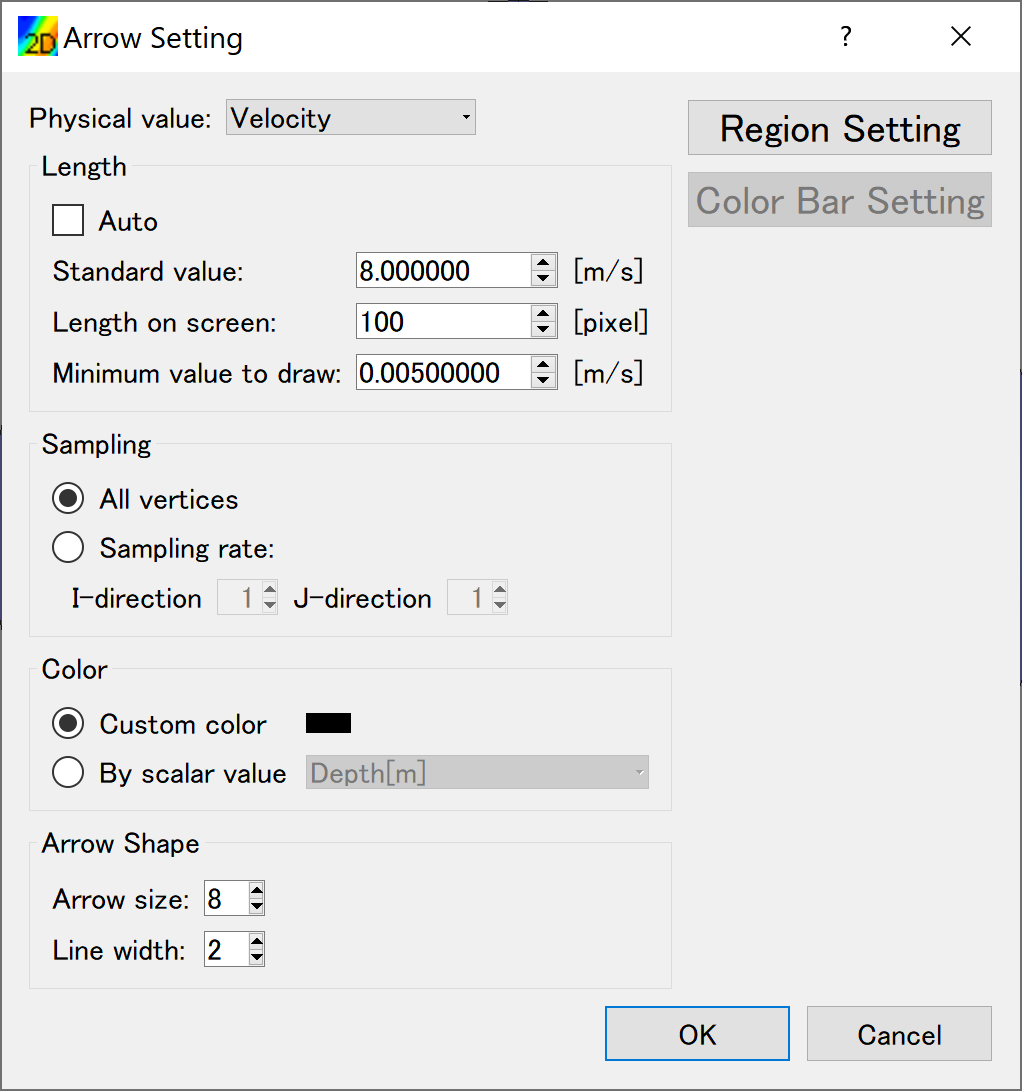
Figure 48 :Arrow Setting
Figure 49 shows the depth-averaged velocity vectors.
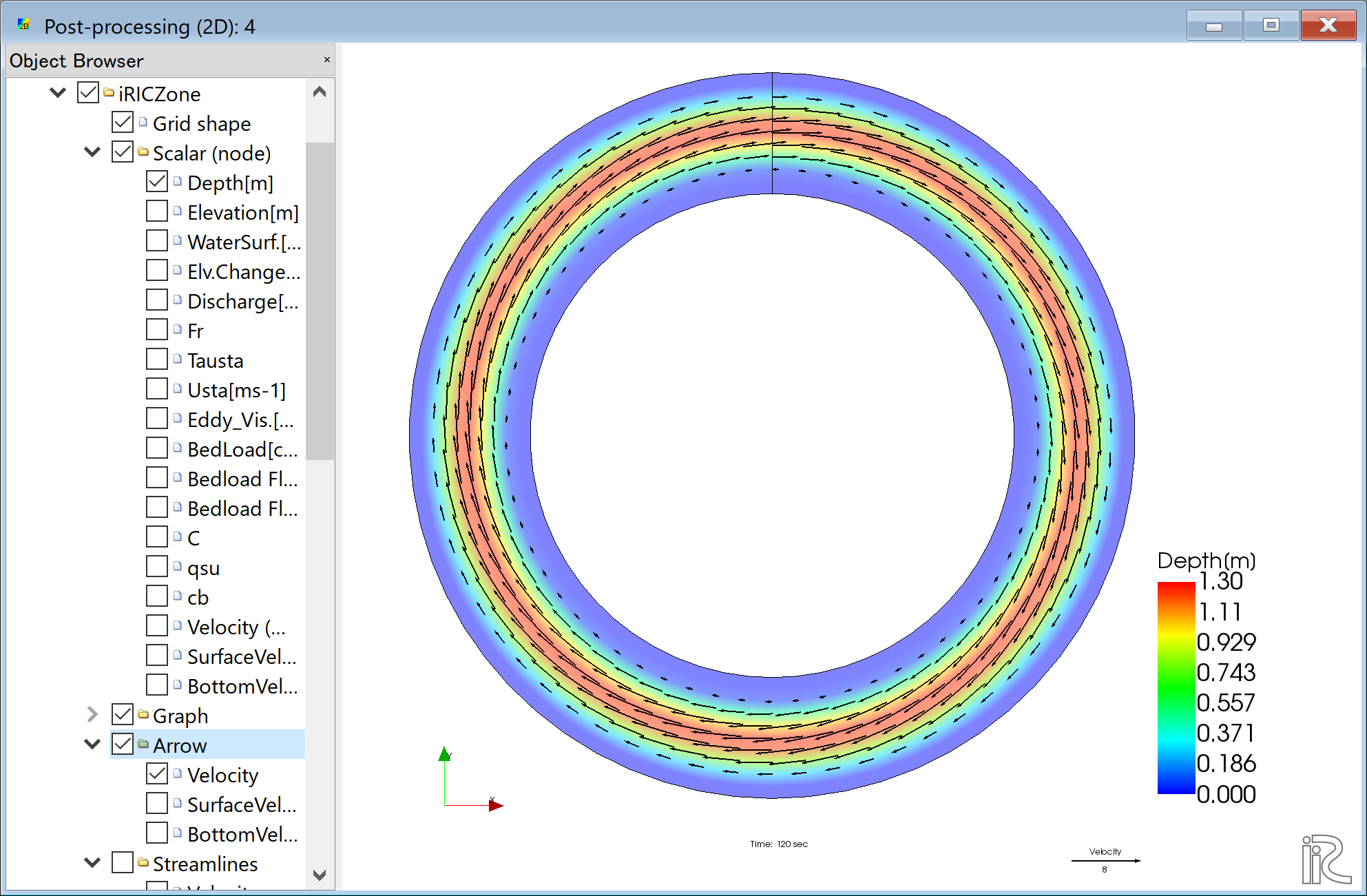
Figure 49 :Depth Averaged Velocity Vectors
In Figure 49, you can select “Surface Velocity” and “Bottom Velocity” by chekking each box in “Arrow” group.
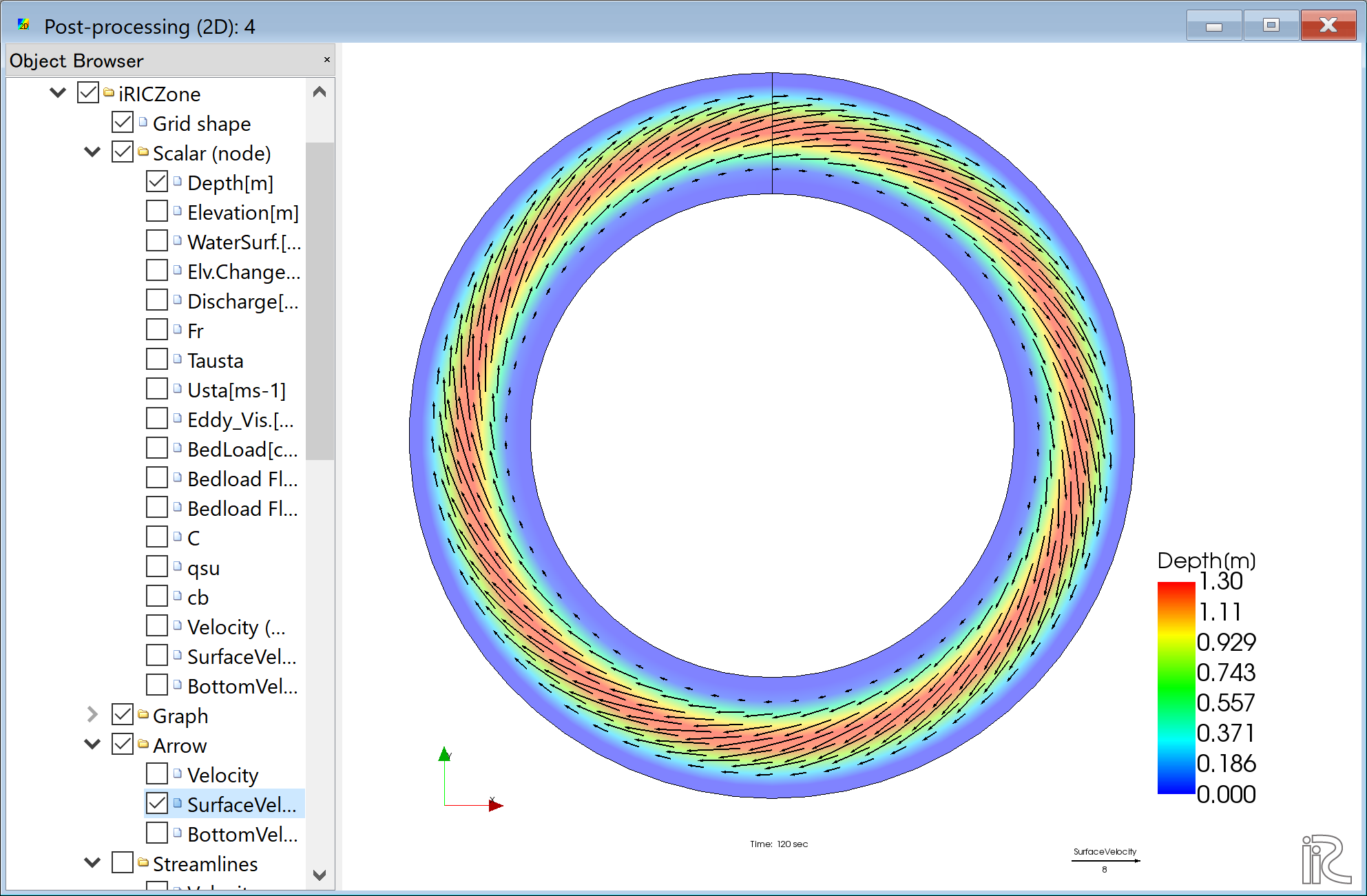
Figure 50 : Surface Velocity Vectors
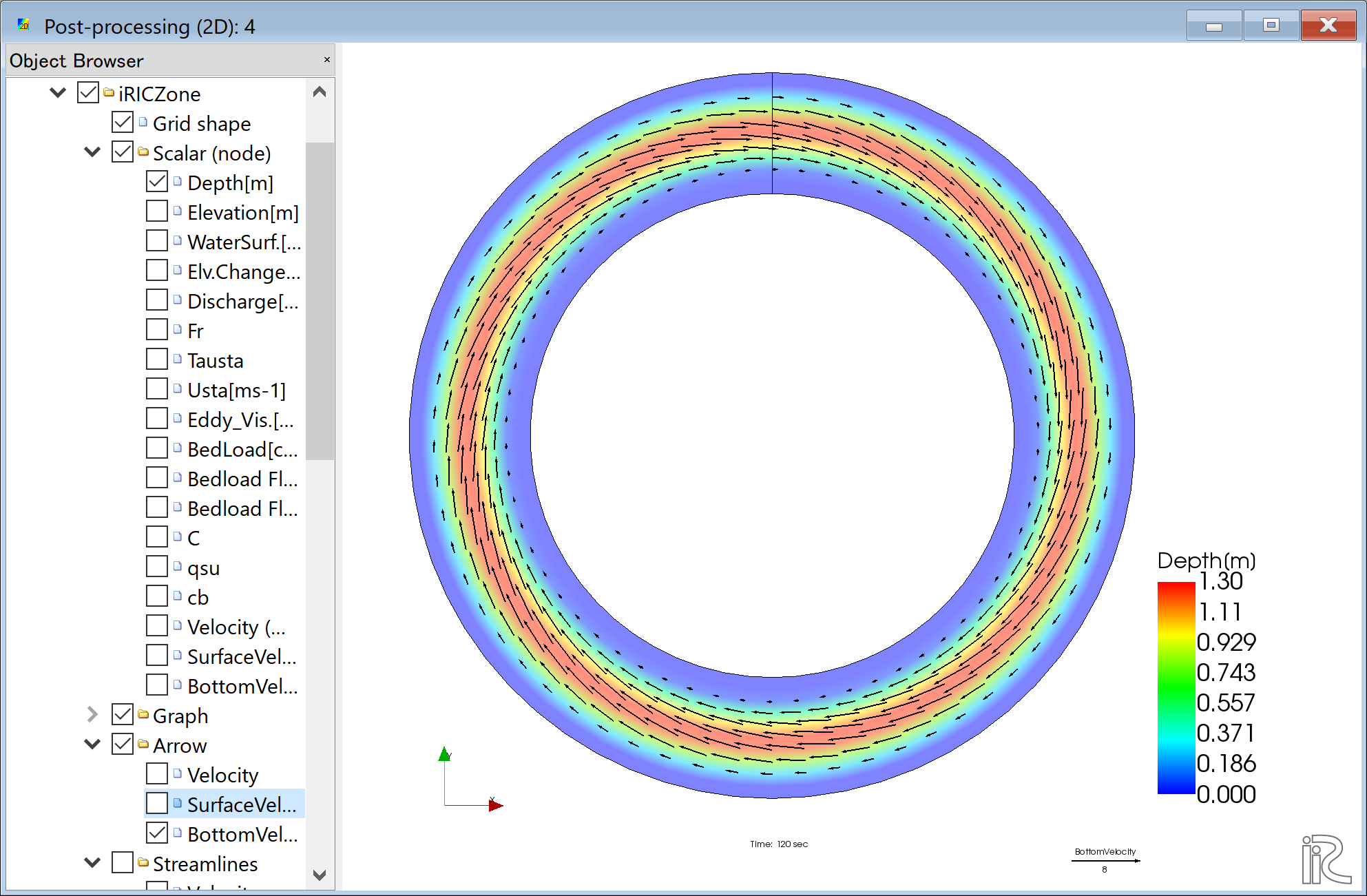
Figure 51 : Bottom Velocity Vectors
Stream Lines
Uncheck the box by “Arrow” in the Object Browser and check a box by “Streamline”. By checking “Velocity”, the streamlines following the depth averaged flow velocity” Figure 52 will be displayed. By checking “Surface Velocity”, the streamline following the surface velocity” Figure 53 will be displayed. By checking “Bottom Velocity”, the streamline following the bottom velocity ne: numref:02_kekka_11 will be displayed.
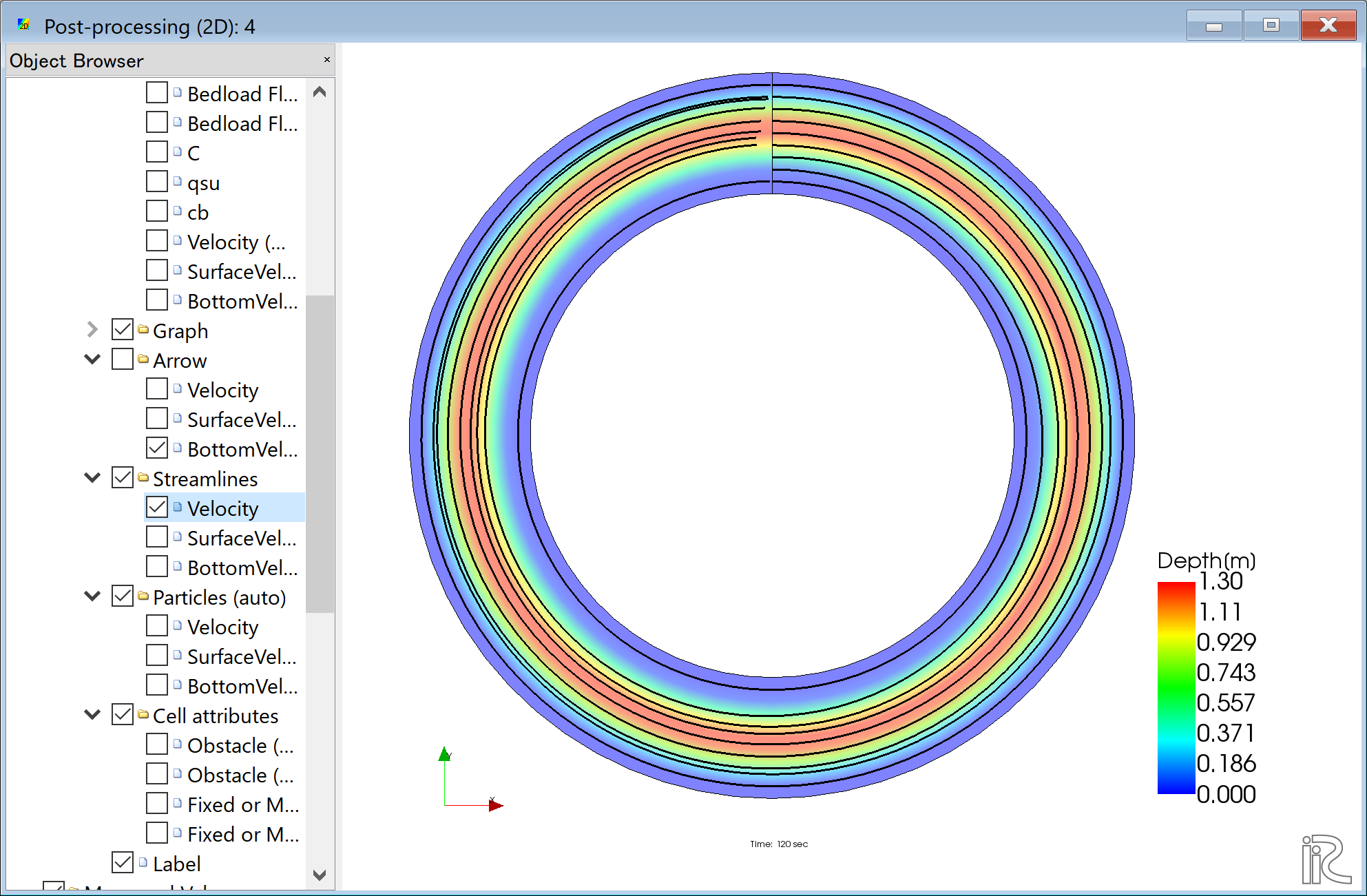
Figure 52 :Streamlines by depth averaged velocity
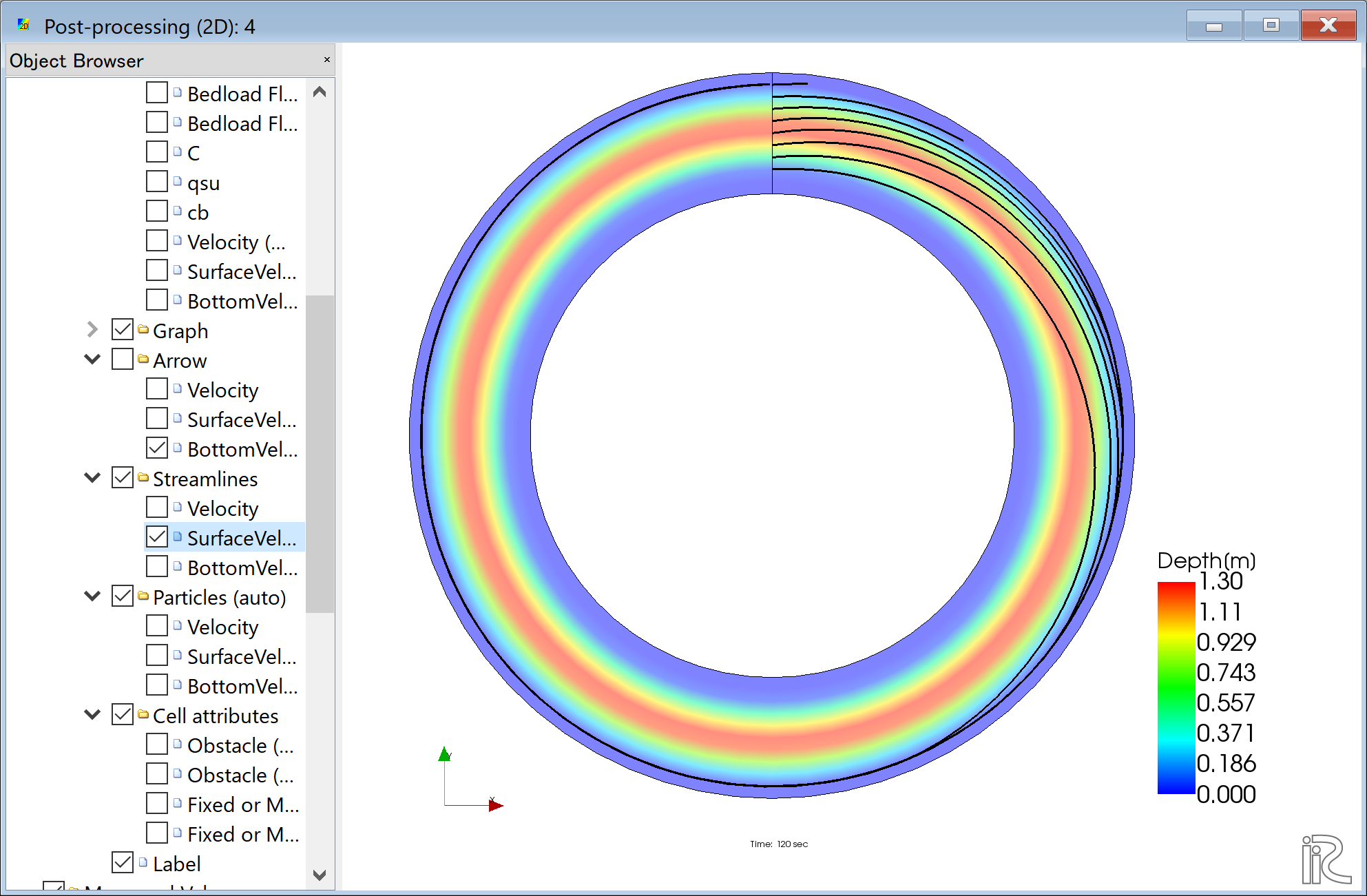
Figure 53 :Streamlines by surface velocity
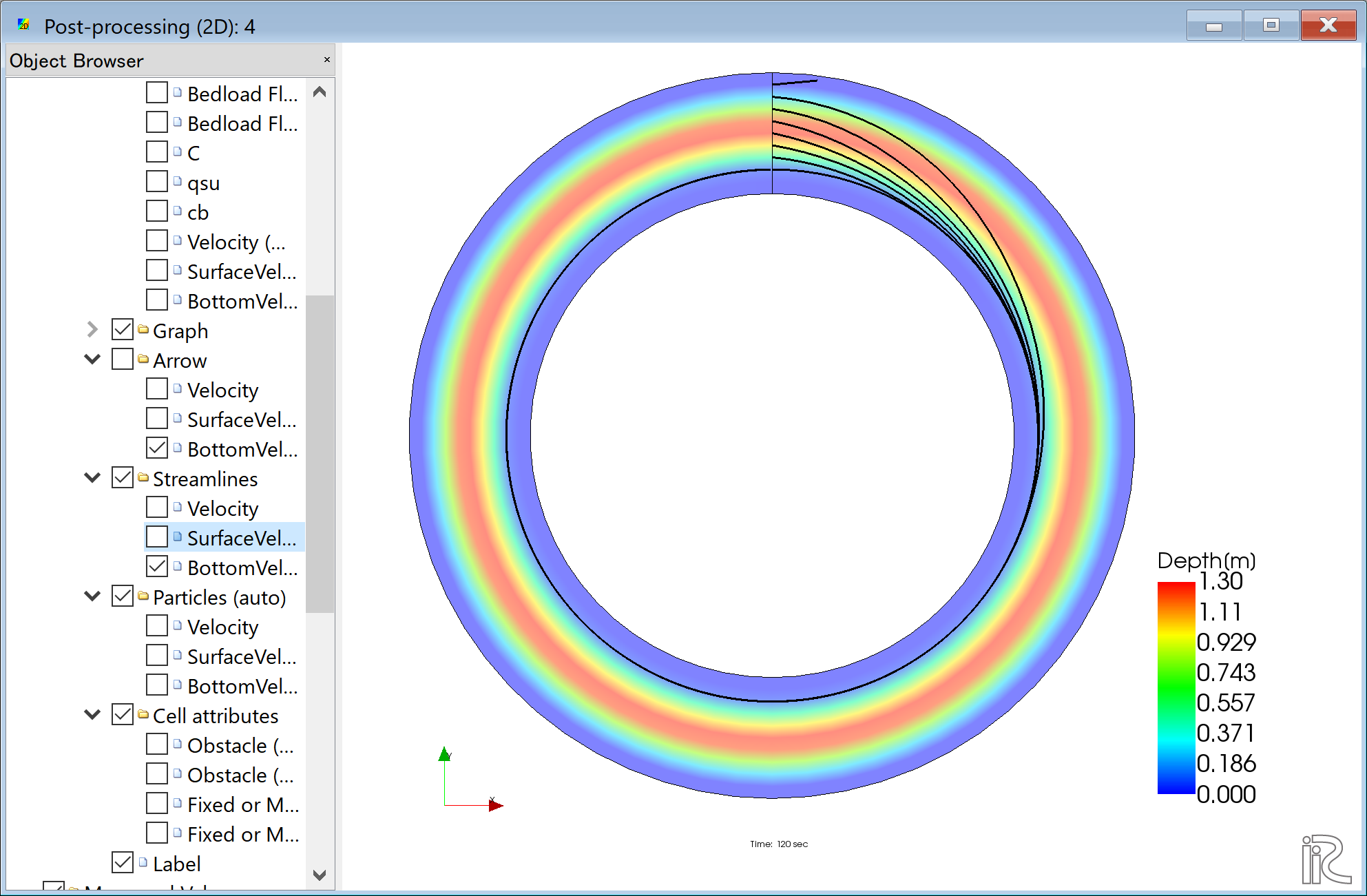
Figure 54 :Streamlines by bottom velocities
The effect of the secondary flow is clearly shown.