[Example 4] Flow in a real river(single cross section)
Select Solver
In the [Select Solver] window, Figure 81 , select [Nays2d+] and click [OK].
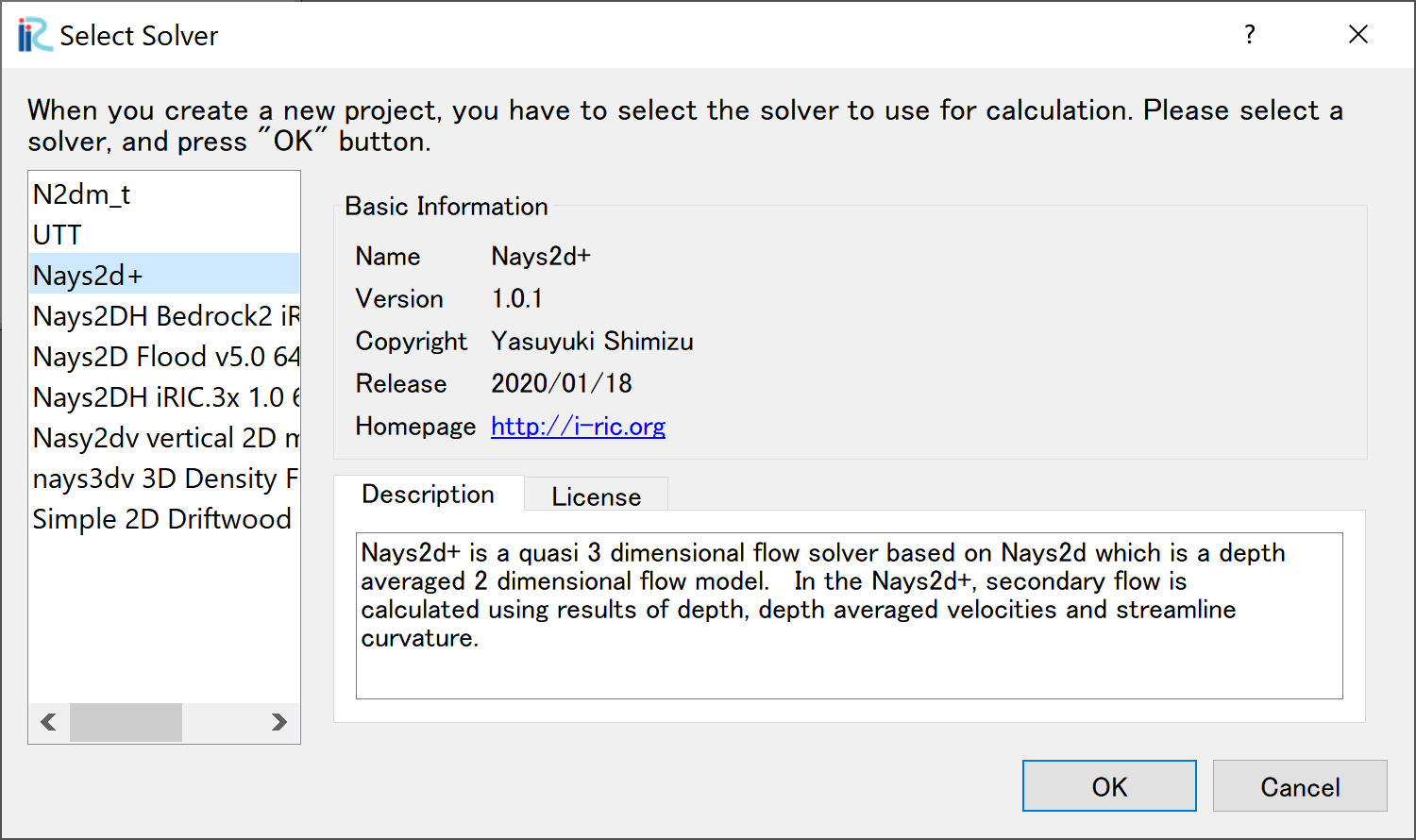
Figure 81 : Select Solver
Importing River Survey Data
In the window, Figure 82, select [Import], [Geographic Data], [Elevation(m)]
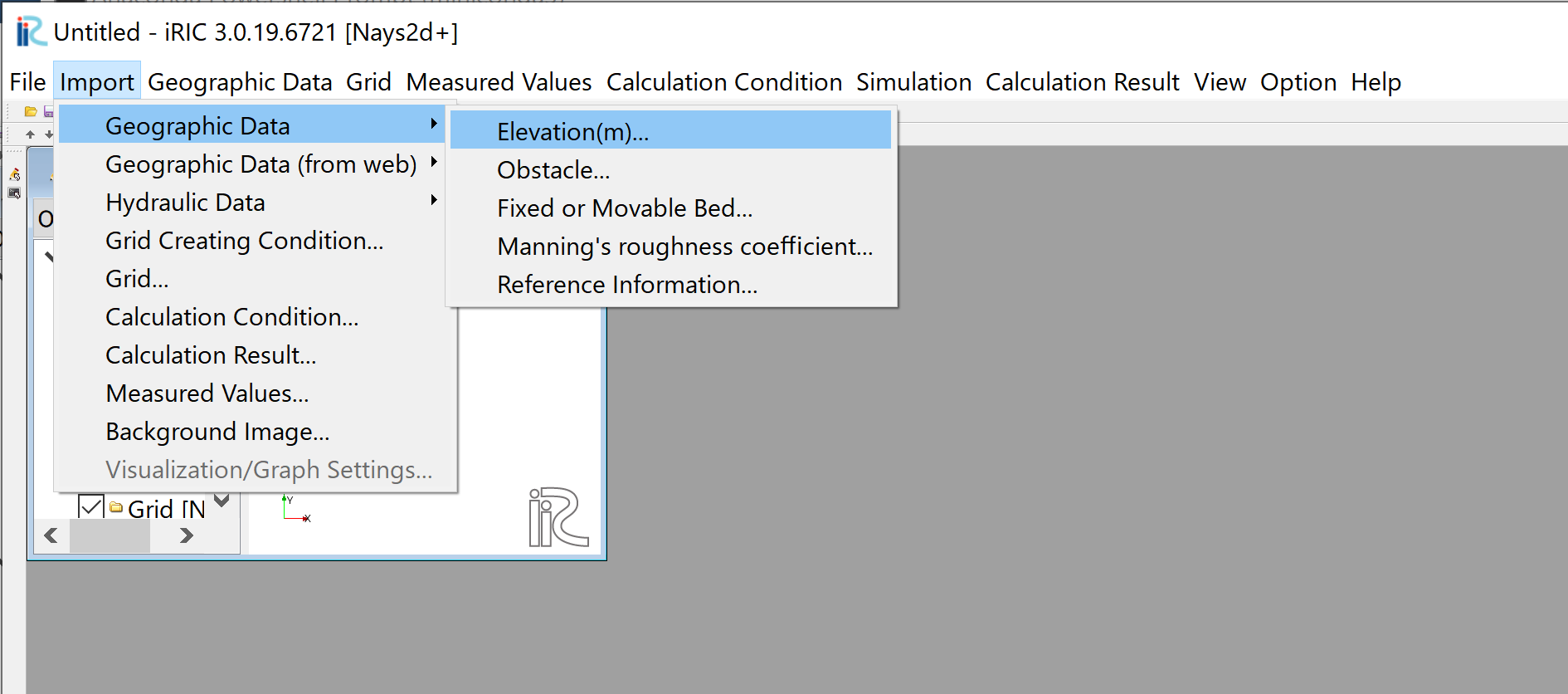
Figure 82 : Import river geographic data
Chose [single.riv] in the window, Figure 83 and open. The cross sectional survey data “single.riv” can be downloaded from, https://i-ric.org/yasu/fw/rivfiles/single.riv
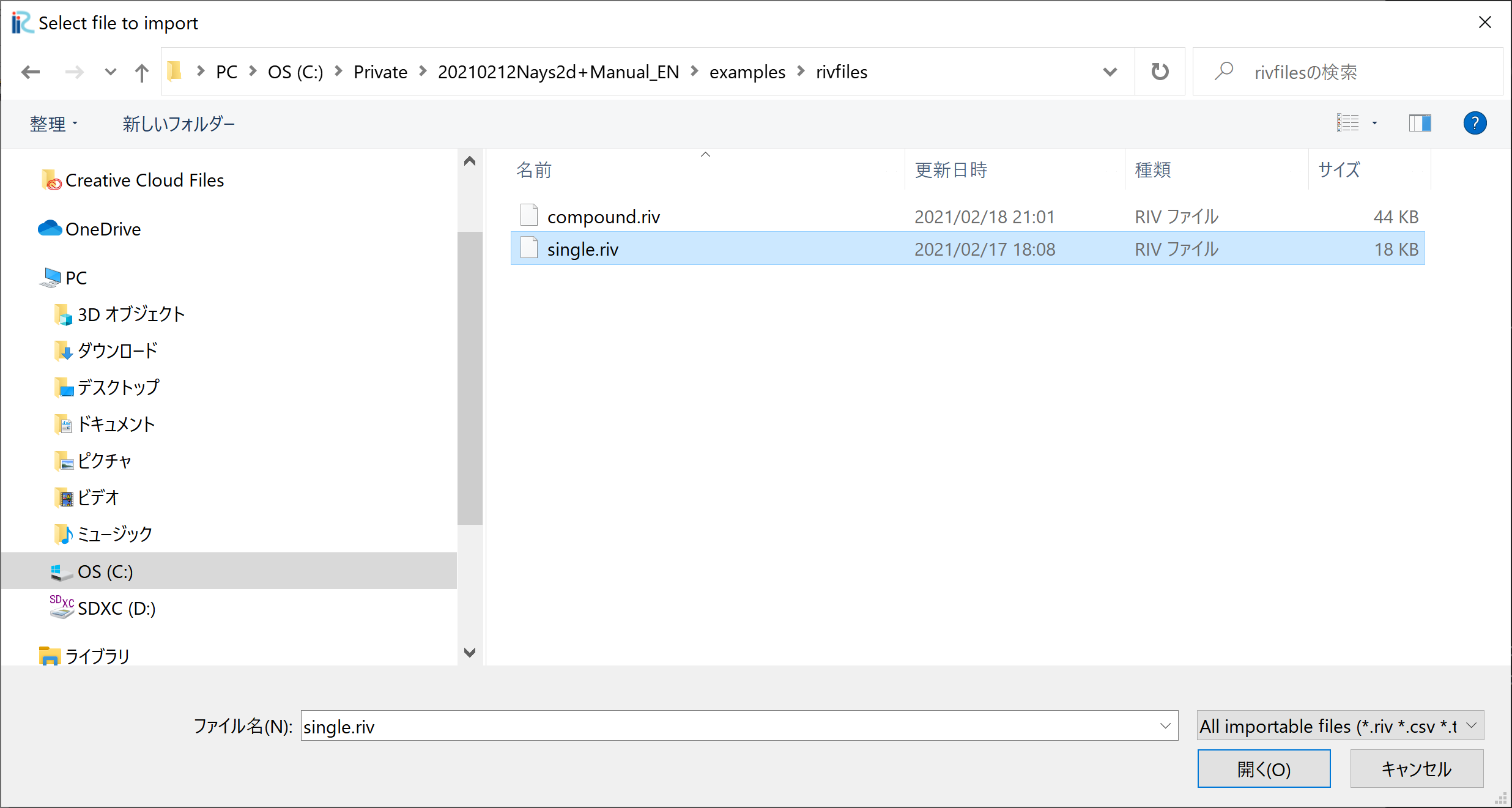
Figure 83 : Select File
A message window may appear telling “Problems Fund i Data” as Figure 84 ,but just click [OK]
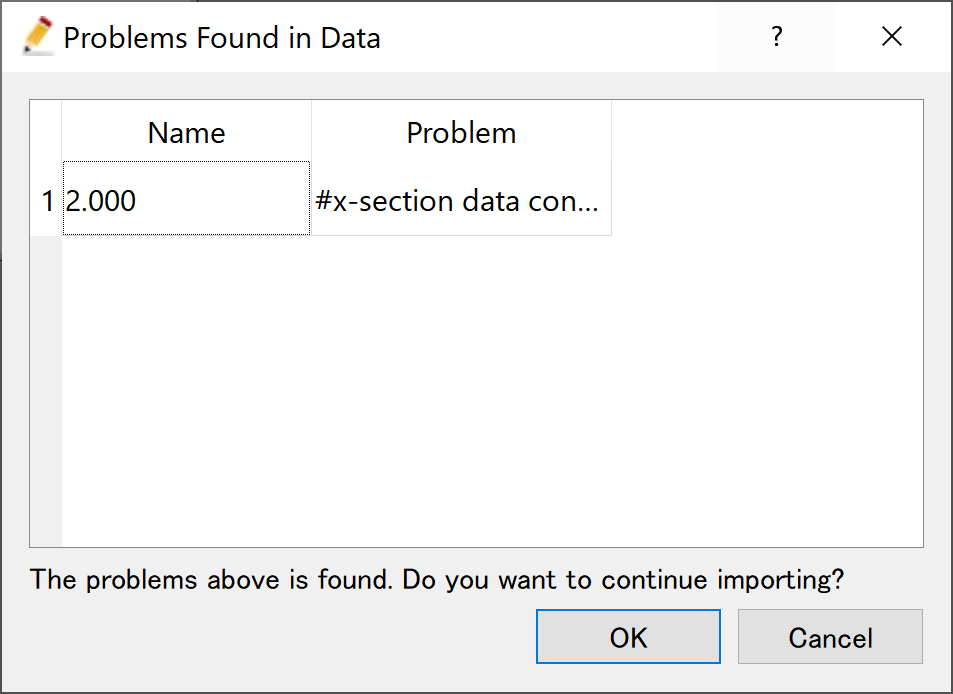
Figure 84 : Prblem Fund
Select [Middle point of left and right bank] in the [River Survey Data Import Setting] window as Figure 85 , and click [OK]
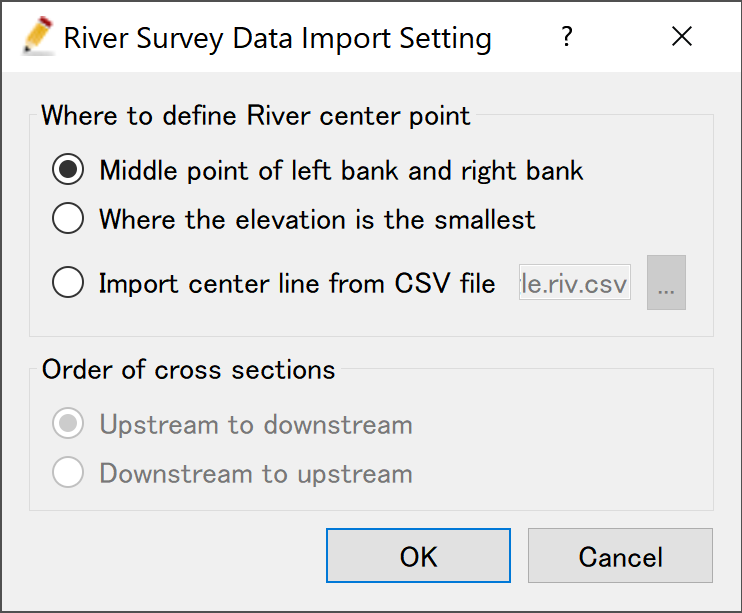
Figure 85 : River Survay Data Import Setting
Figure 86 riv file import complete.
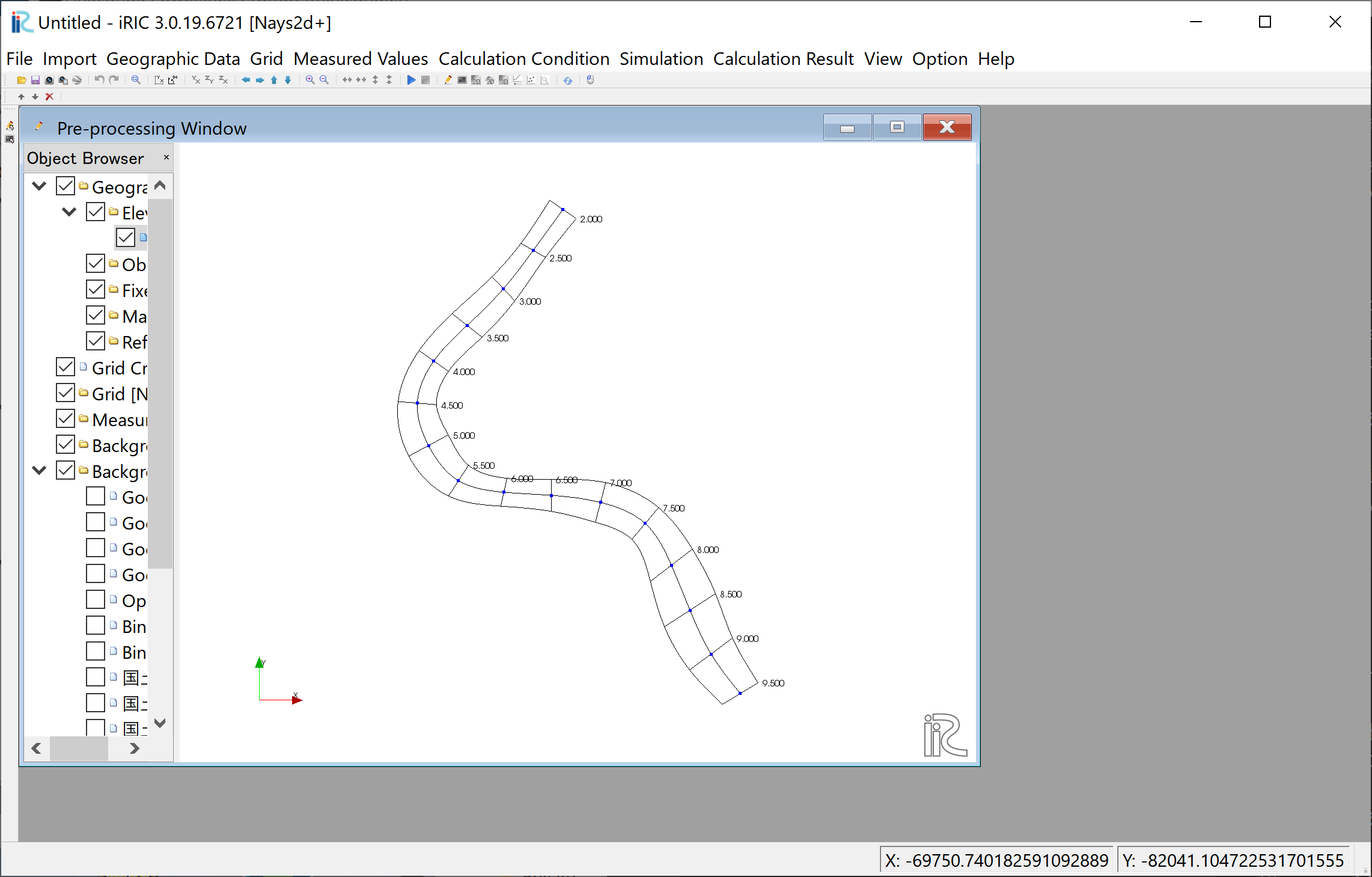
Figure 86 : Import Complete
Grid Generation Conditions
From the main menu, select [Grid] and [Select Algorithm to Create Grid] as, Figure 87
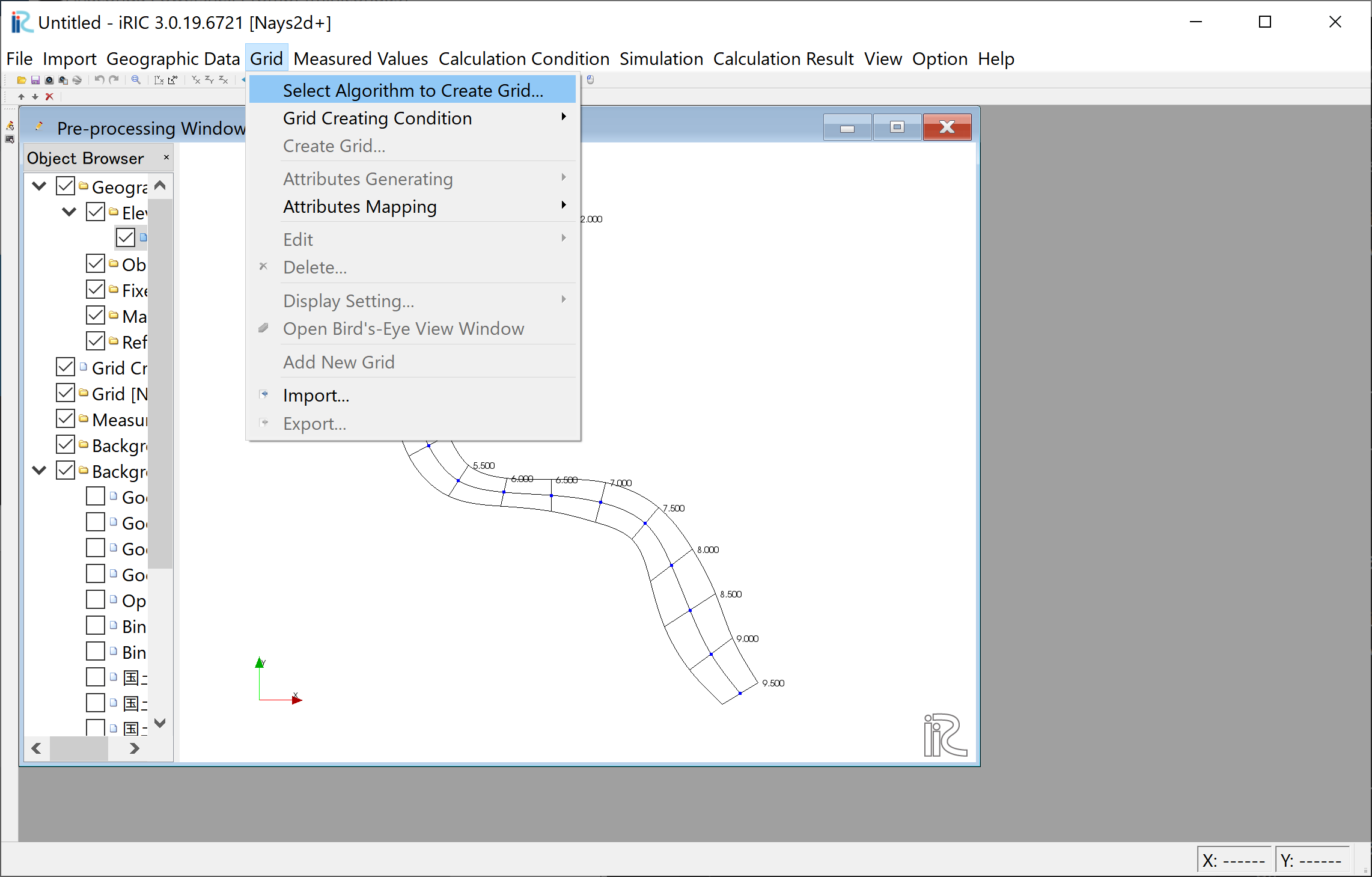
Figure 87 : Select Algorithm to Create Grid
Select [Create grid from river survey data] from the window, Figure 88 , and click [OK].
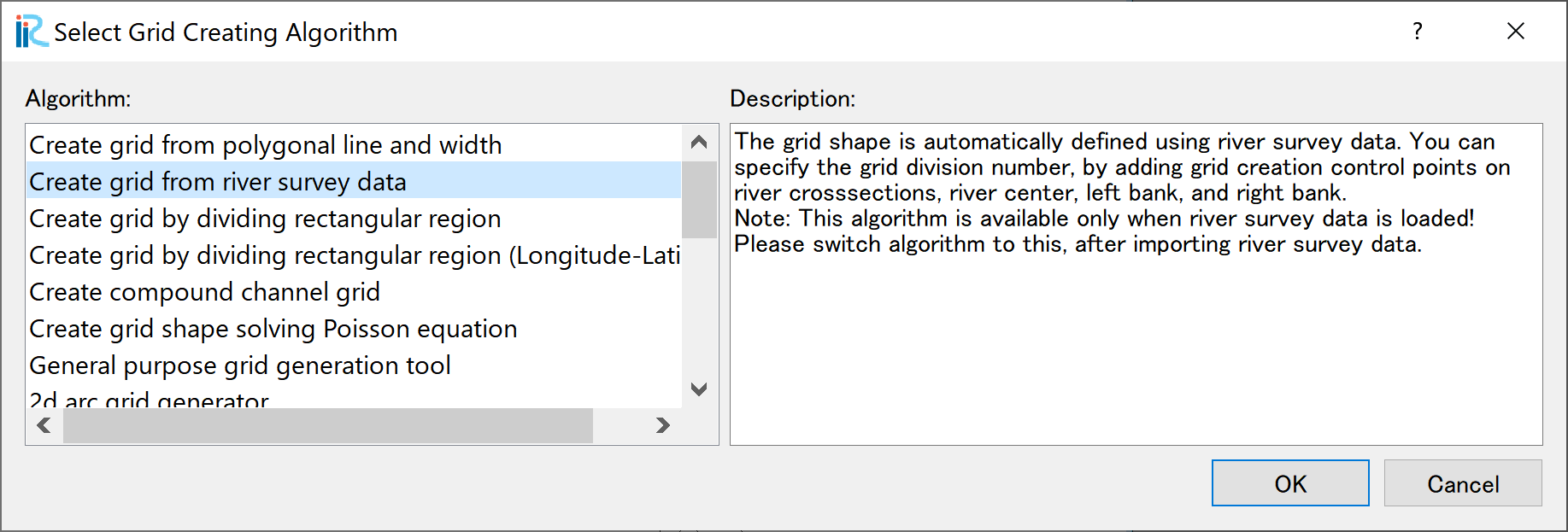
Figure 88 : Create grid from river survey data
As shown in Figure 89 , a channel with cross sections with both ends’ blue circles are displayed.
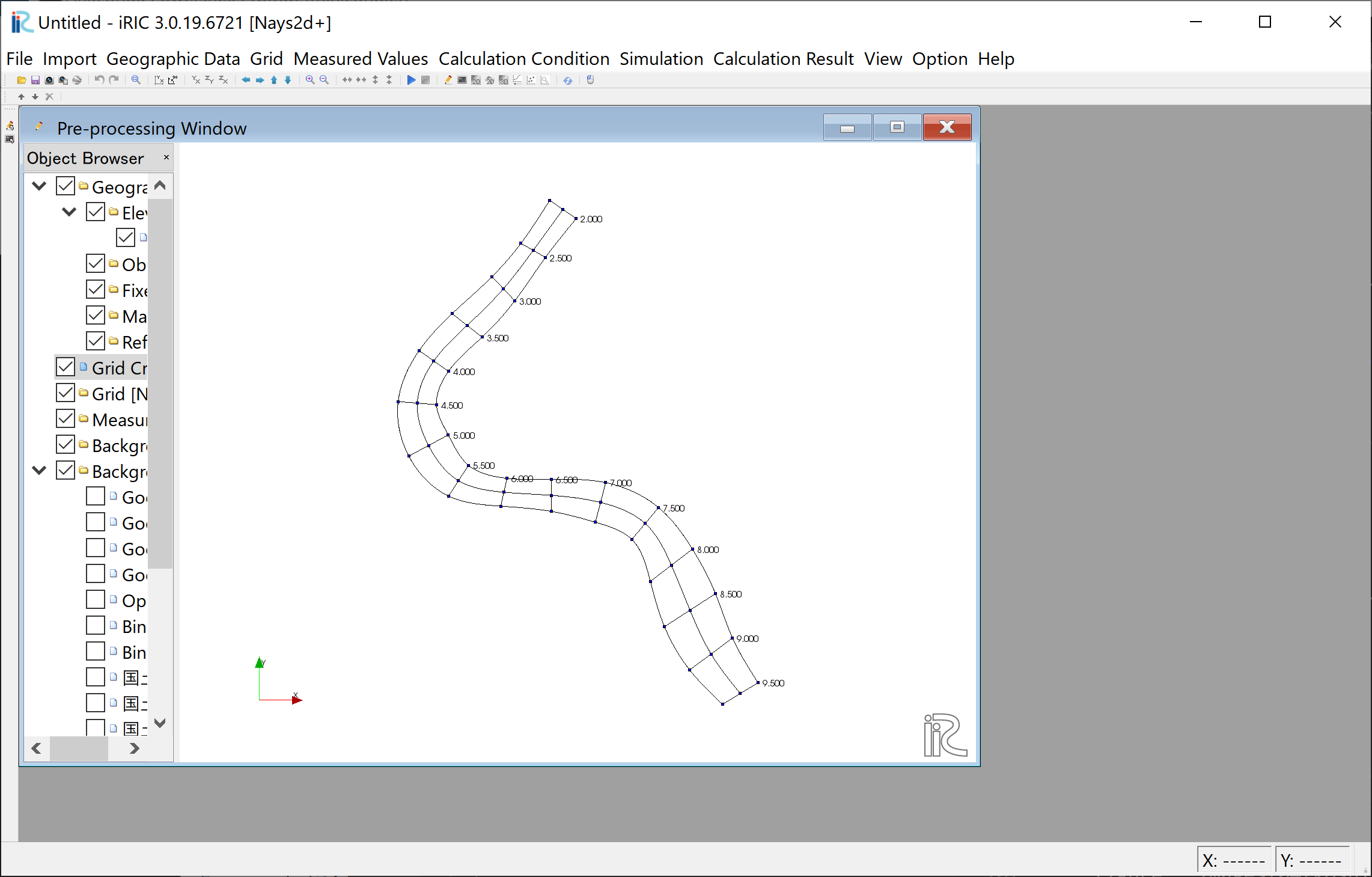
Figure 89 : Setting Grid Create Condition Complete
Grid Generation
Select any side of one of the cross section line, right click, and chose [Add Division Points].
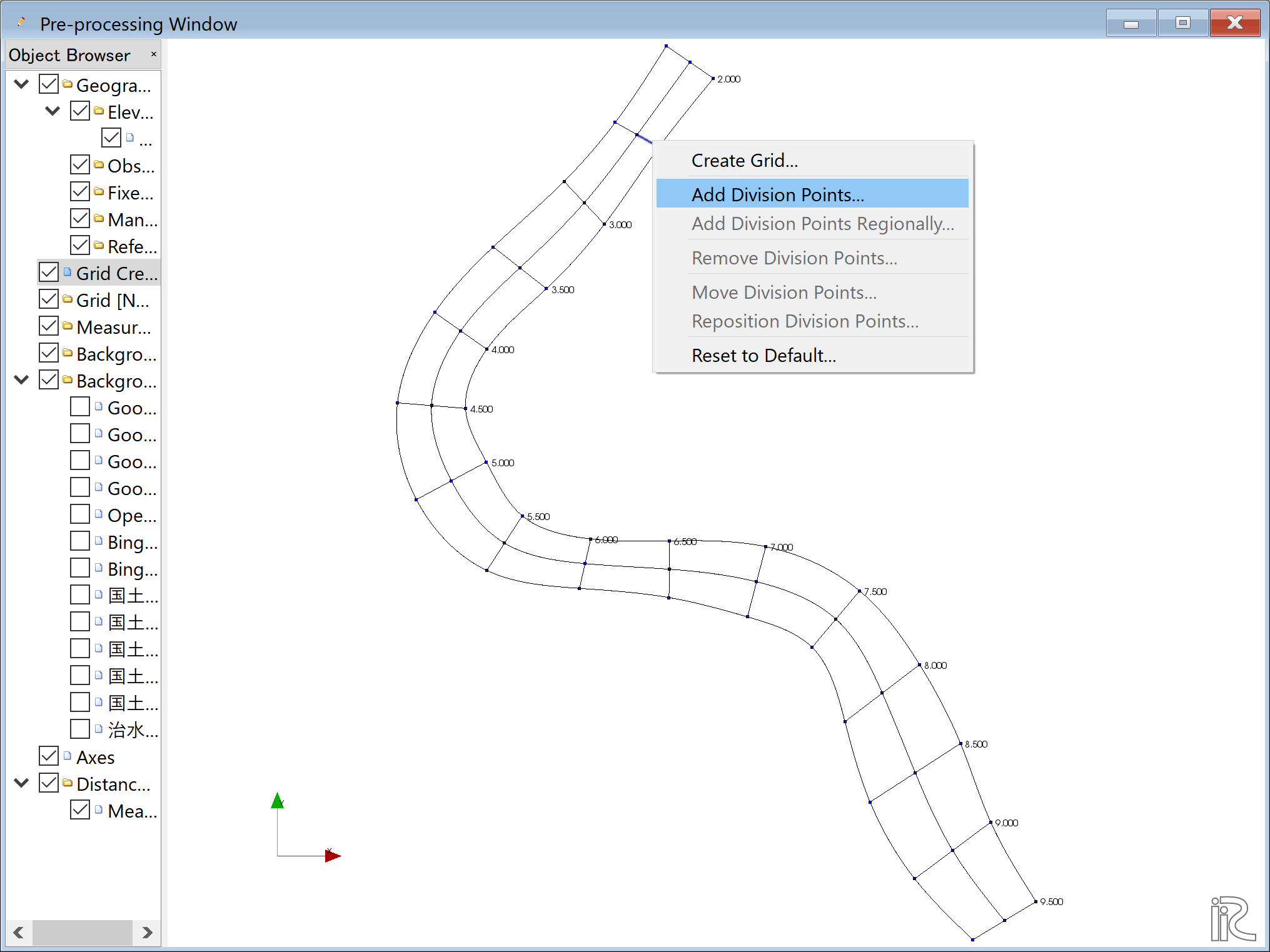
Figure 90 :Add Division Points(1)
Set [Division Number], set [4] in this example, and click [OK] (Figure 91 )
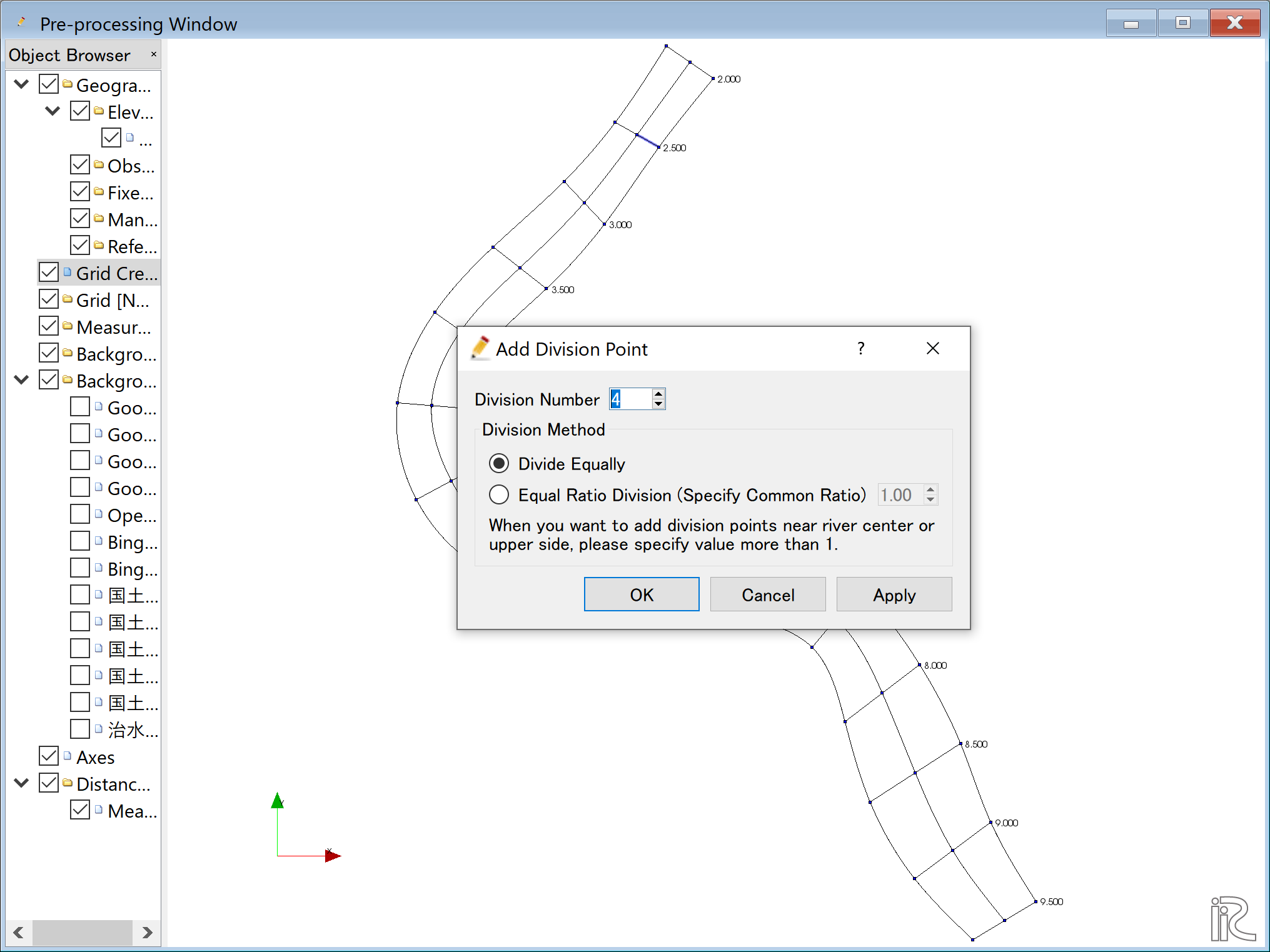
Figure 91 :Add Division Points(2)
Select one of the opposite side of the cross sectional line we selected in Figure 90 , right click, and chose [Add Division Points] (Figure 92 )
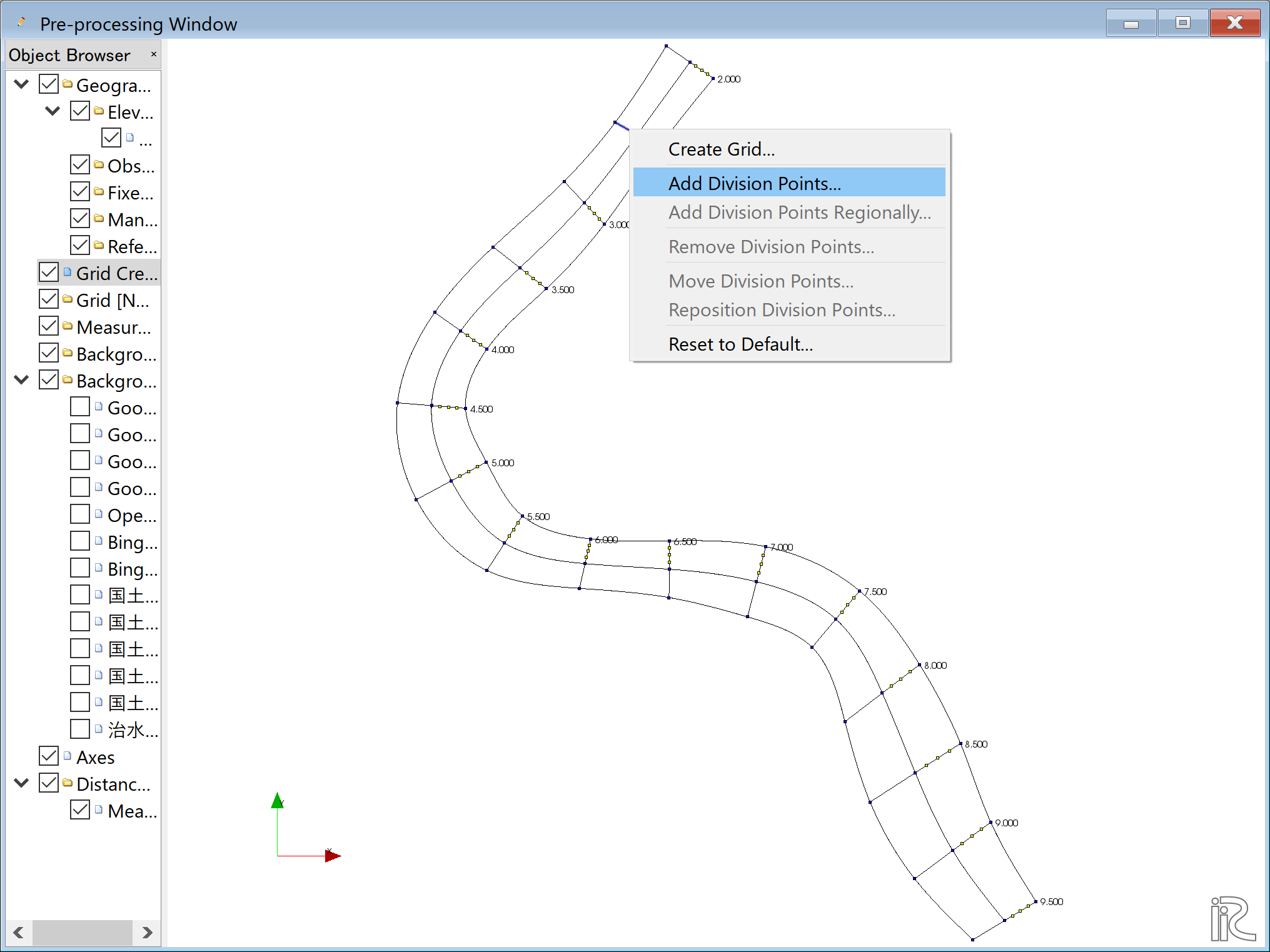
Figure 92 :Add Division Points(3)
Set [Division Number], set [4] as a same number we set in Figure 91 for the symmetry.
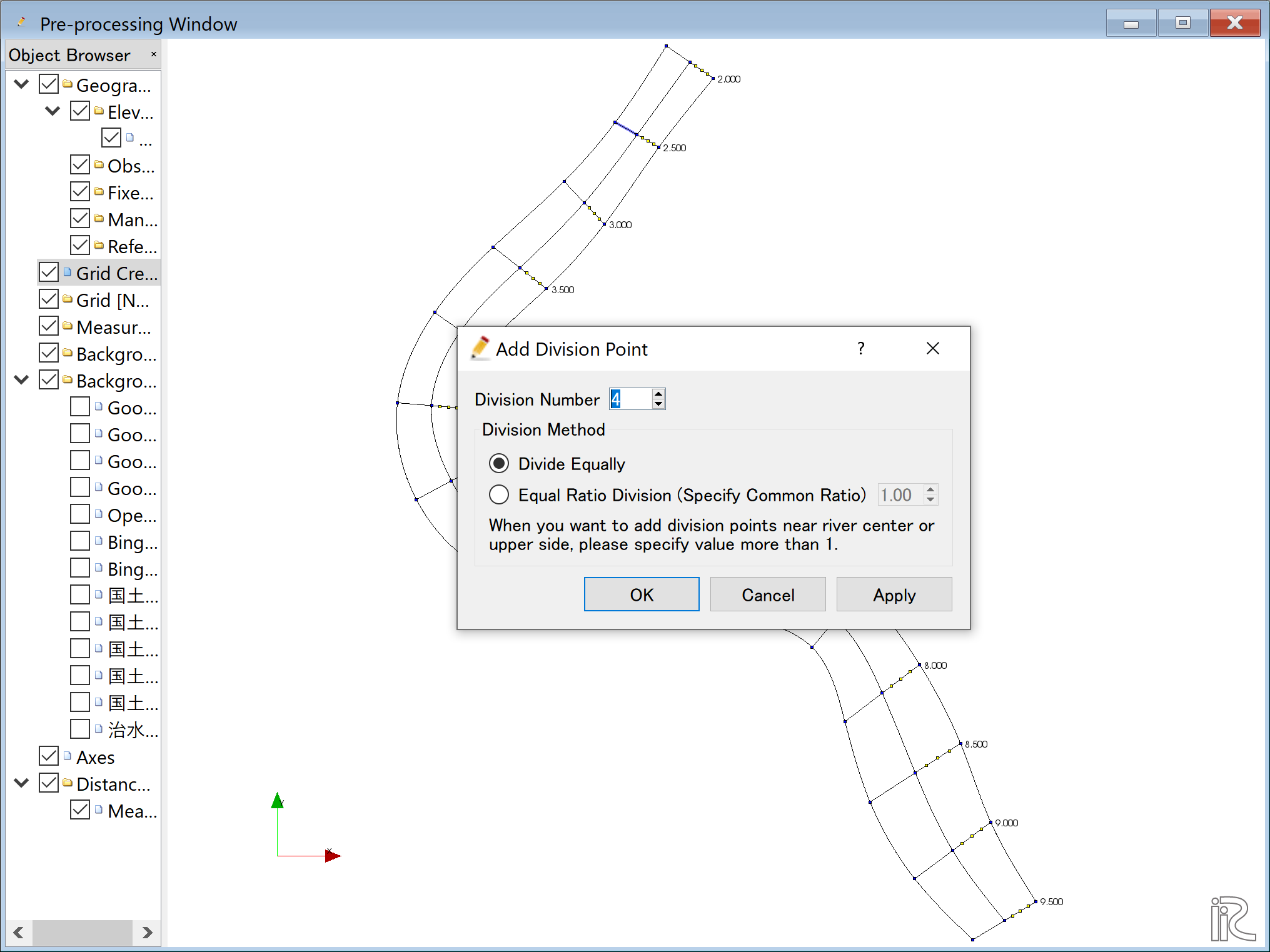
Figure 93 :Add Division Points(4)
Along the channel direction, division points are set all at once. Select [Grid], [Add Division Points Regionally] from the menu bar. ( Figure 94 )
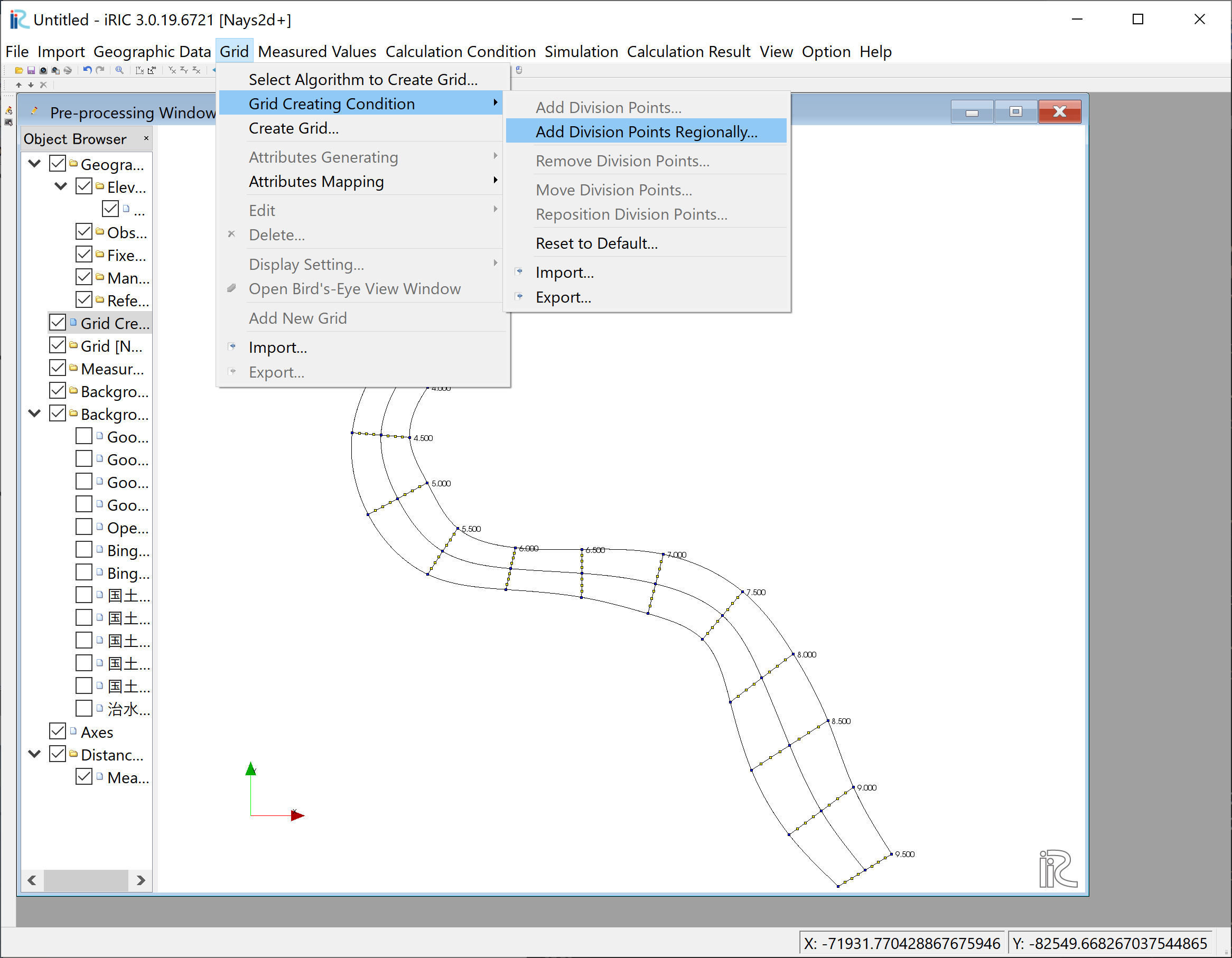
Figure 94 :Add Division Points Regionally(1)
Chose [Specify target distance division points]. set distance [70] in this example, and click [OK].( Figure 95 )
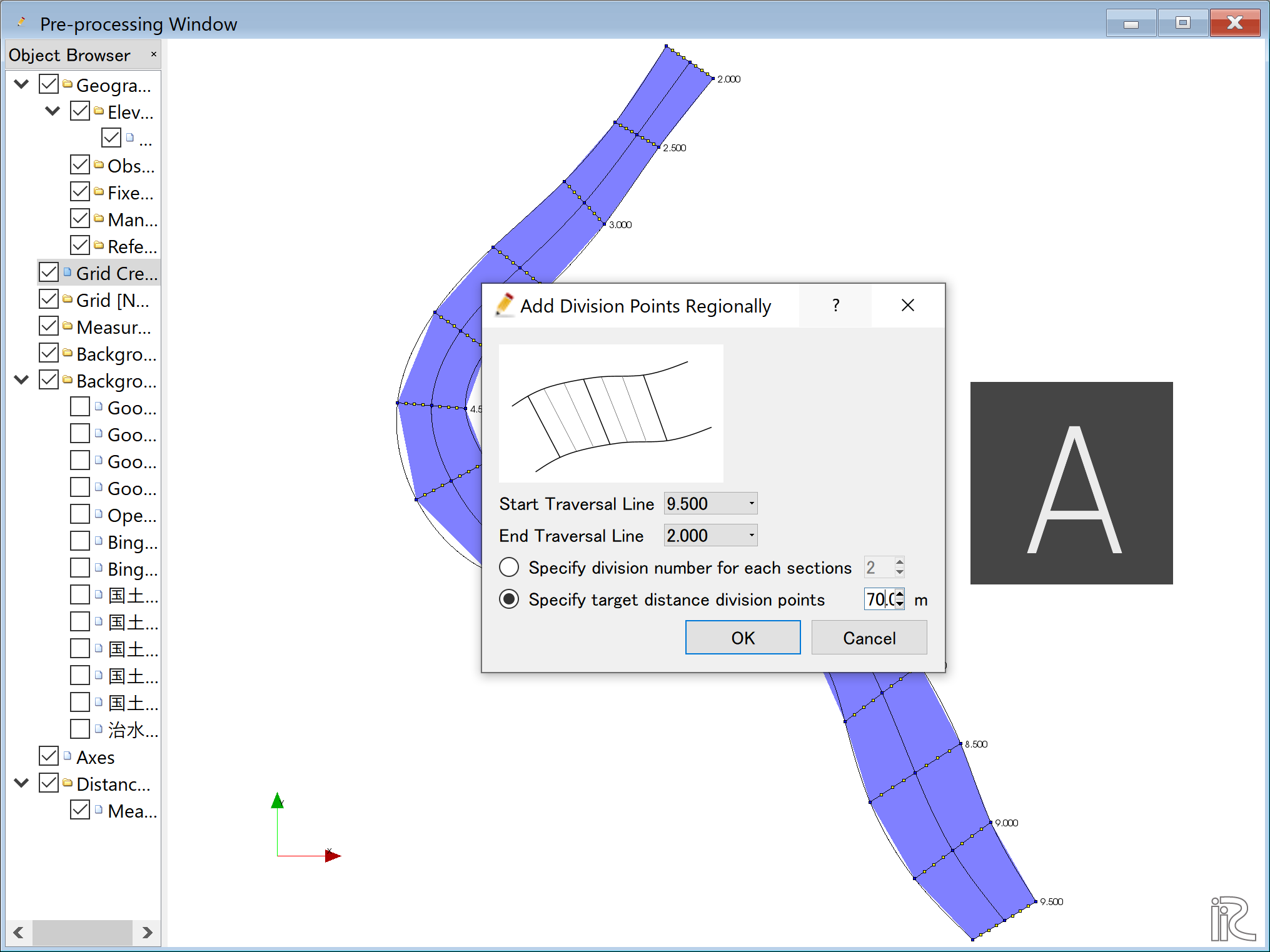
Figure 95 :Add Division Points Regionally(2)
When the setup for division points are completed, a plane map with yellow circle points appears as Figure 96
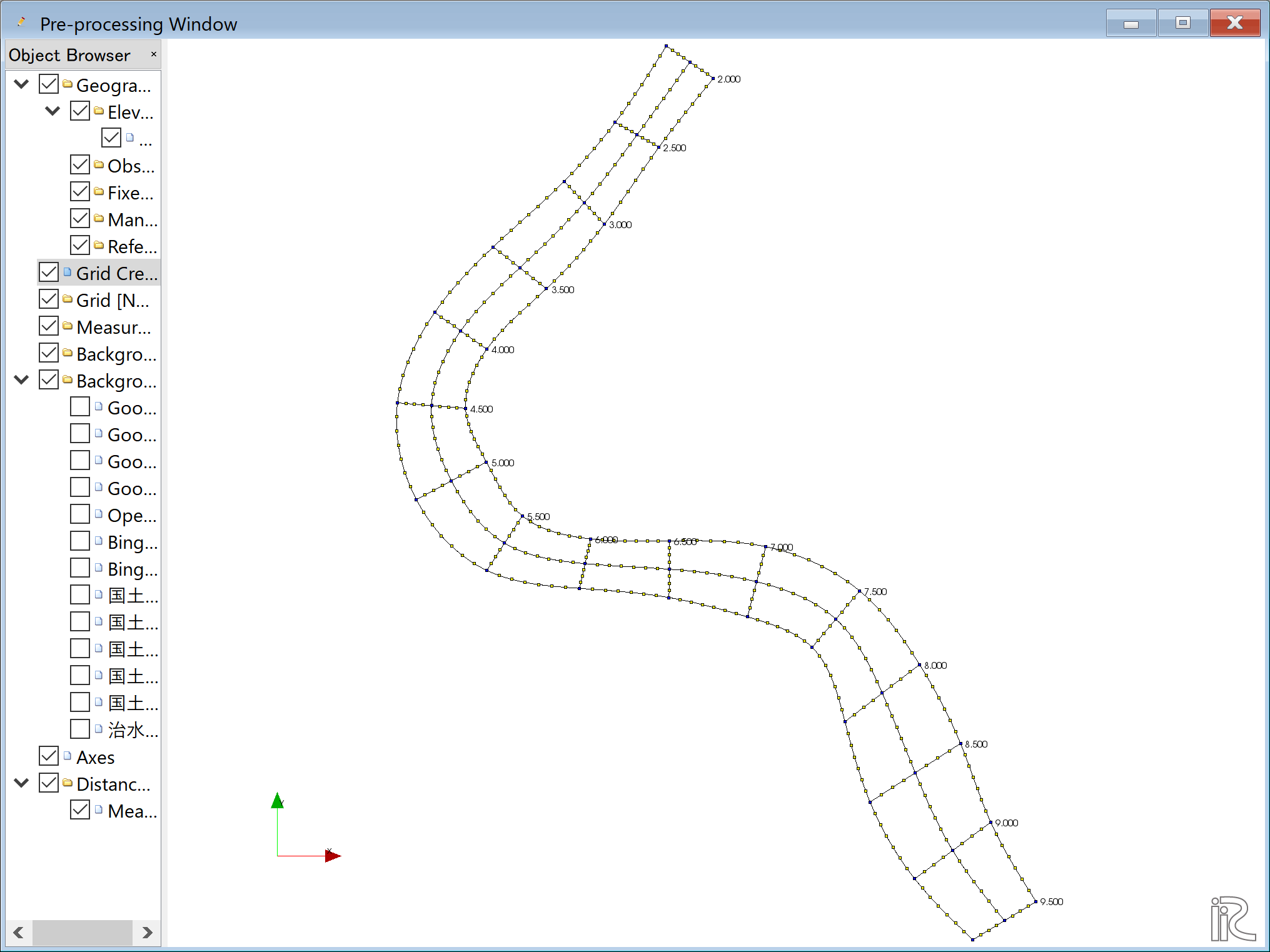
Figure 96 :Set dicision points complete
Select [Grid], [Grid Create] from the menu bar.( Figure 97 )
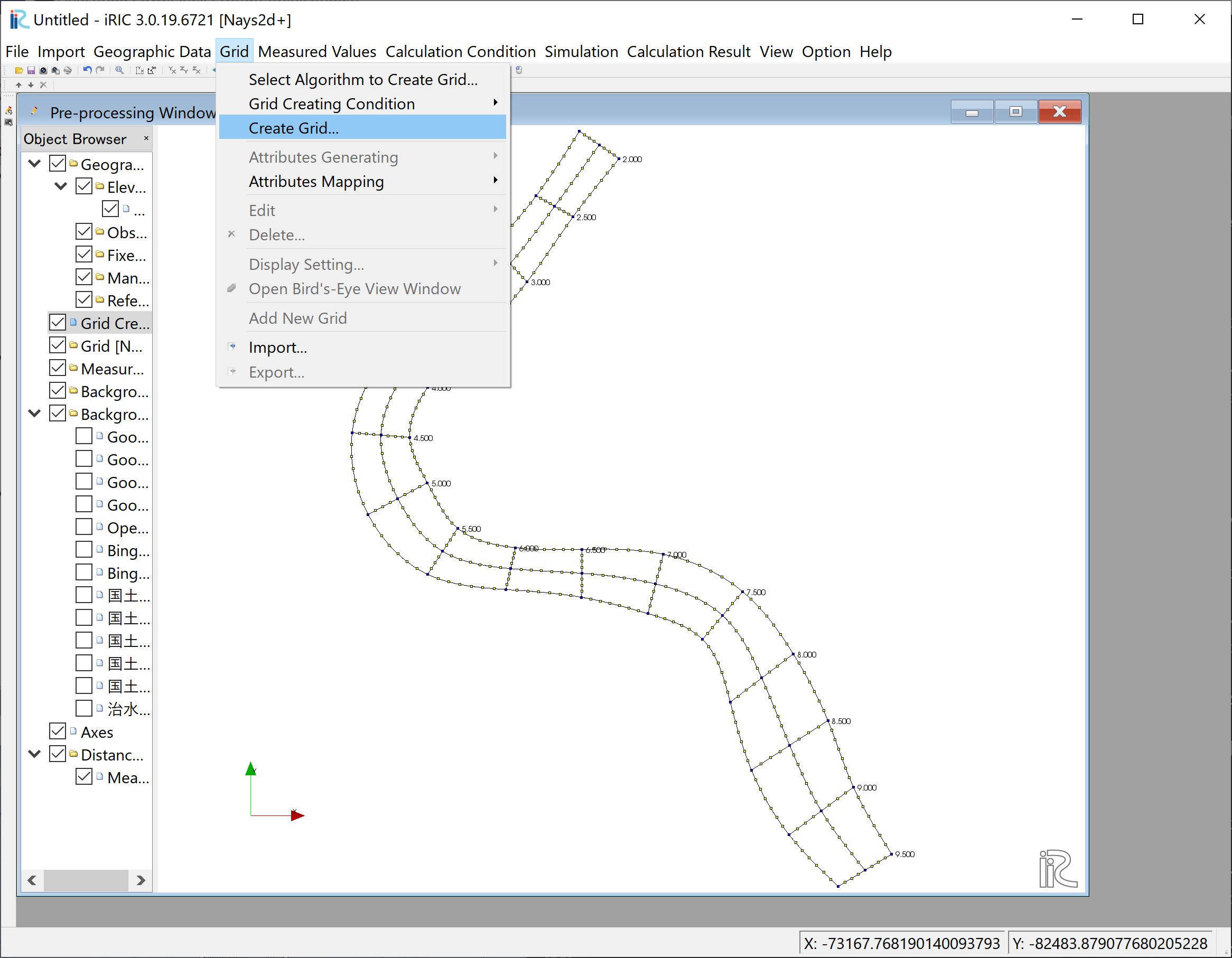
Figure 97 :Grid Create(1)
Confirm the grid generation range painted with blue, and click [OK].
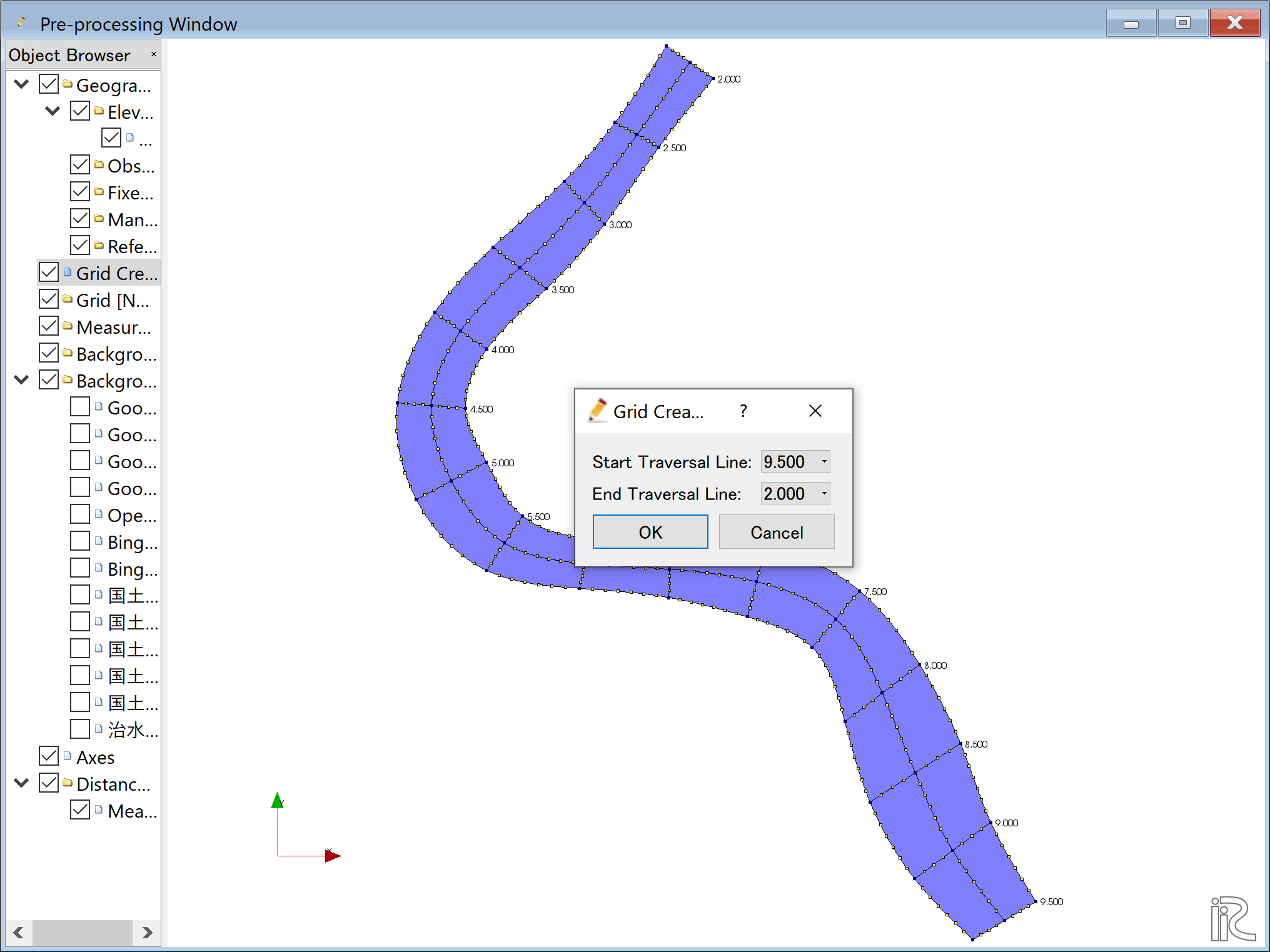
Figure 98 :Grid Create(2)
Answer [Yes] when you asked [Do you want to map?] as Figure 99
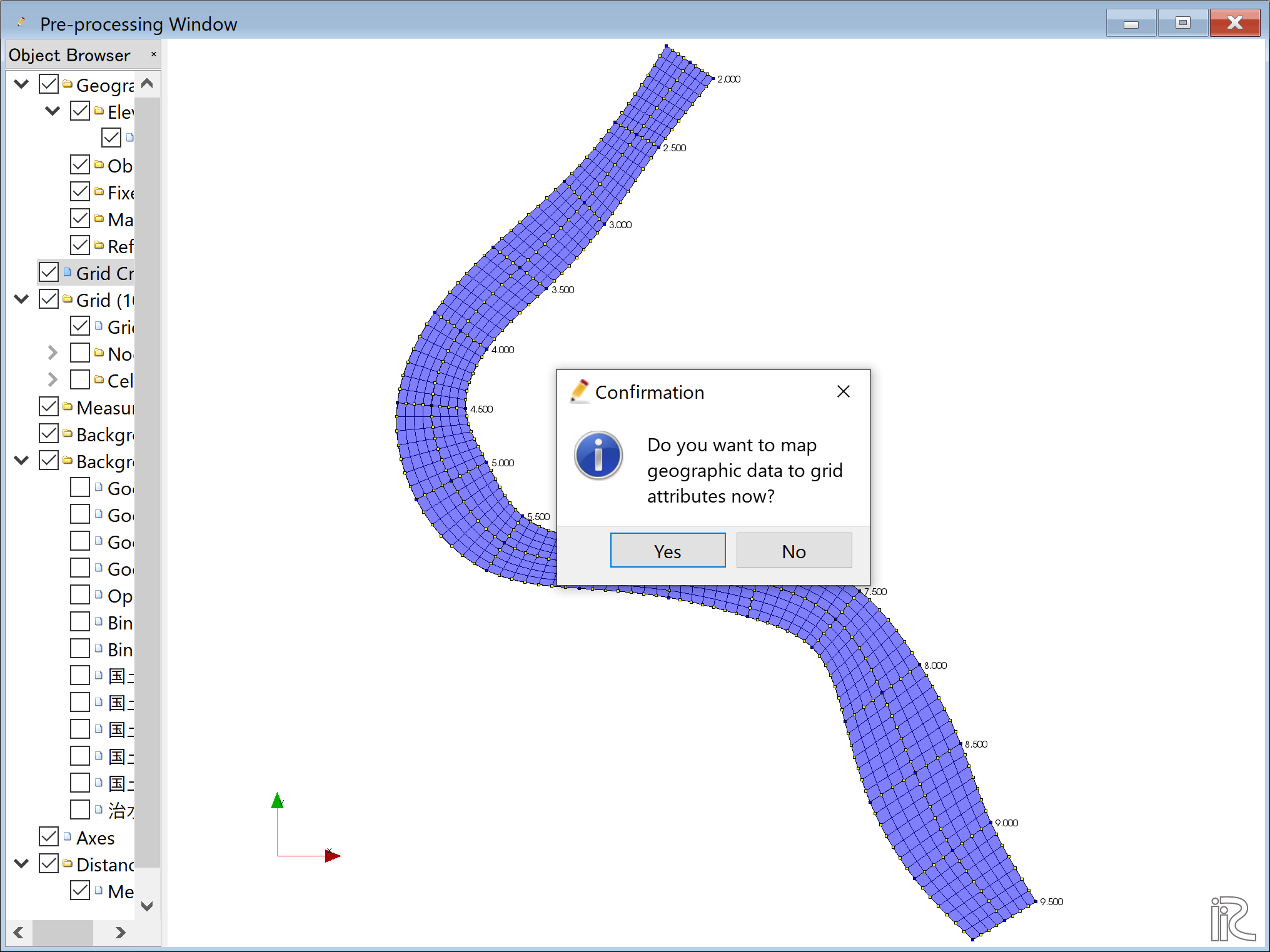
Figure 99 :Mapping?
Completed grid is shown as Figure 100
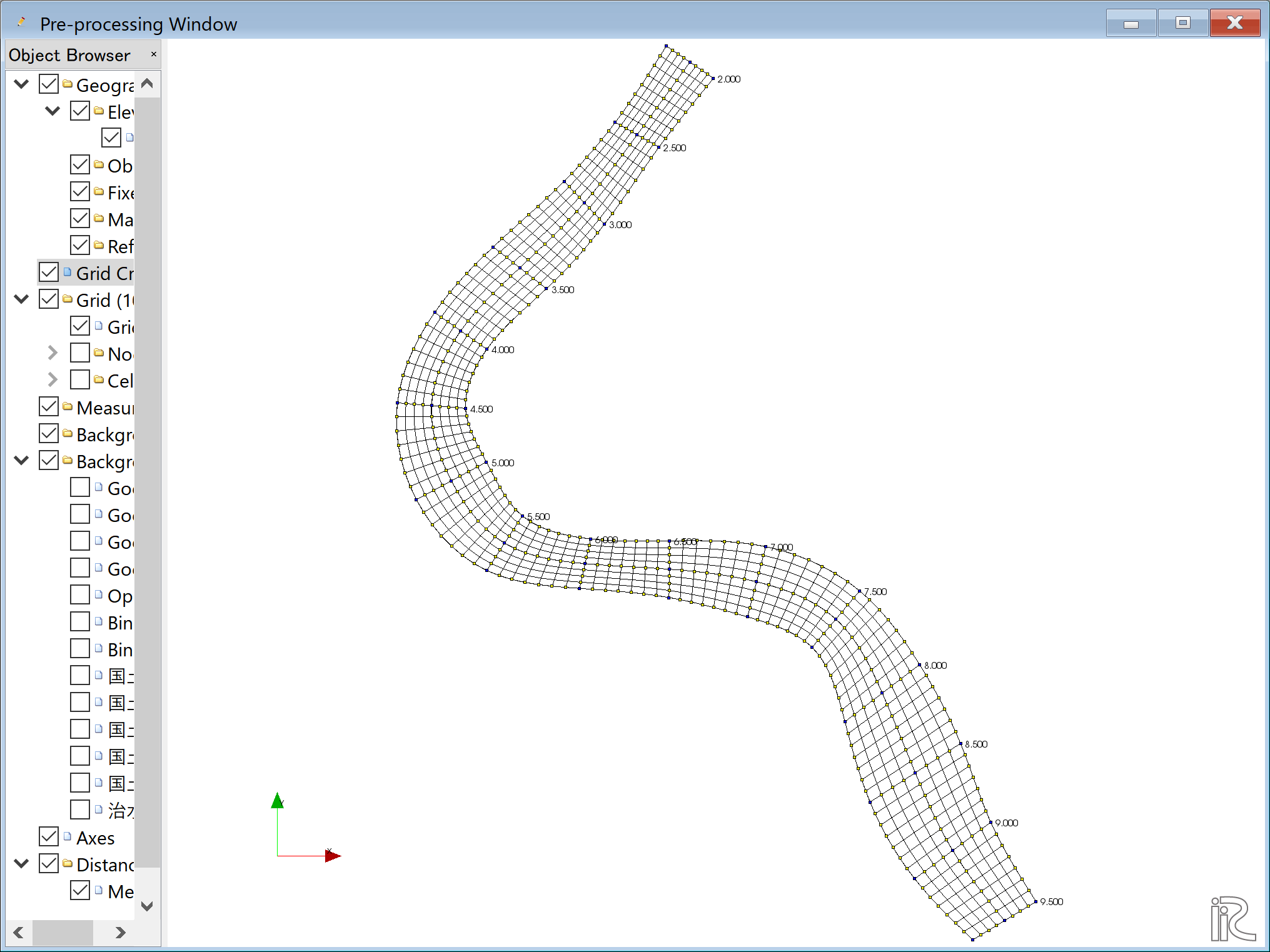
Figure 100 :Grid Generation Complete
Bed configuration and channel shape can be confirmed by putting checking marks at, [Grid], [Node attributes] and [Elevation (m)]. ( Figure 101 )
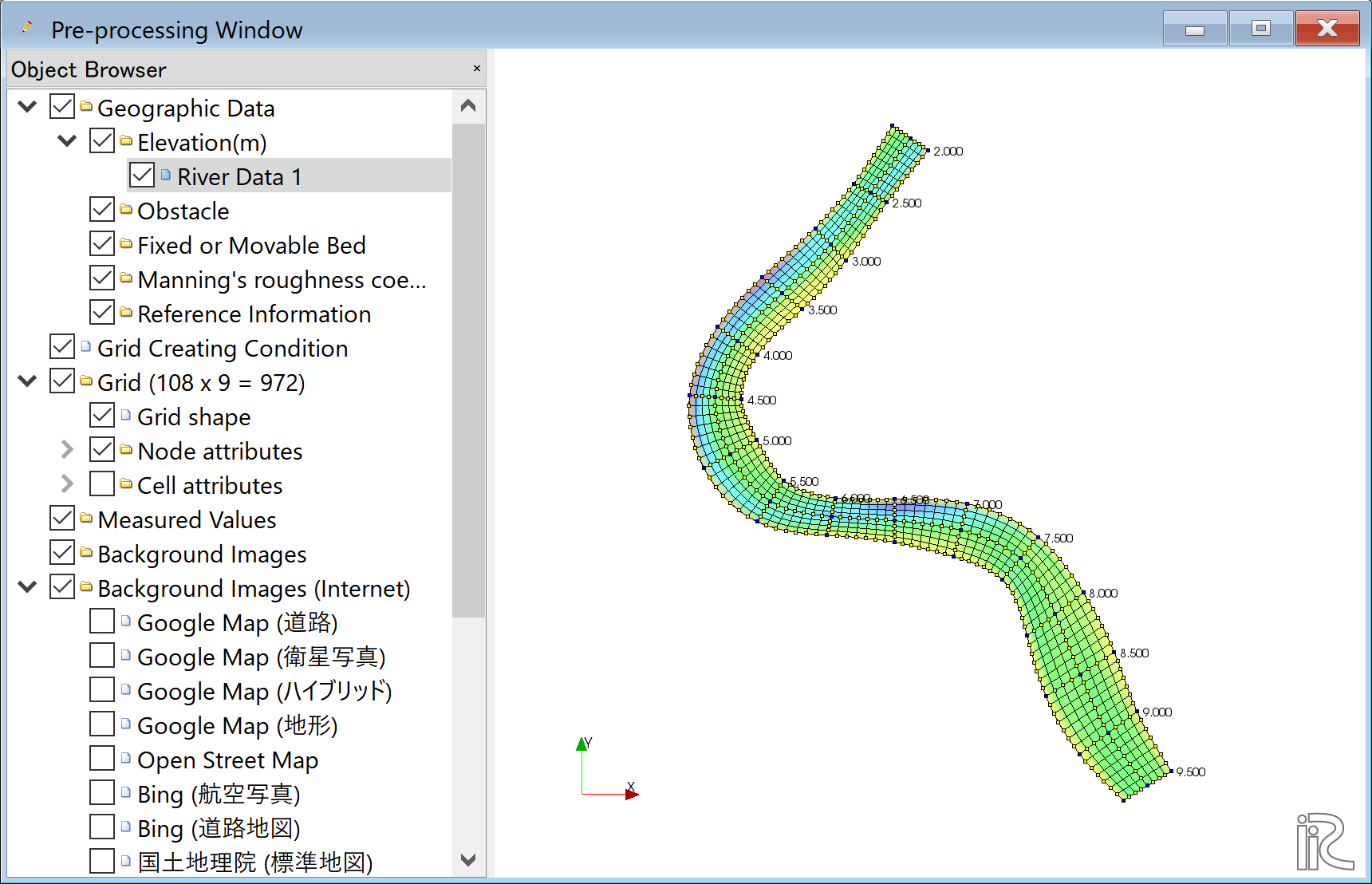
Figure 101 :Confirmtion of the Mapping Result
Computational Condition
Select [Calculation Condition] and [Setting] from the min menu as Figure 102 .
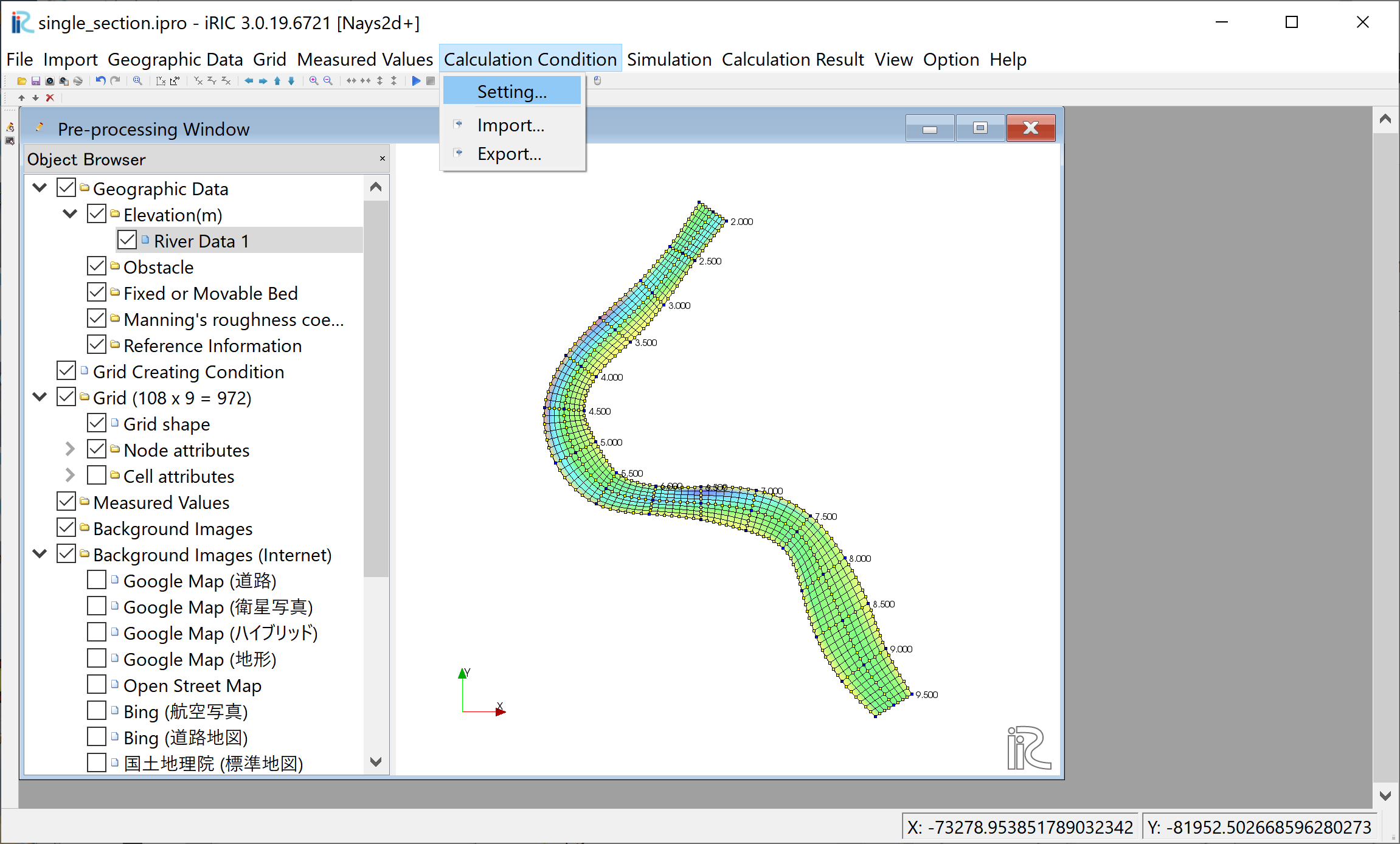
Figure 102 :Setting Compitational Condition
Set [Time unit of discharge] as [Hour] and click [Edit], ( Figure 103 )
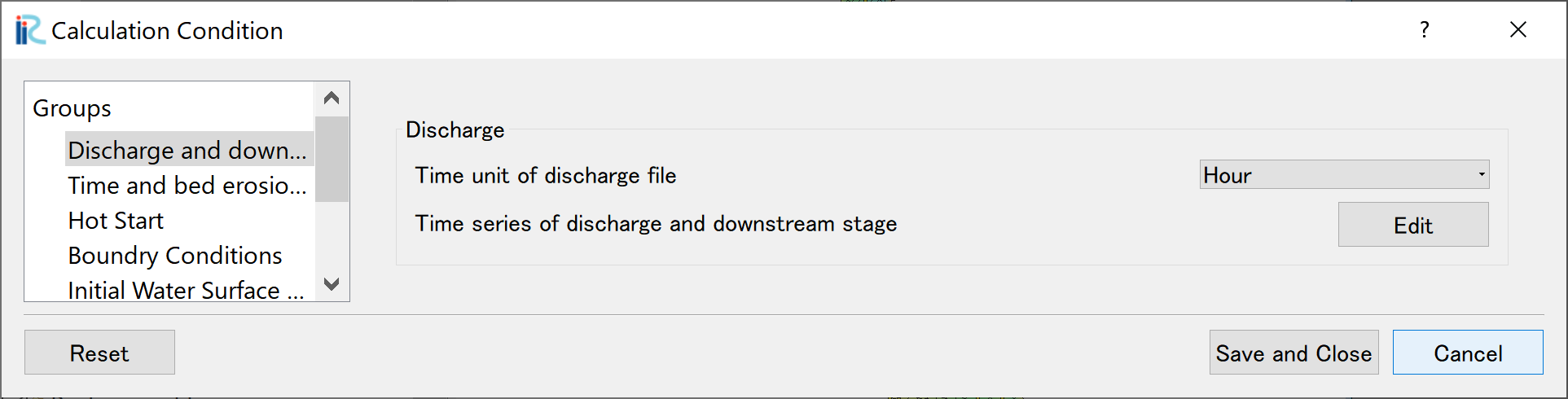
Figure 103 :Discharge Condition
Set discharge hydrography as Figure 104, constant for 3 hours with 2,000 qms, and click [OK].
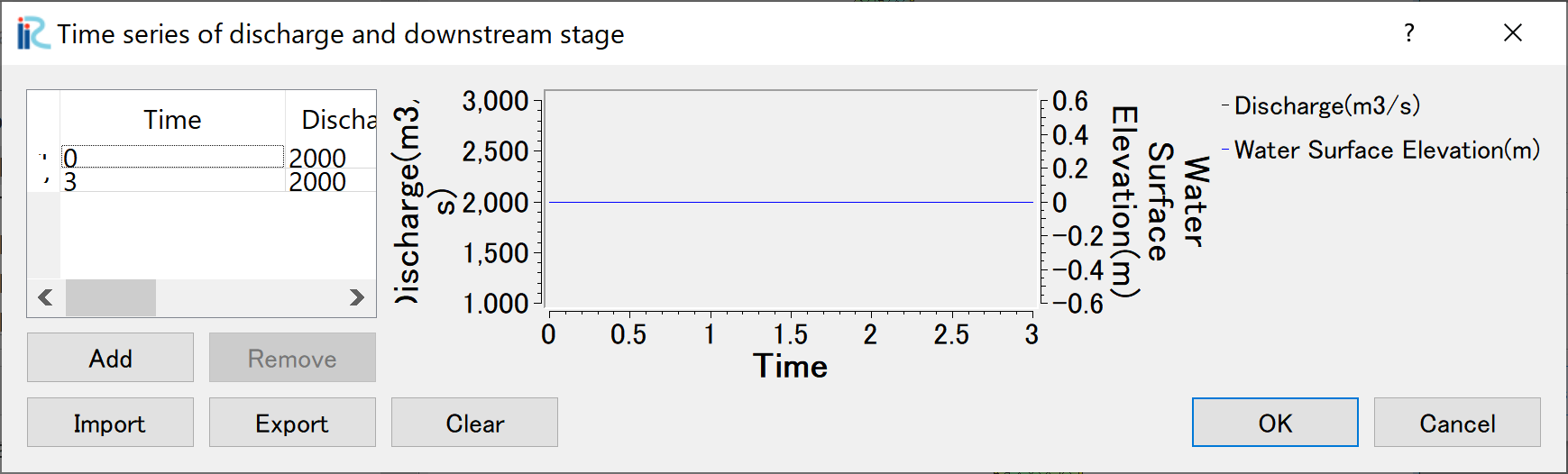
Figure 104 :Input Discharge(2)
Set [Time and bed erosion condition] as Figure 105 .
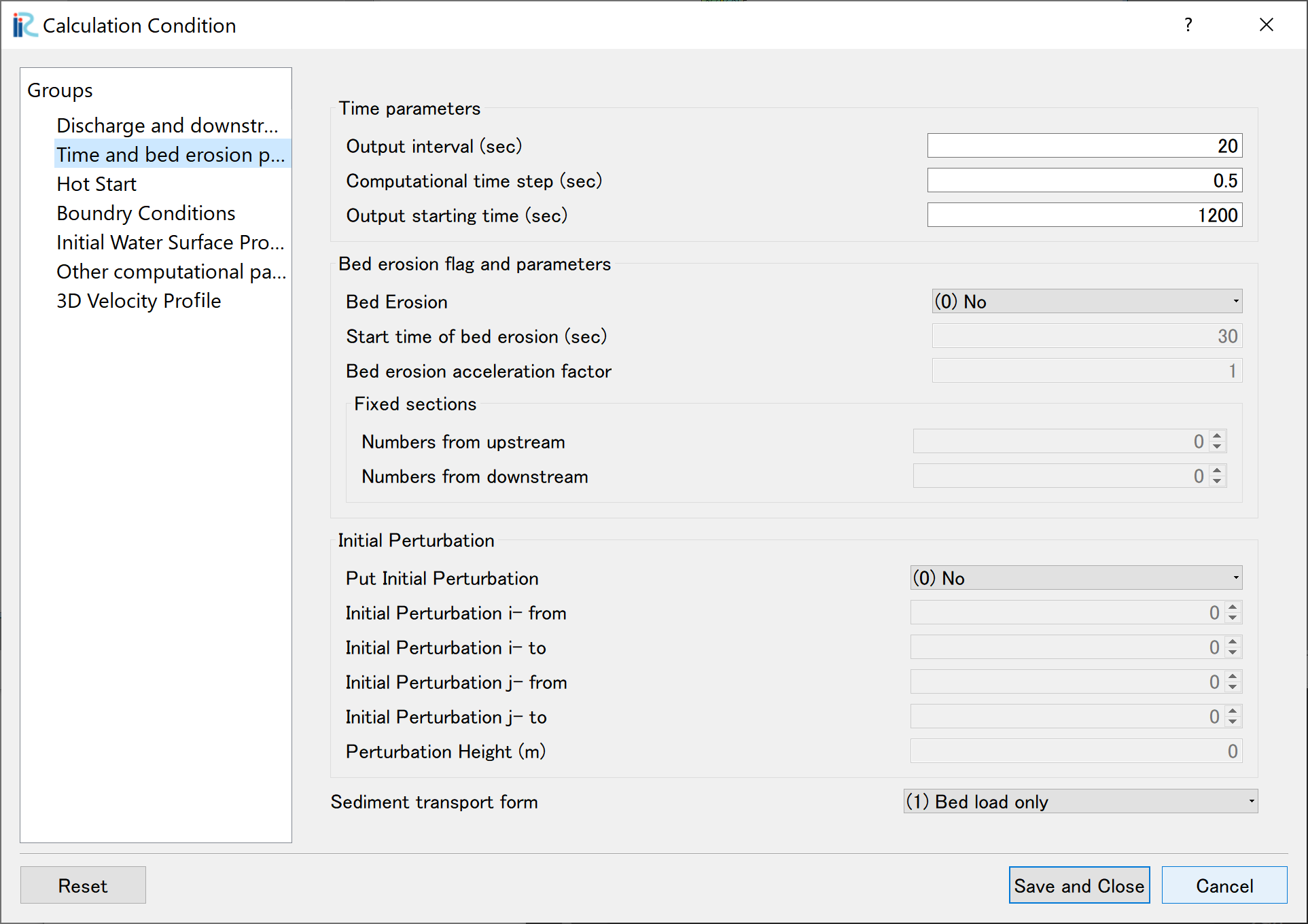
Figure 105 :Time and bed erosion condition
Set “3D Velocity Profile” as shown in the figure Figure 106 , and click [Save and Close] to exit.
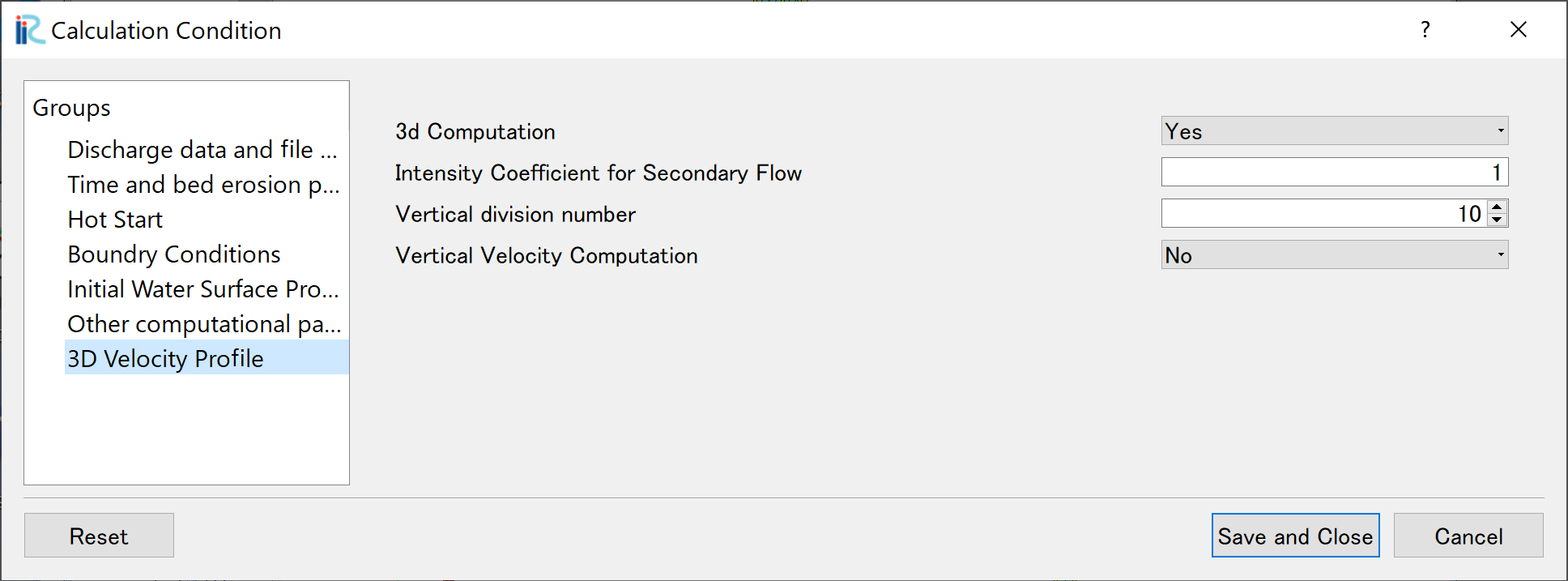
Figure 106 :3D Velocity Profile Settings
Launch Computation
From the menu bar, select [Simulation] and [Run].
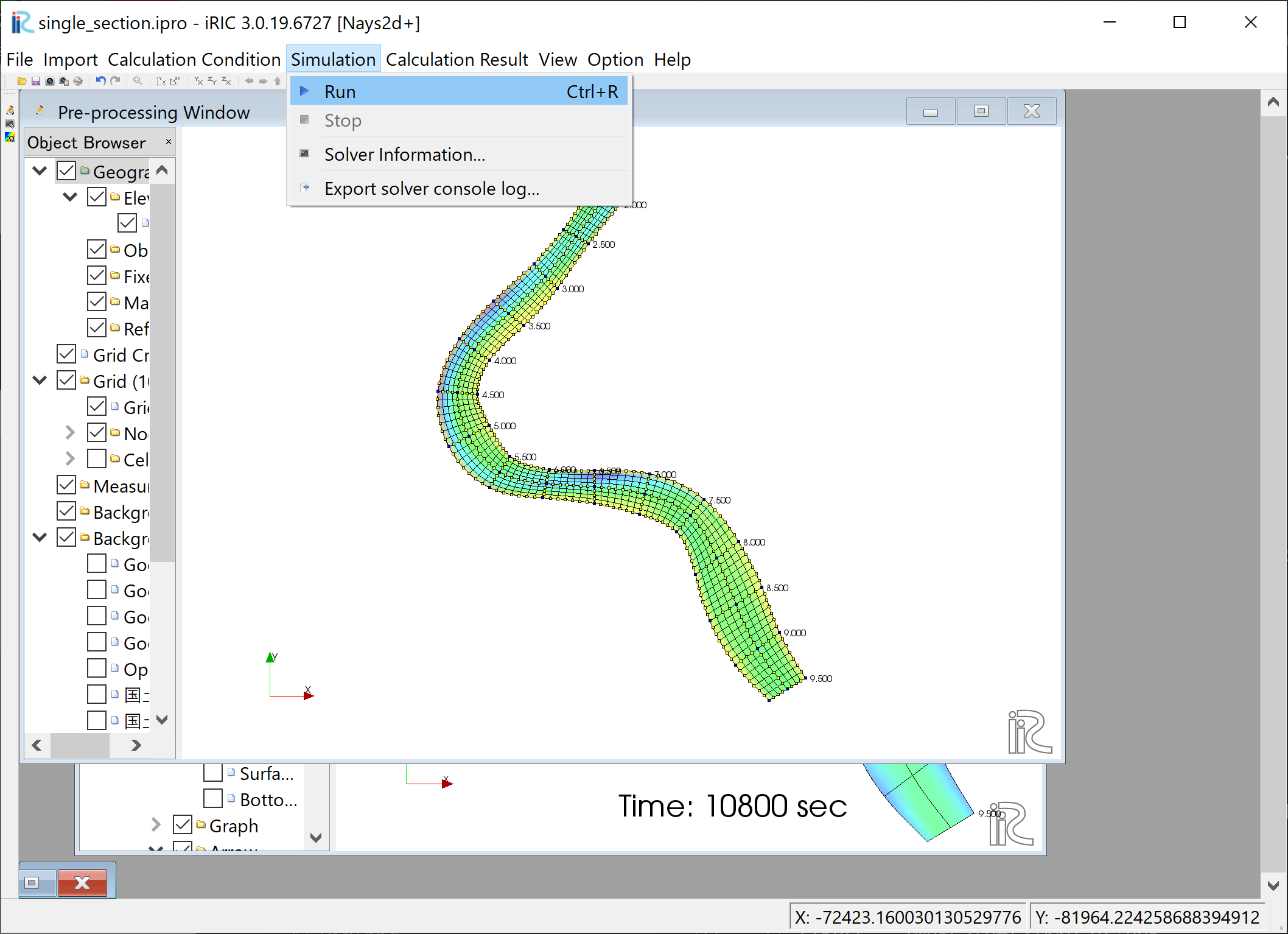
Figure 107 :Launch Simulation(1)
Answer [Yes(Y)] when you asked [Save the project?] as Figure 108
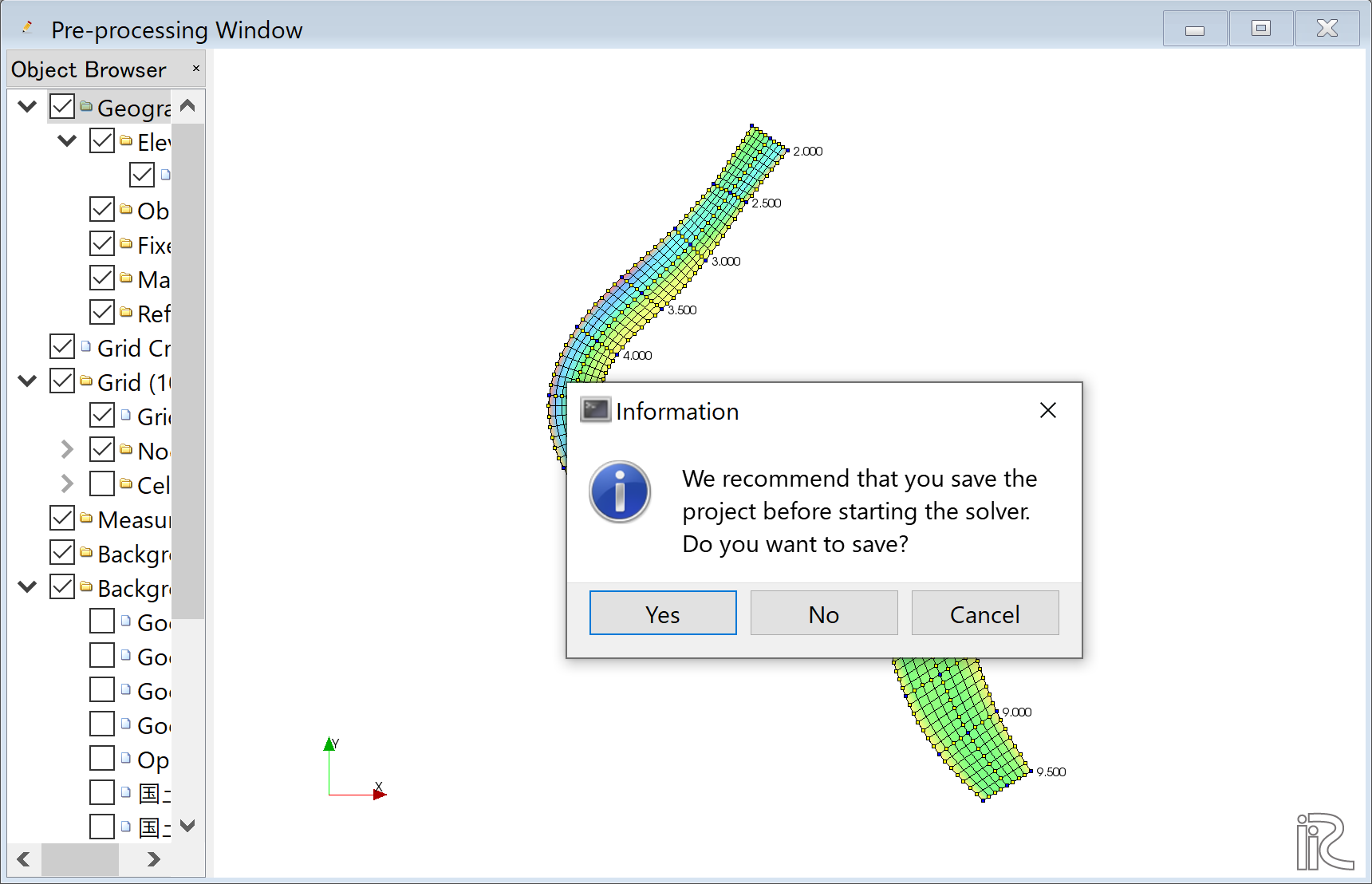
Figure 108 :Launch Simulation(2)
Simulation starts. Figure 109
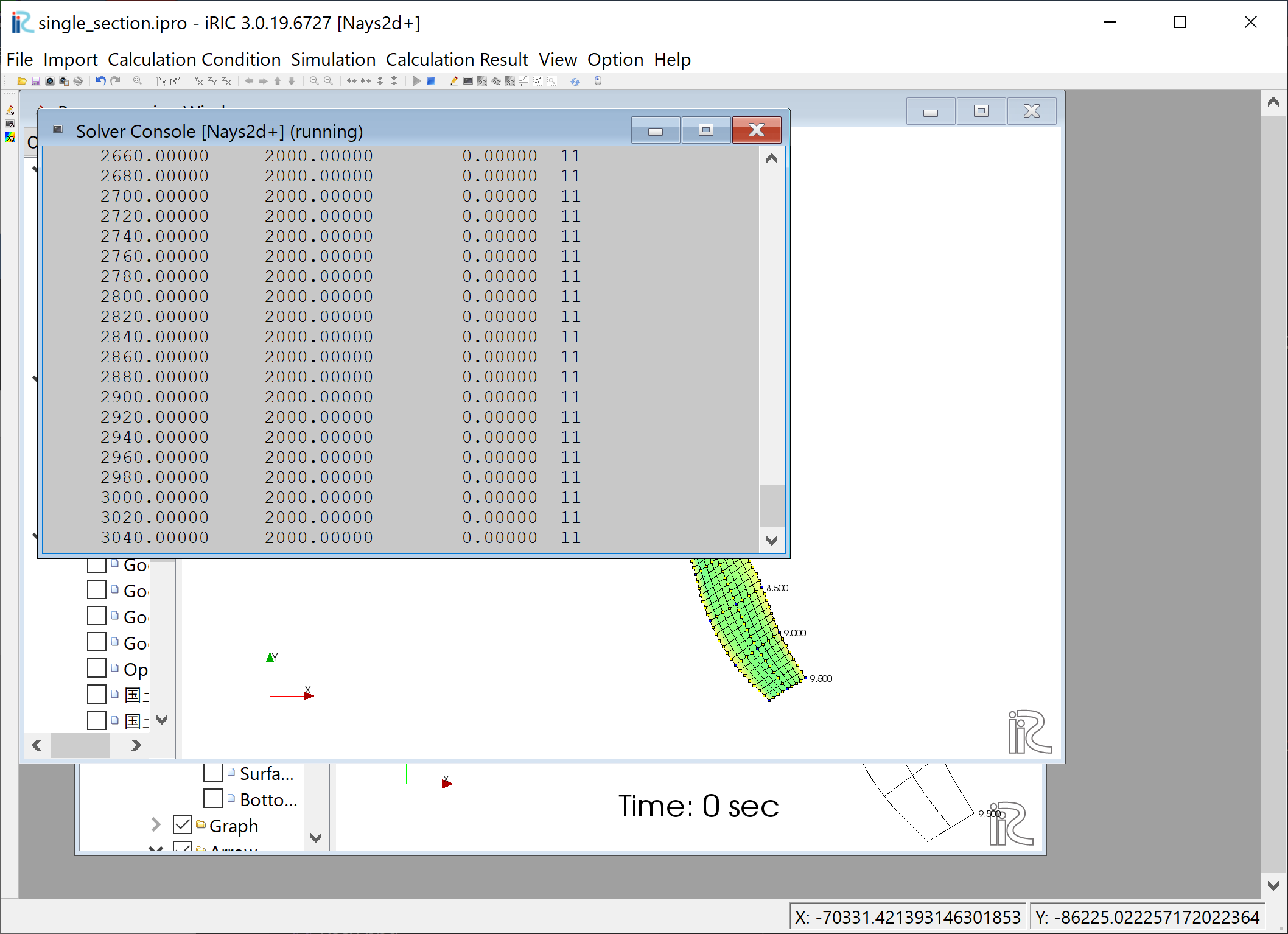
Figure 109 :Launch Simulation(3)
Click [OK] when the message [The solver finished calculation] as Figure 110
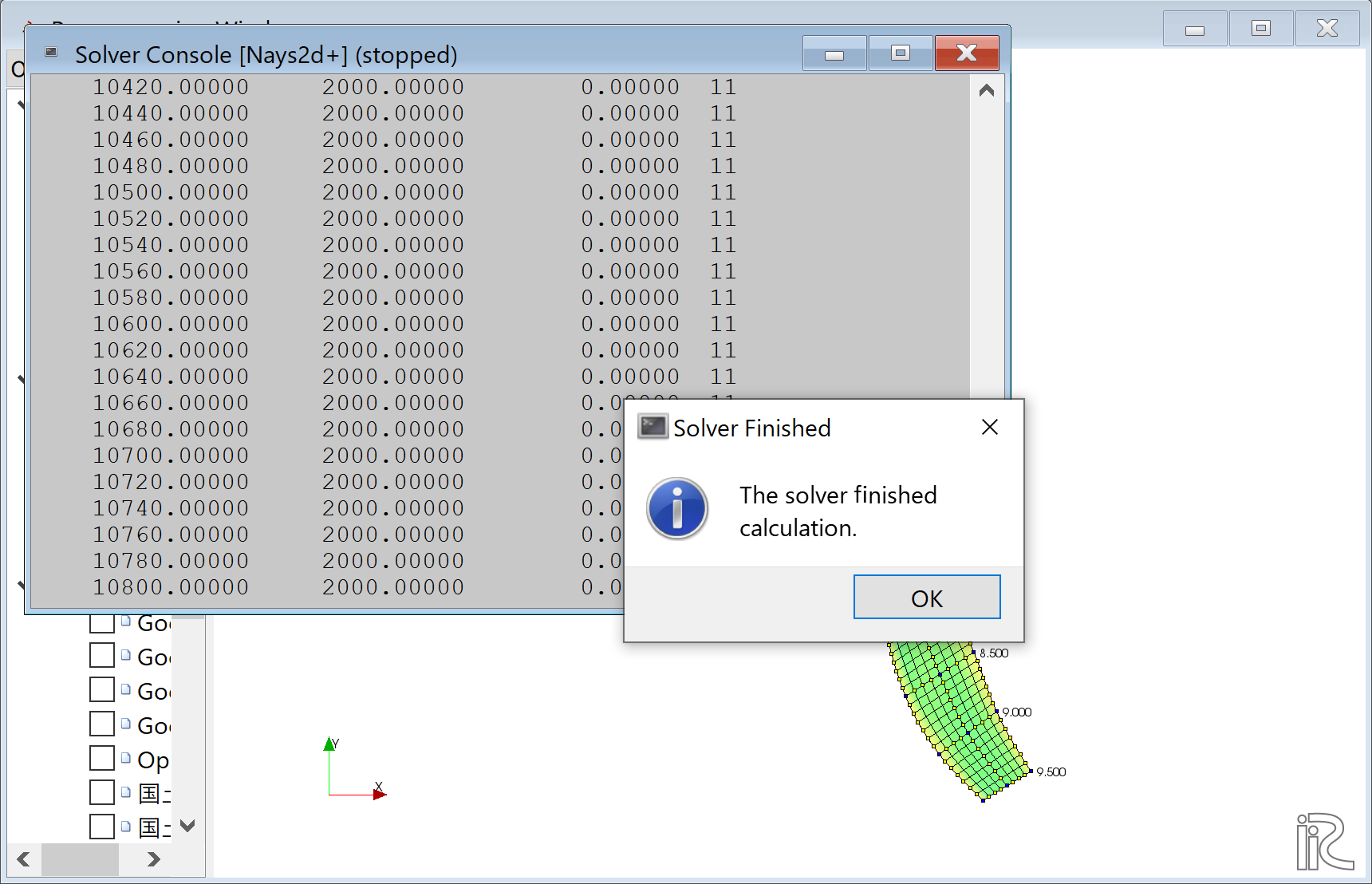
Figure 110 :Calculation finished
Display Computational Results
After the companion finished, form the main menu, by selecting [Calculation Results] and [Open new 2D Post-Processing Window], a new Window appears as Figure 111 .
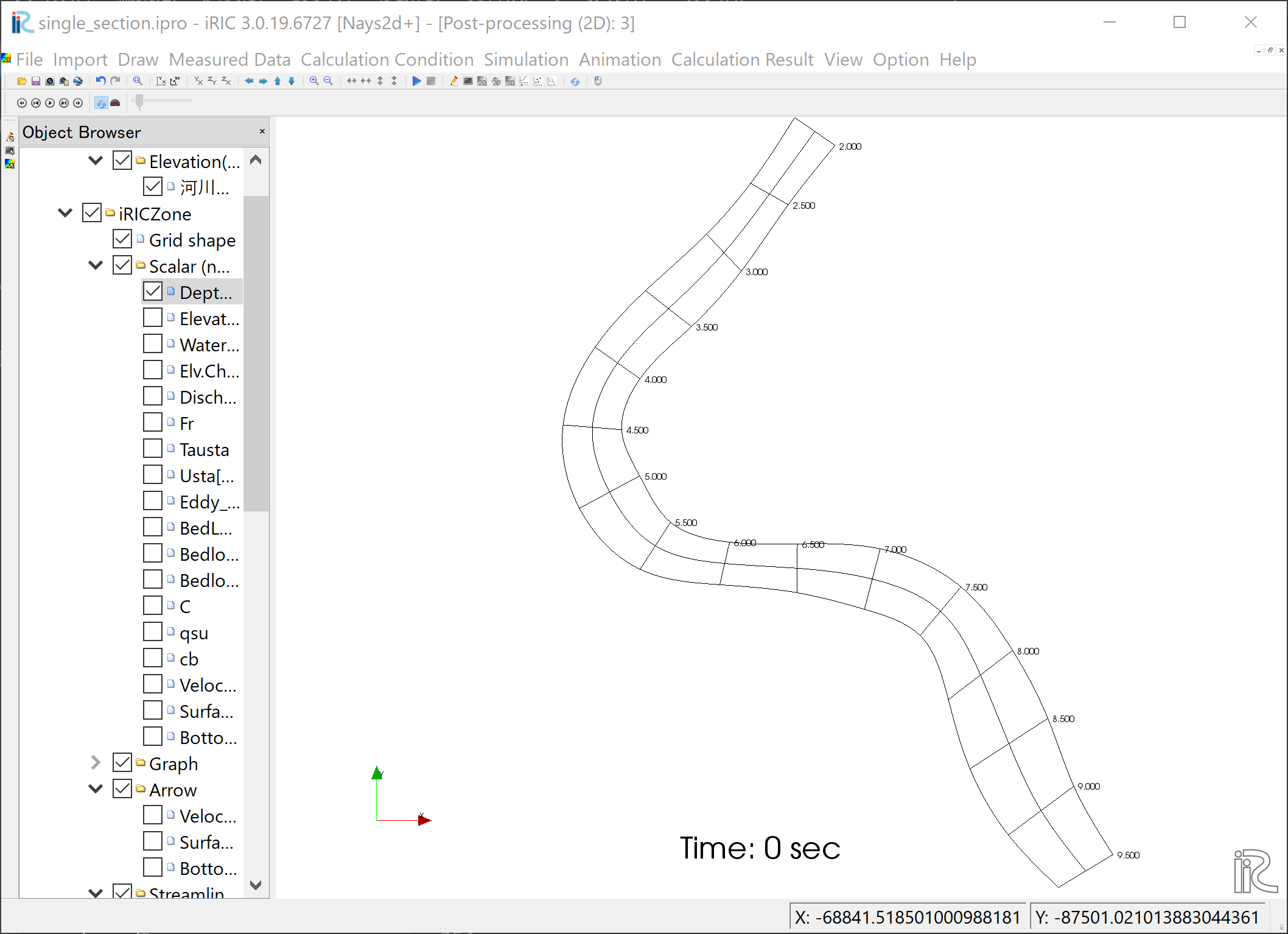
Figure 111 :2D Post-Process Window
Depth
n the object browser, put the check marks in “Scalar (node)” and “Depth[m]”, right-click and select “Properties”. The “Scalar Setting” window Figure 112 appears.
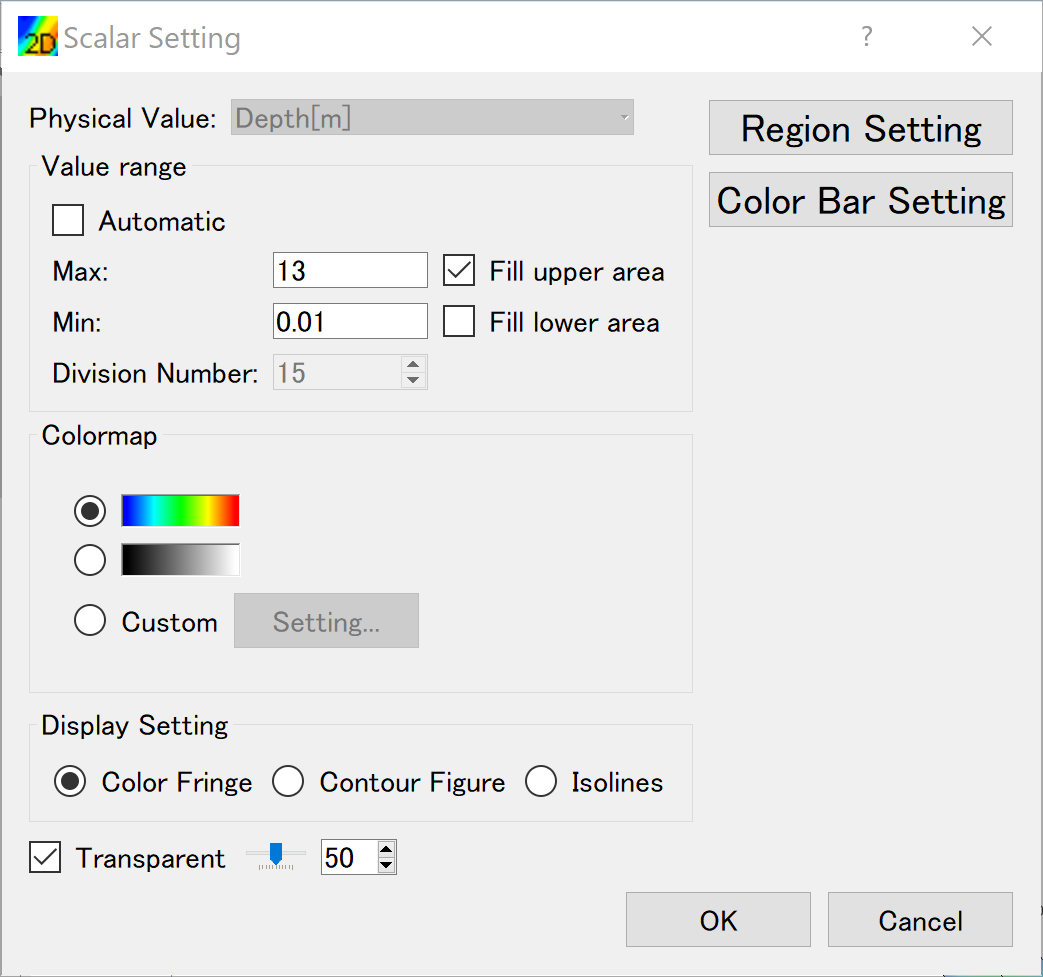
Figure 112 :Scalar Setting
Set the values as shown in Figure 112, and click [OK], then Figure 113 appears.
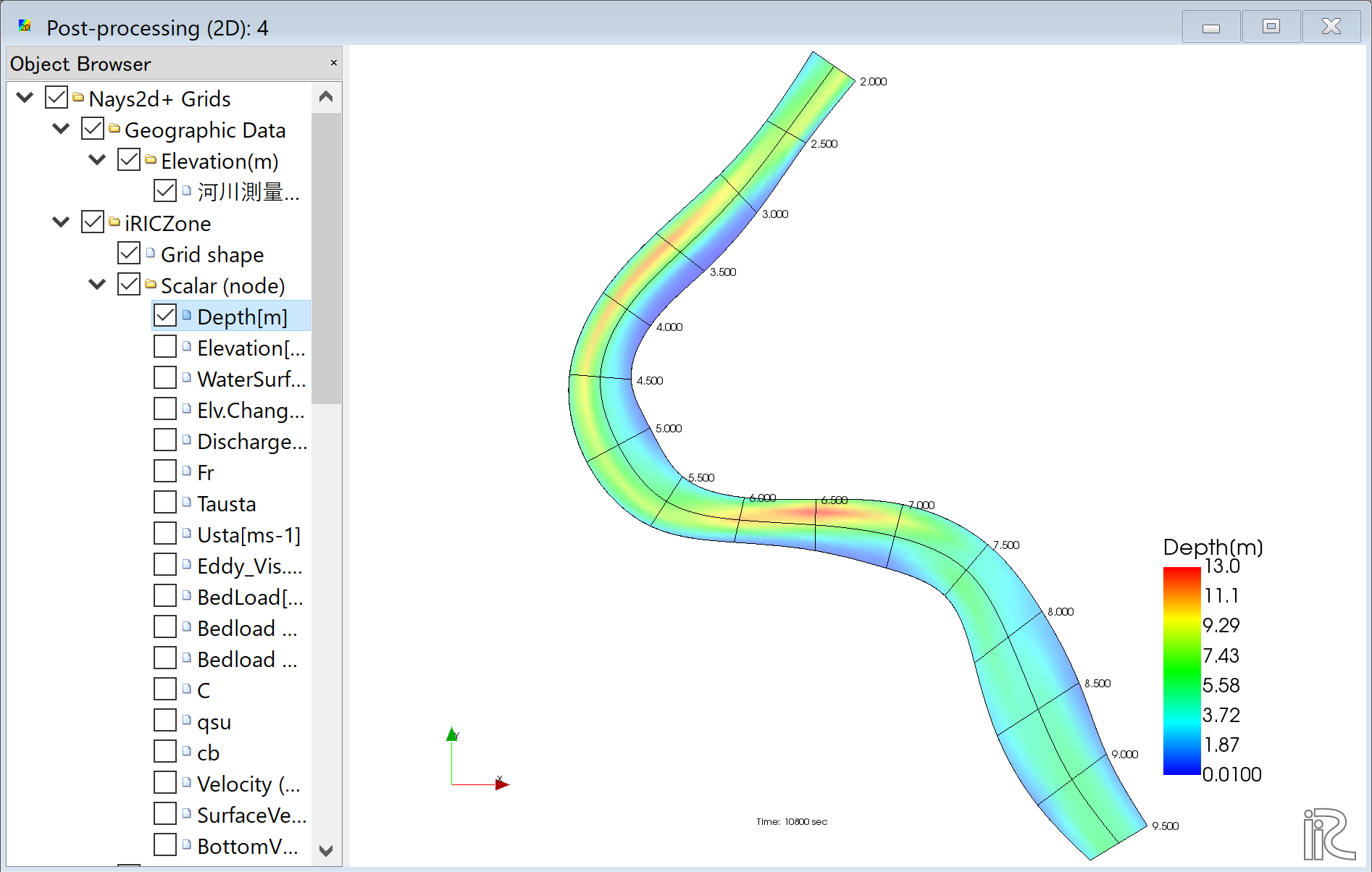
Figure 113 : Depth Plot
Display Background Image
Select from the main menu, [File]->[Property] ( Figure 114 )
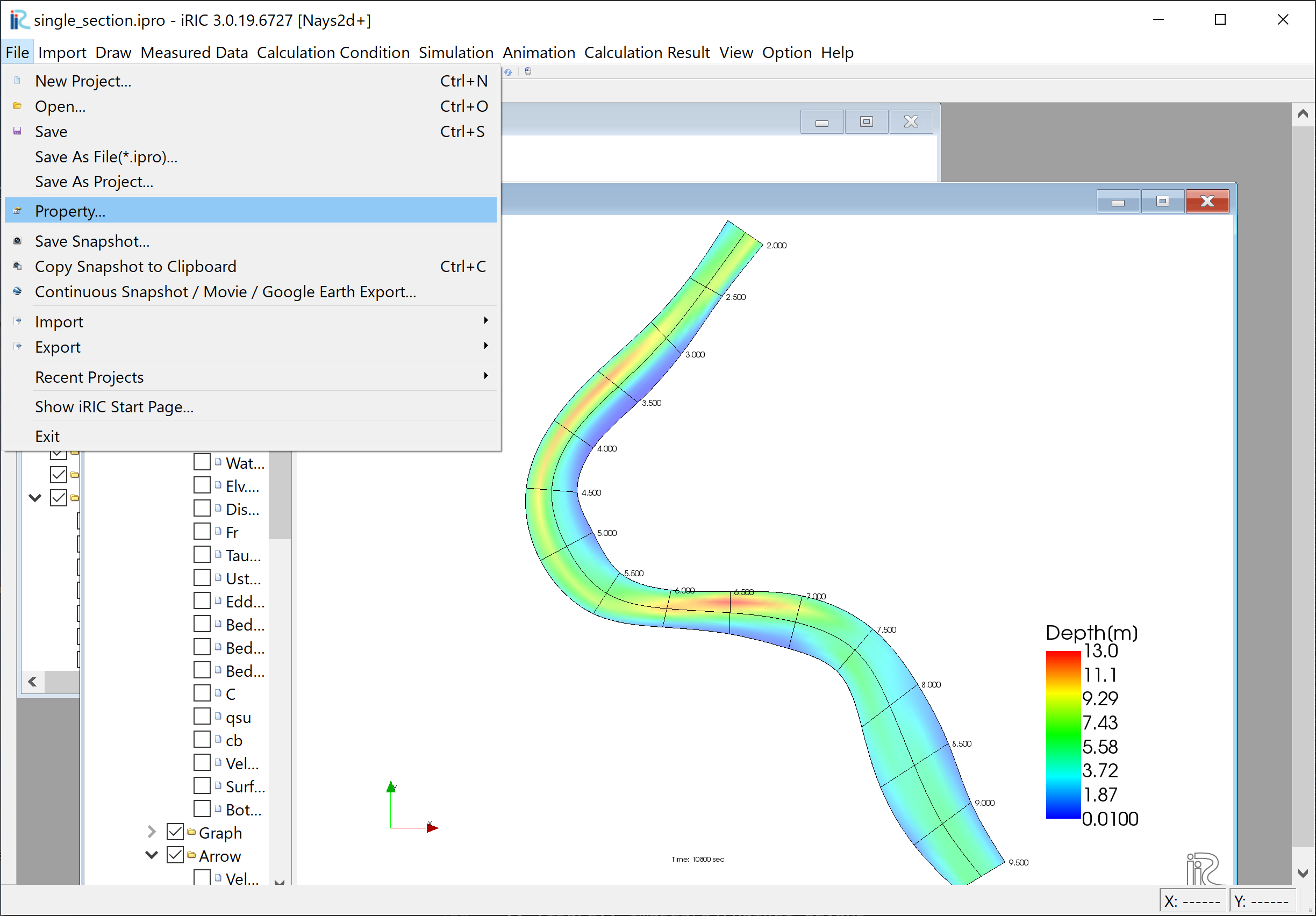
Figure 114 :Select Property
From the “Project Property” window, click [Edit] at [Coordinate System] .. _04_haikei_02:
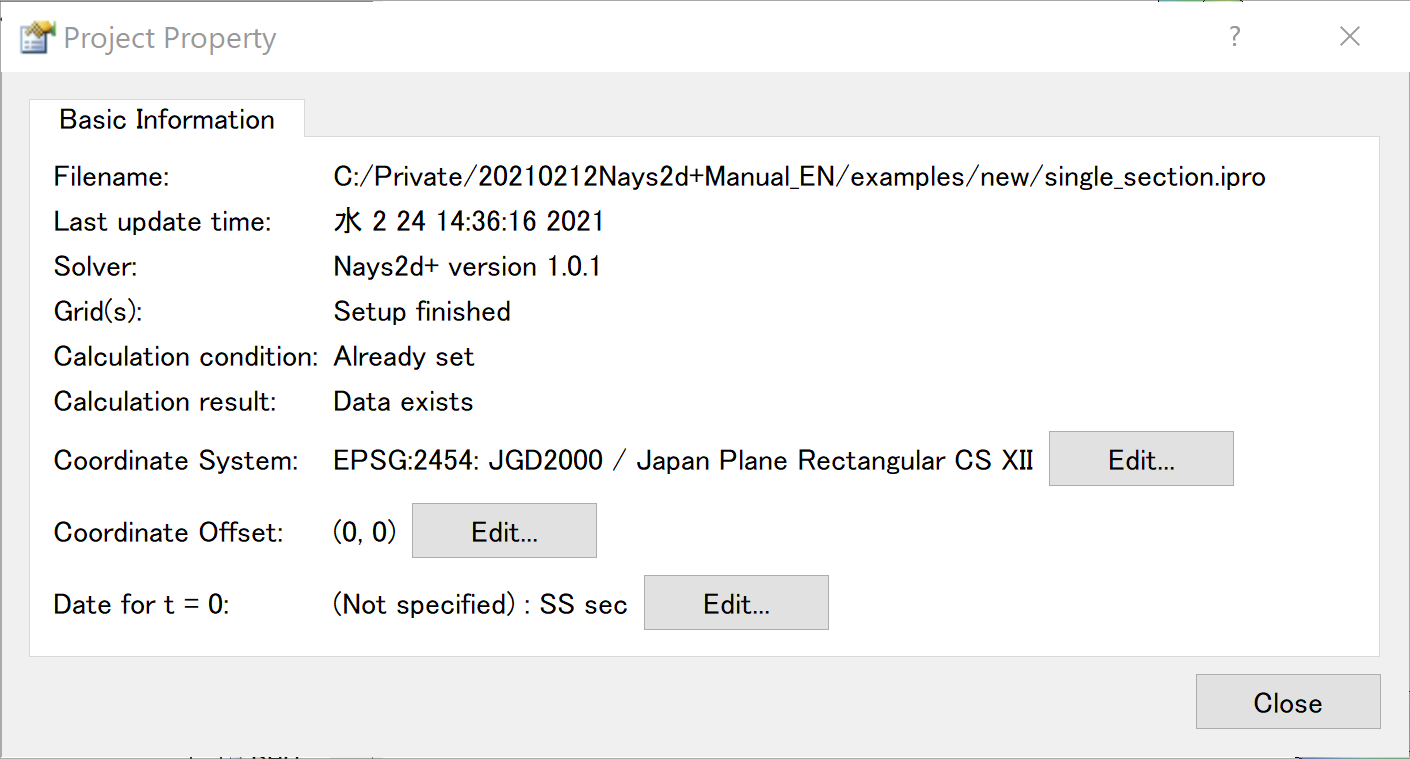
Figure 115 :Edit Coordinate System Setting
Input “Japan” in the [Search] window, and chose the one with “XII” from the items with [EPSG:….] as Figure 116 . See more detail on coordinate system of Japan at http://www.gsi.go.jp/sokuchikijun/jpc.html
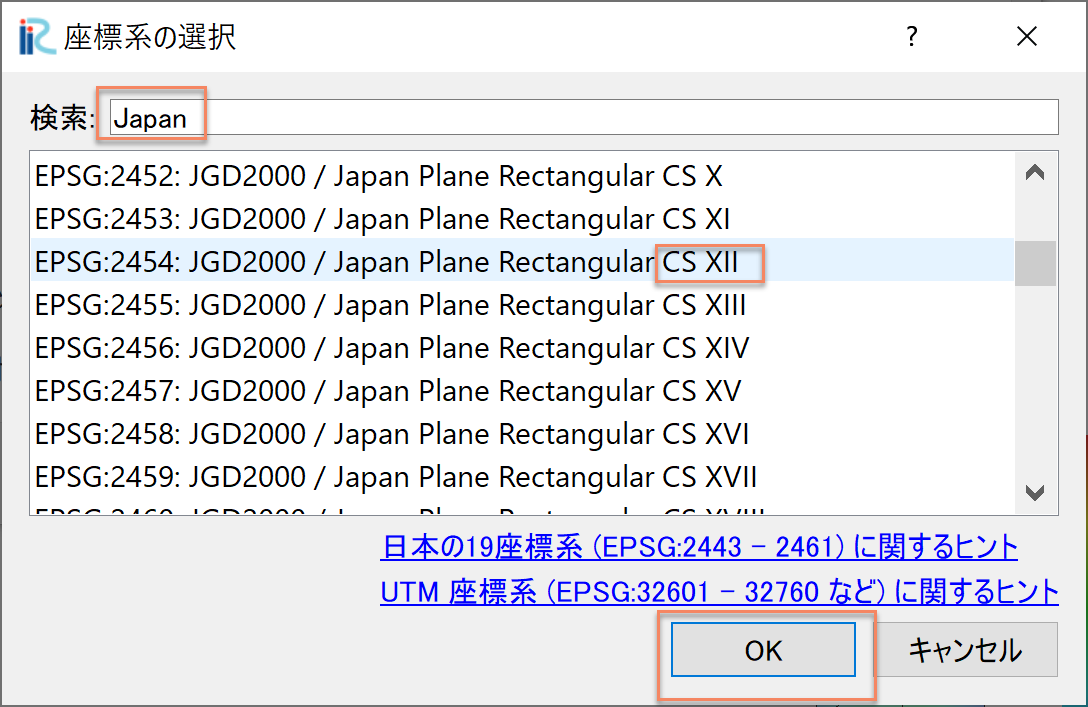
Figure 116 :Select Coordinate System
Click [Close] of [Project Property] window of Figure 117
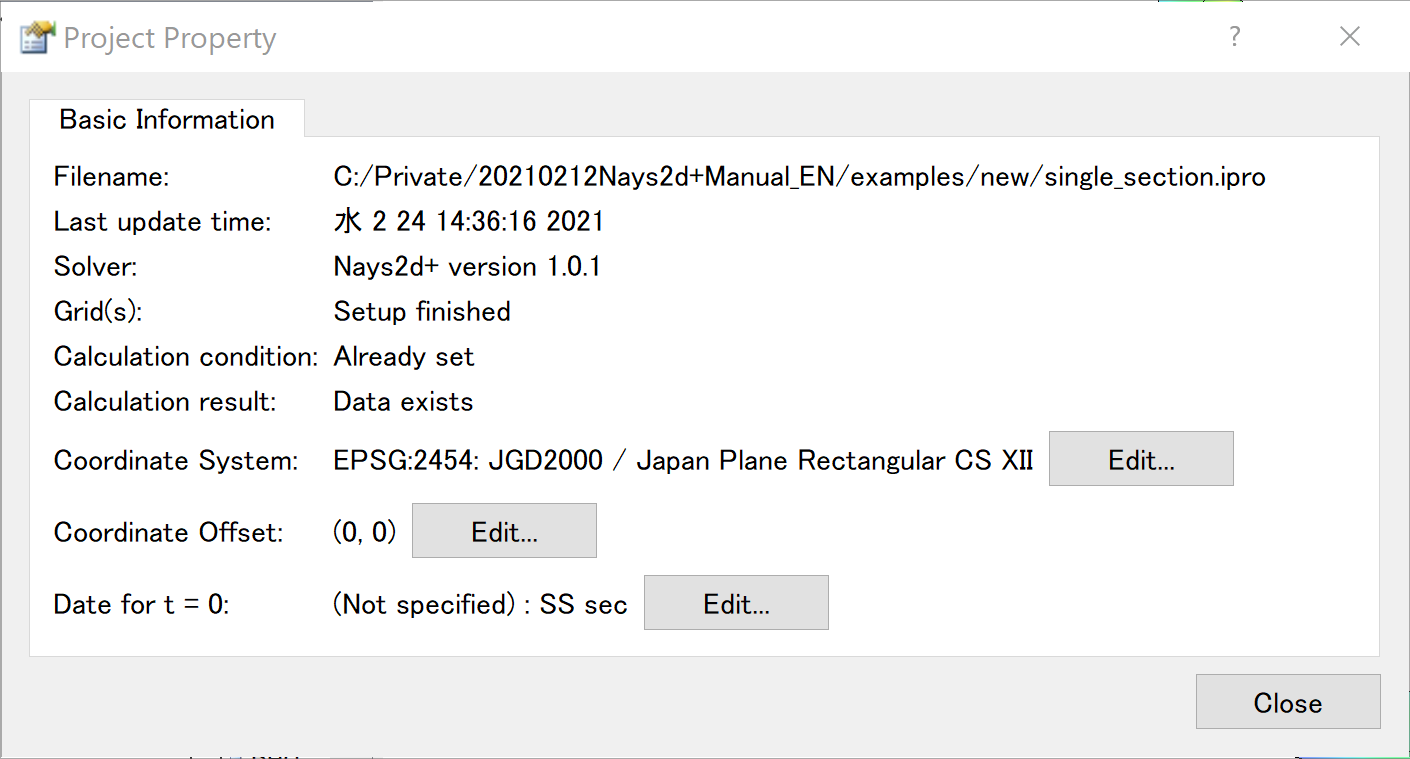
Figure 117 :Close Property Window
Put a check mark in a box in front of [Background Images(Internet)] and one of the items listed below, e.g., [Google Map (Sattelite Image)] as Figure 118
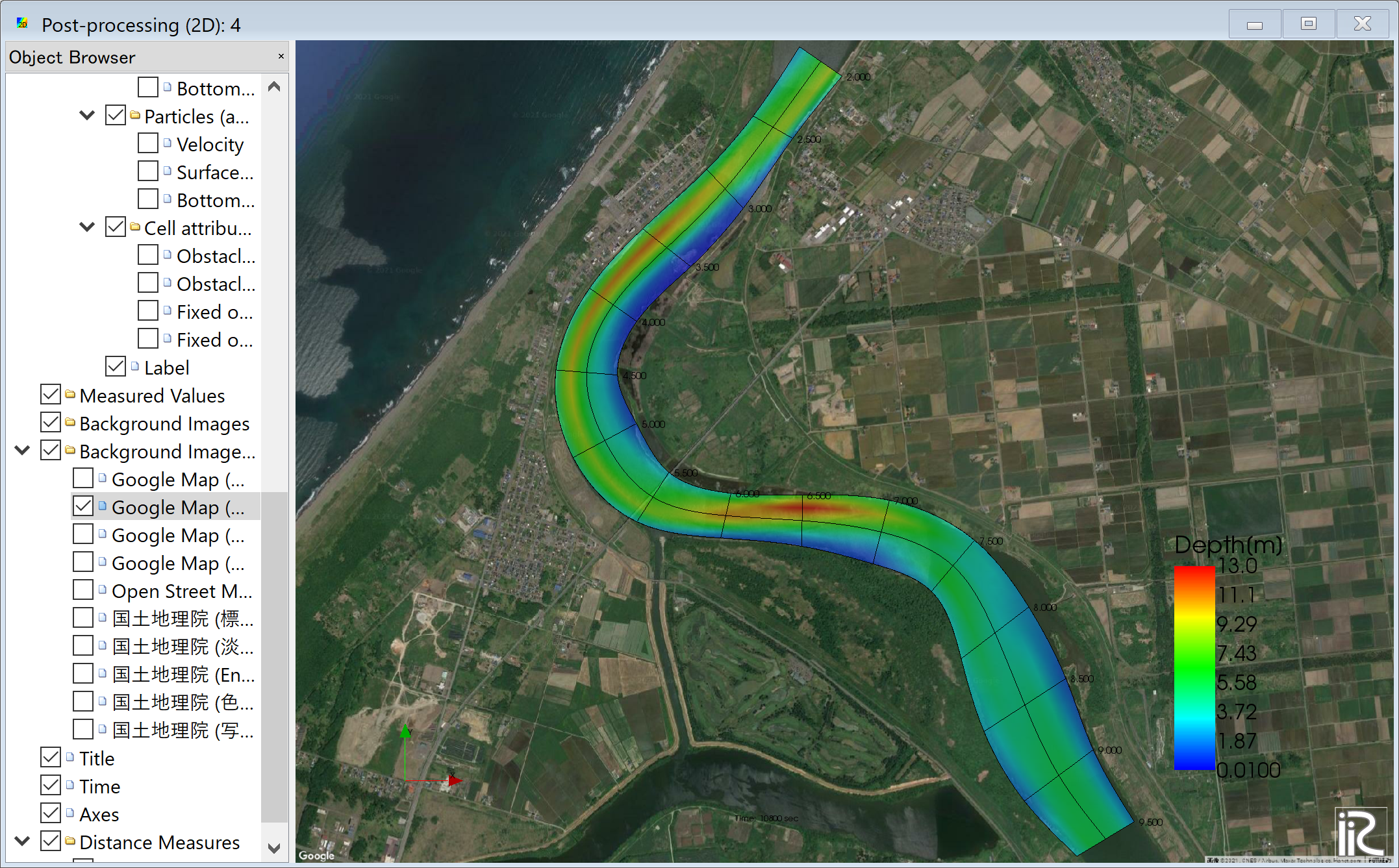
Figure 118 :Background Image Import Complete
Velocity Vectors and Streamlines
Since the operation method is the same as the previous section, it will be omitted.
Particle Animations
Put check mark at [Particles] and [Velocity] in the object browser, put time bar back to zero, and push black button, ( Figure 119 ). Particle following the depth averaged velocity starts as Figure 120 .
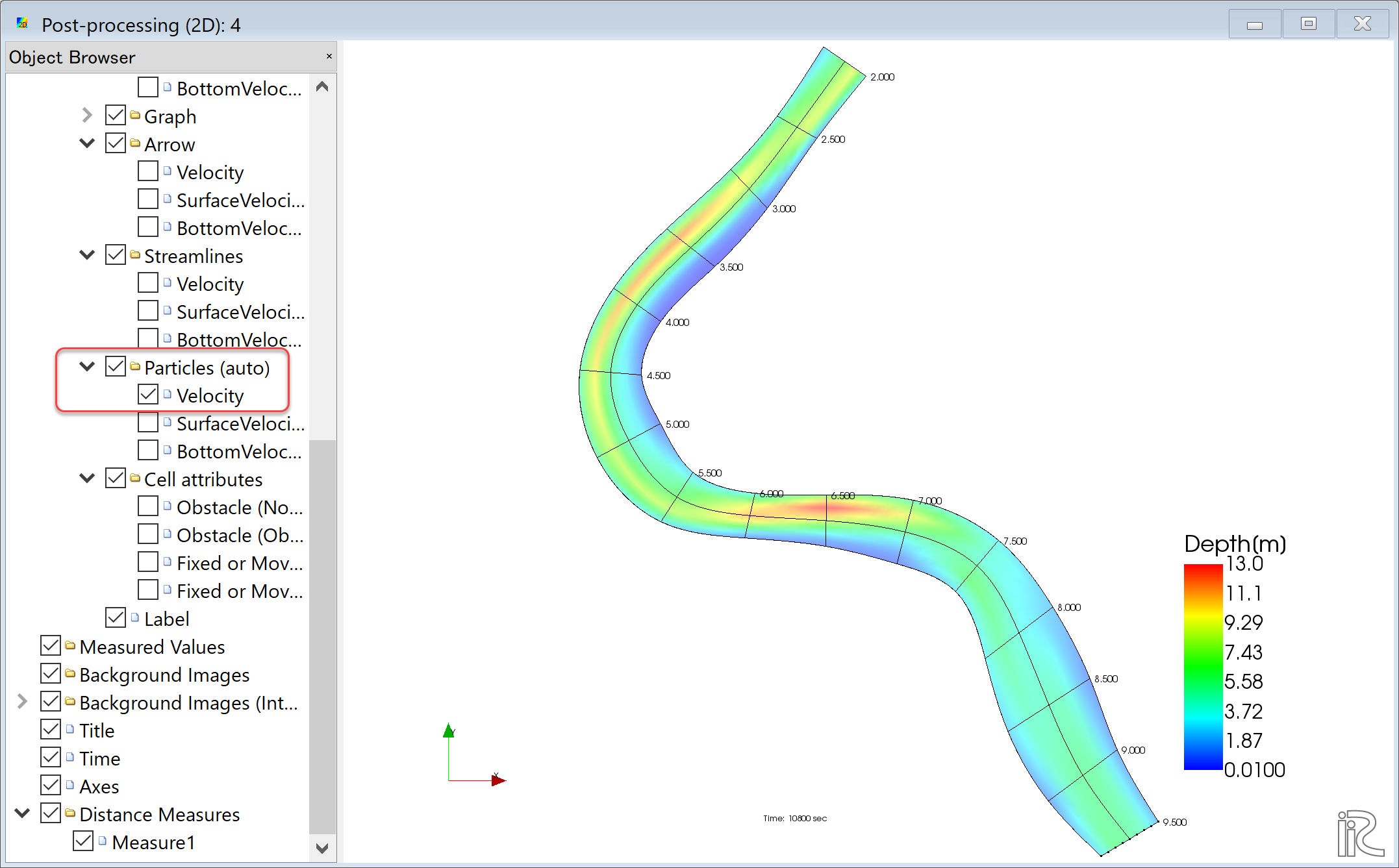
Figure 119 :Particle Animation
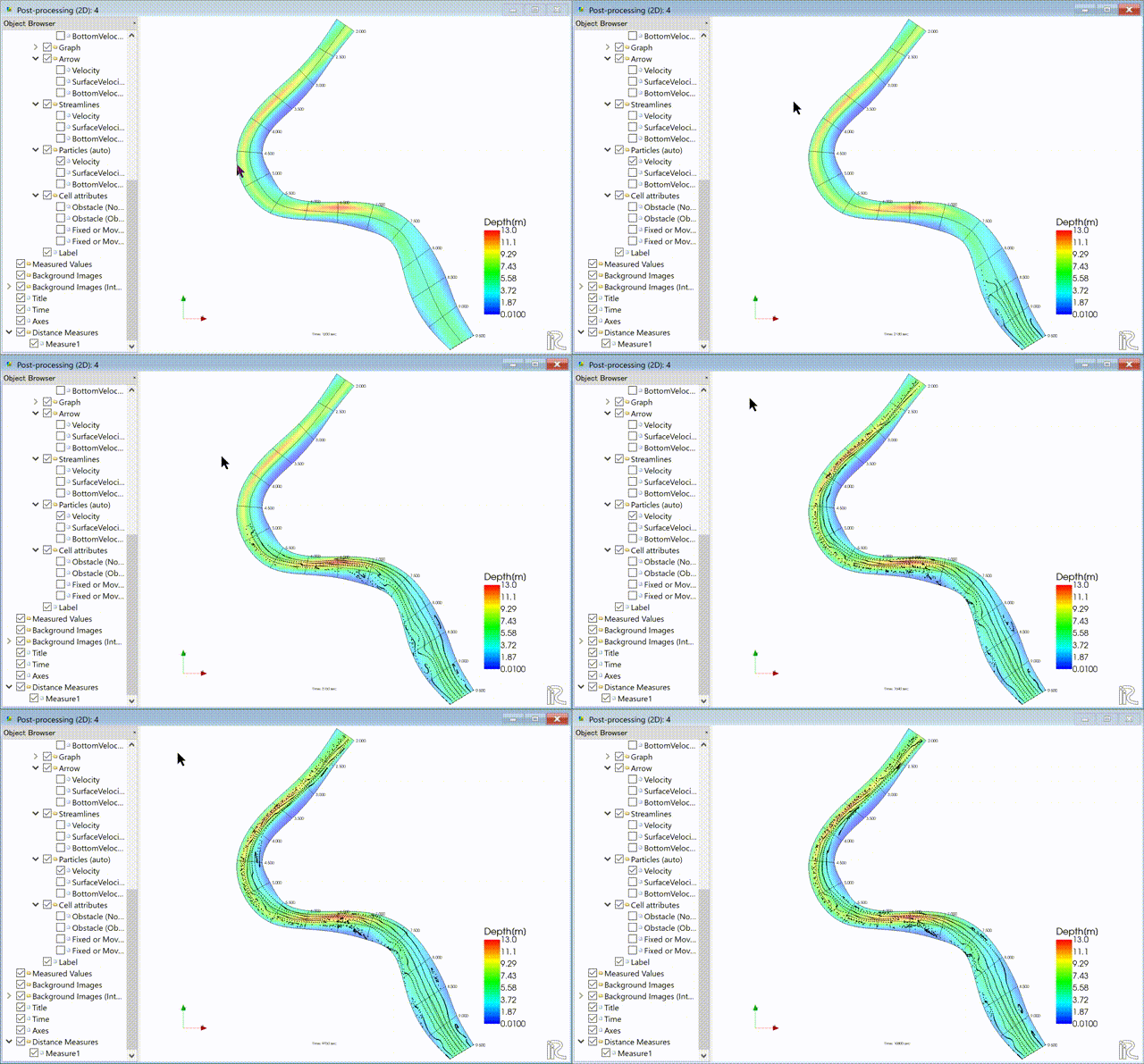
Figure 120 :Particle movement by depth averaged velocity
表面流速に乗ったパーティクルを赤色で表示する. 「パーティクル」「SurfaceVelocity」に☑を入れて,「パーティクル」を右クリックして 「プロパティ」を選択すると,「パーティクル設定画面」 Figure 121 が表示されるので,図のように設定して[OK]をクリックする. タイムバーをゼロに戻して,プレイボタンを押すと Figure 122 の 表面流によるパーティクルアニメーションが表示される.
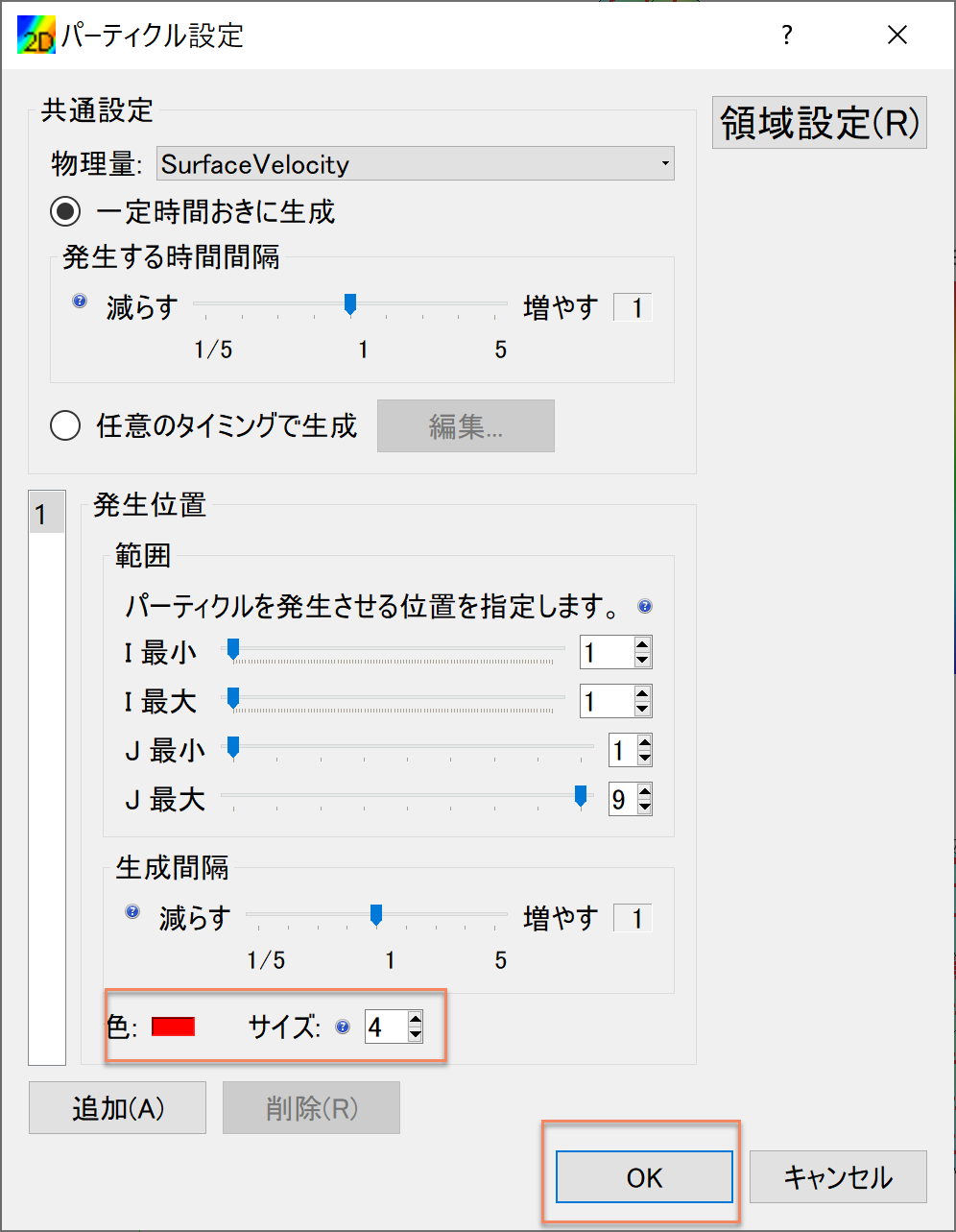
Figure 121 :パーティクル設定
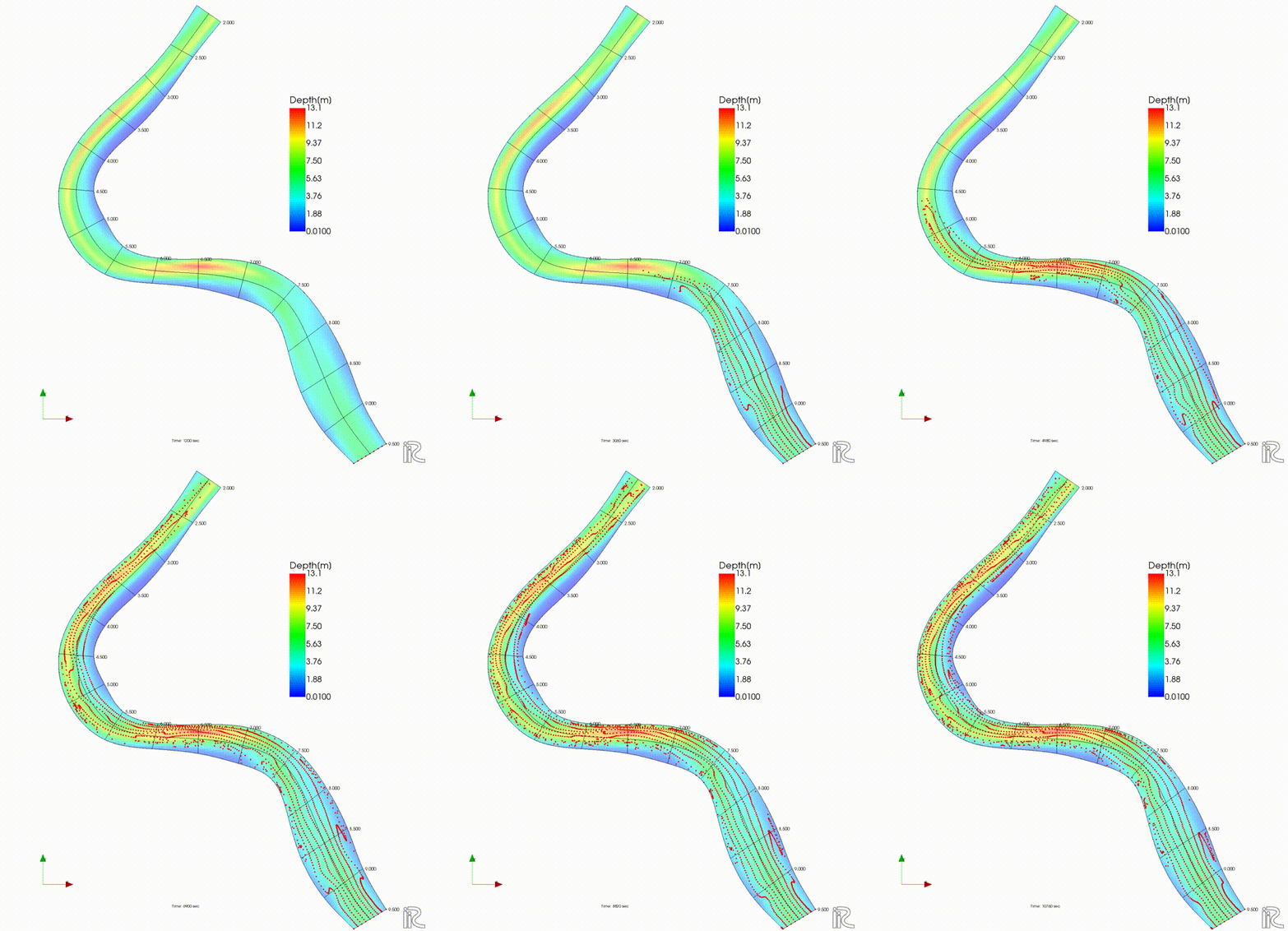
Figure 122 :表面流速によるパーティクル
同様な手続きで,「BottomVelocity」を選択すると,底面流によるパーティクルを表示出来る.
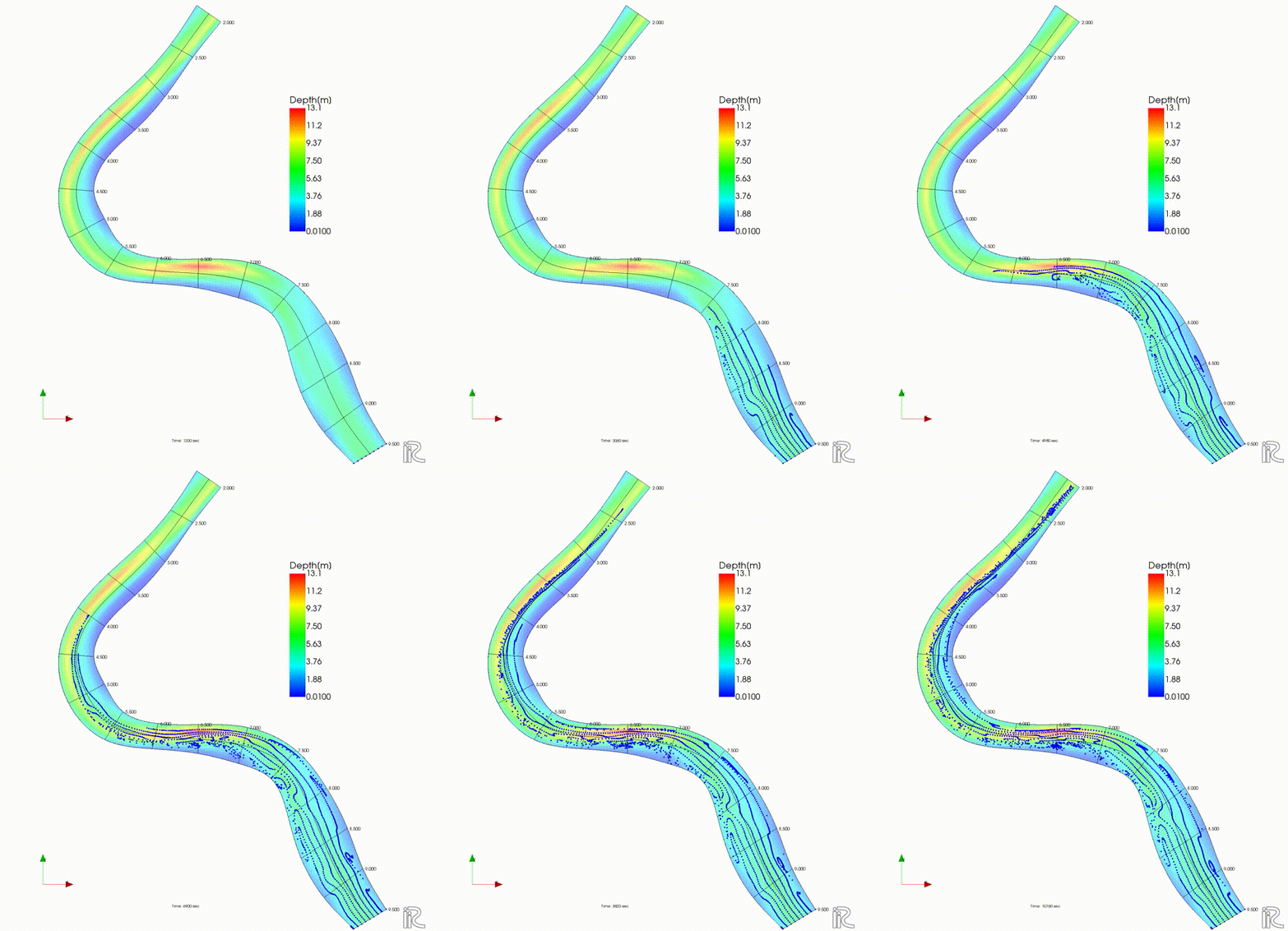
Figure 123 :底面流速によるパーティクル